
Rules (automations)
A rule does a small job for you when something happens. "When a task is marked done, tell the project lead" is a rule. You write it once. AlianHub does it every time.
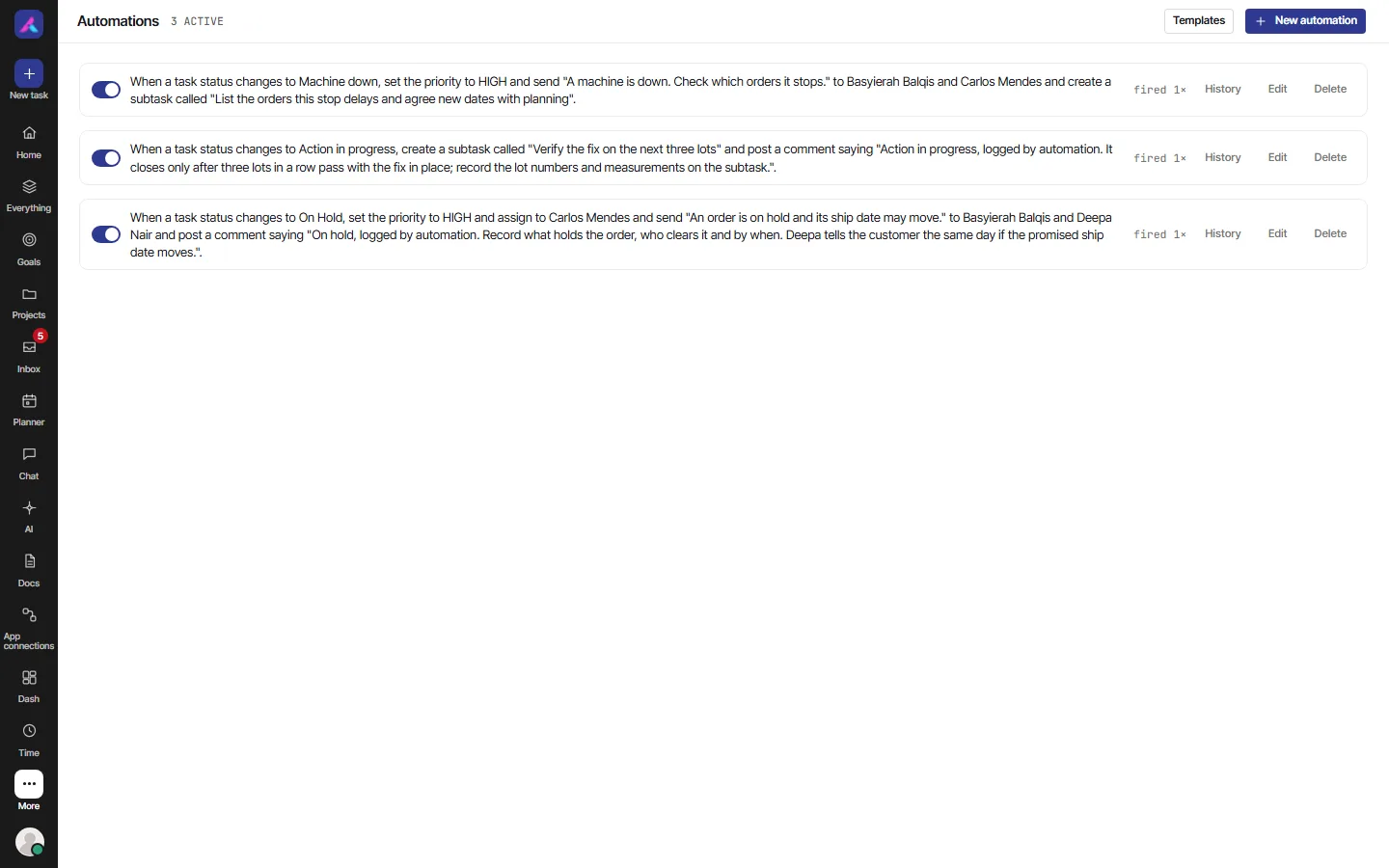
The screen calls them Automations. This page calls them rules. They are the same thing.
Where they live
Open More, then Automations (under "Work"). Owners and admins can also open a project and choose Automate at the top right. That opens Automations with the Templates list ready, and the project already picked. On a narrow screen, Automate sits in the project's menu.
Who can do what:
| Owner or admin | Everyone else | |
|---|---|---|
| See the list of rules | Yes | Yes |
| Open History on a rule | Yes | Yes, but only the runs on tasks in projects they can open |
| New automation, Templates, Edit, Delete, the on/off switch | Yes | No |
| Test on a task | Yes | No |
Everyone else reads "Only owners and admins can create, change or switch on automations." The buttons are not shown, and the switches are greyed out.
The top bar shows how many rules are on, for example "3 ACTIVE".
What one rule is made of
Every rule reads like a sentence:
When something happens, in one project or any project, If these things are true, Then do these things.
- The When part is the trigger.
- The If part is the conditions. It is optional.
- The Then part is the actions. You need at least one.
A rule works on tasks. It does not work on projects, lists, docs or people.
Make a rule
Choose New automation. You have two ways to build it. Use either, and switch whenever you like. Each one rewrites the other.
Write a sentence
Type into the box at the top, then press Enter. For example:
When a task status changes to Blocked, post a comment saying "needs help".
The shape is: "When event, if condition and condition, action and action."
The sentence is read by fixed rules. It is not AI. The same sentence always gives the same rule. If a word is unclear, AlianHub asks "ONE THING IS AMBIGUOUS" and shows buttons to pick from. If it cannot read the sentence, it lists what it could not read.
Fill in the parts
Below the sentence is "COMPILED RULE · EDIT ANY PART". Change any part with the menus. Choose + condition to add a condition and + action to add an action. The × next to a part removes it.
Draft with AI
If the sentence builder cannot read your sentence, a line appears: "The sentence builder could not read all of that. AI can draft the rule for you to review." Choose Draft with AI. It shows "Drafting…" while it works.
- Only owners and admins can use it.
- It fills in the builder. It saves nothing. A banner starts with "Drafted by AI" and says "Check every part, test it on the last 30 days, then save. Nothing is saved until you do."
- It uses only the triggers, conditions and actions on this page. A part it cannot express is listed as "I couldn't map ...". If it goes outside what rules can do, you read "The AI draft was not used, because it went outside what automations can do:" and a list of reasons.
- If AI is off, not set up, or not in your plan, you read why instead of the button. It then says to rephrase the sentence using the shape above.
Triggers: what starts a rule
These are all the triggers.
| Trigger | When it starts the rule |
|---|---|
| Task is created | A new task is made. |
| Task status changes | A task moves to another status. |
| Task assignee changes | Someone is added to or removed from a task. |
| Task priority changes | The priority changes. |
| Task lead changes | The task's lead changes. |
| Task due date changes | The due date is changed. |
| Task is renamed | The title changes. |
| Task moves sprint | The task moves to another sprint. |
| Task is updated (any field) | Any field of a task changes. |
| Task due date passes | A task is still open when its due date passes. |
| All subtasks of a task are done | The last open subtask of a task is closed. |
| Form is submitted | Someone sends a form. |
More detail:
- Task due date passes. Due dates are checked about every five minutes. A rule runs once for a task when its due date passes. If the due date is changed, it can run again. A rule only hears due dates that pass after the rule was first saved, and never more than a day back. Closed tasks never start it.
- All subtasks of a task are done. The rule runs on the parent task. A task with no subtasks never starts it. If someone reopens a subtask and closes it again, it runs again.
- Form is submitted. The actions work on the task the submission filed. If the form files no task, the task actions fail.
- Your server can switch on one more trigger, "On a schedule". The Automations screen cannot set it up. See "What a rule cannot do".
A rule does not start on:
- Things that happened before you turned it on. It only hears what happens after.
- Tasks that come in from an import.
- A change made by another rule or by an AI agent, unless you tick the box described under "Rules that start each other".
Each event starts a rule once. A rule runs a moment after the change, in the background.
Conditions: narrow it down
With no conditions, a rule runs every time its trigger happens. Each condition you add makes it stricter.
All conditions must be true. The builder joins them with "and". There is no "or" and no "not". To get an "or", make two rules.
Each condition has a field, a test and, for most tests, a value.
| Field | Tests you can pick |
|---|---|
| Status | is, is not, changed, changed to, changed from |
| Status type | is, is not, changed, changed to, changed from |
| Priority | is, is not, is any of, is none of, changed, changed to, changed from |
| Task type | is, is not, is any of, is none of |
| Assignees | contains, is empty, is not empty, changed |
| Task lead | is, is not, is empty, is not empty, changed |
| Title | contains, is, is not, changed |
| Is a parent task | is |
- Status gives a list headed "Choose a status". It lists each status name once, from the projects the rule covers. Pick a name and it matches that status in every project that has it. A project that has no status of that name never matches.
- Status type has three values: Open, In progress, Done. Use it when your projects call their statuses by different names.
- Priority has the values LOW, MEDIUM and HIGH.
- Task type, Assignees, Task lead, Title and Is a parent task take a value you type. For people, the value box wants a stored id, not a name. Use the sentence box for people instead: "it has no assignee", "it has an assignee", "it has no lead".
- "is empty" and "is not empty" need no value. "changed" needs none either.
- Changed, changed to, changed from only work on triggers that know the before and after. Those are all the triggers except "Task is created", "Task due date passes", "All subtasks of a task are done" and "Form is submitted". If you pick one anyway, the builder warns you, and saving is refused.
Actions: what a rule does
A rule does its actions in the order you list them. You can have up to 25.
Change status
One box, "Status". Type the status name as the task's project spells it. Capital letters do not matter. If that project has no status with that name, the run fails and says so.
Change priority
One menu, "Priority": LOW, MEDIUM or HIGH. There is no Urgent here.
Add a comment
One box, "Comment". The comment shows with an AUTOMATION tag and the rule's name, not a person's name. It is posted only if the rule's author can open that task's comments. See "Who a rule runs as".
Create a subtask
Two boxes, "Subtask title" and "Description". The new subtask starts in the project's opening status, with priority MEDIUM and nobody assigned. If the task cannot take another subtask, the run fails and says why.
Assign to
- How to assign: add, replace with, remove, unassign everyone.
- People: "Choose people". The list has "The task creator", "The form submitter" (only on a form rule), and your active members. There is a search box, "Search people". "unassign everyone" needs no people.
- Take turns: a tick box. It shows only for "add" or "replace with", and only when you chose two or more people. Each run gives the task to the next person in the list.
What it does:
- It adds or removes people the same way the task panel does. The task's activity shows a line such as: Automation "your rule" has added Sam to Assignee. People are told as they would be for any assignment.
- It never assigns an AI agent, someone who is no longer an active member, or someone who cannot open the project. They are skipped, and History says why: "not an active member", "cannot open this project", "agents are not assigned".
- "The task creator" and "The form submitter" are skipped when there is no such person: "the task has no creator" or "the submitter was not signed in".
- With "replace with", if nobody on your list can be assigned, the task keeps its people.
- "The task creator" means the task's lead. If the lead changes, so does who this means.
Send a notification
- Recipients: "Choose who to notify". The list has "The assignees", "The task creator", "The watchers", and your members. Search with "Search people". At most 50.
- Message: "What should it say?" Up to 500 characters.
- Also notify the person who caused it: a tick box. Off by default.
What it does:
- Each person gets it in their Inbox, shown as "rule name: text". They also get a push or an email if their notification settings ask for it.
- It tells only active members who can open the task. Others are skipped, with the reason "not an active member" or "cannot open this task".
- The person who made the change is left out unless you tick the box. History says "caused the event".
- A rule tells the same person at most 30 times in one hour. After that, History says "already notified too often this hour".
- It sends nothing outside AlianHub of its own. It cannot send an email, a Slack message or a webhook.
Run an AI agent
Two fields: "Agent (name)" and a skill chosen from a list. It starts one of your agents on the task. See Work with your own AI app.
- The agent must exist in your workspace, and be allowed to work in that project.
- All of the agent's own limits still apply, such as being paused, its daily limit and what it may do. A change that needs approval waits in the AI Inbox.
- The run is recorded as started by the rule's author.
Words that fill themselves in
In a comment, a subtask title, a description or a notification message, you can write {{task.TaskName}}. It becomes the task's title when the rule runs. The screen gives no hint of this. A name that does not exist becomes empty text.
Templates
Choose Templates at the top. It opens "Start from a template". The line under it says: "Pick a recipe to open it in the builder. Nothing is saved until you review it and save."
- Search templates finds words in the names and descriptions.
- Use in picks a project, or "Any project". The template's statuses come from that project.
- The buttons All, Status, Assignment, Dates, Priority, Subtasks and Forms filter the list.
- Use template opens the recipe in the builder. Review it, then save.
- Close templates (the ×) hides the list.
A template that names a person leaves that spot empty. Pick someone before you save.
The 16 templates:
- Status: Hand finished work back to its creator. Leave a note when a task is done. Tell the creator when their task is done. Raise the priority of reopened work.
- Assignment: Assign new tasks to someone. Share new tasks out in turn. Flag tasks left without an assignee.
- Dates: Raise the priority of overdue tasks. Ask why a due date moved. Raise low-priority tasks whose due date moves.
- Priority: Bring someone in on high-priority work.
- Subtasks: Close a task when all its subtasks are done. Check subtasks when a parent task is done. Add a review step to every new task.
- Forms: Assign form submissions to someone. Mark form submissions as high priority.
Try it before you turn it on
There are three previews. None of them changes a task, sends a notice or runs an action.
Test on last 30 days
In the builder, choose Test on last 30 days. The button then shows a count such as "12 in the last 30 days", and a line saying what was counted.
- It counts tasks, from projects you can open, that the trigger would have reached in the last 30 days and that match the conditions today.
- It does not replay what happened. It looks at each task as it is now. Conditions with "changed", "changed to" or "changed from" are ignored, because the old value is gone.
- For an assign or notify action it also says who it would reach: "Assigns ...", "Takes turns between ...", "Notifies ...".
Test on a task
When you edit a saved rule, a line "Test the saved rule on" appears. Pick a project and a task, then choose Test on a task. It says "Tests the saved version of this rule against the task as it is now. Nothing is changed and no action runs."
- The answer is one of "Would run", "Would run once the rule is switched on", "Would not run now" or "Would not run".
- Each action is marked "would run" or "would not run". It shows the words it would use, who it would assign ("Would assign: ...") and who it would notify ("Would notify: ...").
- It tests the saved version. Save your changes first.
- It works for rules that start from a task, not for form rules.
- Only owners and admins can use it, and only on a task they can open.
The card in the AI Inbox
When your AI app proposes a rule, it waits for you as a card headed "New automation". It shows "Starts when", "Rule", each "Step", "Works on", "Once approved", "Last 30 days" and "For example".
- It says "Saved in your name and switched on straight away" or "Saved in your name, switched off until you turn it on".
- "Works on" says: "Tasks of this project, each time one meets the rule after it is switched on. It does not run on what happened before."
- An AI app can propose only a rule that starts from a task, for one project. It cannot propose "Run an AI agent" or the box below.
- Only an owner or admin can approve it. See Approve, decline or edit in the Inbox.
Save, switch on and off, edit, delete
- Save automation: saves a new rule and turns it on at once.
- Save as draft: saves a new rule switched off.
- Cancel: leaves without saving.
- When you edit a saved rule, both save buttons save your change and leave the switch as it was.
- The switch at the left of each row turns the rule on or off. Its label is "Turn on" or "Turn off". It takes effect at once. A rule that is off is dimmed.
- Edit opens the rule in the builder. Delete removes it. There is no "are you sure" step, and there is no way to bring a deleted rule back.
- Whatever you change in a rule applies to later events. It never goes back over earlier ones.
- A rule with a status condition whose status was later deleted shows "This condition names a status that doesn't exist: {status}". Edit it and save to clear that.
A form has its own short list. In the form builder, Add a rule under "Then, automatically" makes a rule that works on the task a submission files. It is switched on when you save it. These are normal rules. They also show on the Automations page.
Run history
Choose History on a rule. A panel called "Run history" opens. Each row is one time the rule started:
- When it started, and how long it took.
- What started it.
- The task. Select its key to open the task.
- The outcome, and what each step did.
| Outcome | Meaning |
|---|---|
| Actions applied | It finished. |
| Skipped | It stopped on a condition that did not hold. |
| Failed | It stopped with an error. The step shows the reason. |
| Retrying | It hit a temporary problem and will try again. |
| Matched, running | It is running now. |
| Matched, queued | It is waiting its turn. |
- Step lines say things like "no change needed", "assigned ...", "notified ..." and, for people left out, "Skipped: ..." with a reason.
- A temporary error is tried up to three times in all, with a wait of 30 seconds, then 2 minutes. A permanent one, such as a status that does not exist, fails at once.
- The panel shows the 50 most recent runs: "Showing the {n} most recent runs." It does not page.
- The count on the row, "fired 5×", counts every run, including failed ones.
- Close it with Close run history.
A change a rule makes is also written to your workspace's audit trail, for example "An automation changed the status". It is filed under the rule's name.
Who a rule runs as
A rule has no login of its own. It belongs to a person, its author. That is whoever first saved it. Editing it, switching it on or off, or a teammate editing it later does not change the author.
- A rule your AI app proposed belongs to the person who approved it.
- A rule that came along when you copied a project belongs to the person who copied it, and it is switched off. Only owners and admins copy rules. For anyone else, the copy leaves them out.
How it shows
- A comment: the AUTOMATION tag and the rule's name.
- An assignee change: in the task's activity, as Automation "rule name".
- A notification: in the Inbox as "rule name: text". An unnamed rule shows as "Automation".
- A status, priority or subtask change: in the audit trail under the rule's name.
- An agent run: started by the author, through the agent.
A rule's name is its sentence, cut to 120 characters. You are never asked for a name.
What the author's access decides
When you save, the author must be an owner or admin. If the rule is for one project, the author must also be able to edit that project. After that, a rule does not check its author again, with one exception. A comment is posted only if the author can still open that task's comments.
So:
- Change status, Change priority, Create a subtask, Assign to and Send a notification do not check what the author may do on that task. A rule covering "any project" can change tasks the author cannot open. Be careful who you let make rules.
- Add a comment fails if the author can no longer open that task. History says: "the task's comment thread is not one the person this runs for can open". It is not tried again.
- If the author is removed from the workspace, or demoted, the rule stays on and keeps running. The comment steps fail, as above. The other steps still work. Steps that ran before a failing step stay done.
- If the author is demoted from owner or admin, the rule still runs. It does not need that role to run.
- No screen changes a rule's author. To fix a rule whose author is gone, make the rule again as someone who can open the tasks, and delete the old one.
Rules that start each other
Under the actions is a tick box: "Also run when another automation or an agent made the change".
- Off (the default): a change made by a rule or an AI agent does not start this rule. This stops two rules from starting each other forever.
- On, you read: "Automations can then start one another. A chain of changes made by automations or agents stops after three in a row, so two rules cannot keep starting each other."
- Even with the box ticked, a change from an import never starts a rule.
What a rule cannot do
- Wait. There is no "after two days" and no delay. The only time-based trigger is "Task due date passes".
- Run on a schedule. If your server has switched on the workflow engine, a trigger called "On a schedule" appears in the When menu. The Automations screen has no place to set the schedule, so a rule using it cannot be saved here.
- Run on old tasks. A rule never goes back over what happened before it was on. Test on last 30 days counts. It does not run anything.
- Choose "or". Conditions are all "and".
- Branch. There is no "otherwise".
- Run on several projects, or on a list or folder. A rule is for one project or for any project. You cannot pick two projects.
- Act on anything but tasks. No action touches a project, list, doc, goal or person.
- Do these things to a task: create a new task, set a due date, change the lead, add a watcher, tag it, fill a custom field, move it to another list or project, log time, or delete it. Only the seven actions above exist.
- Send something outside AlianHub. No email, Slack message or webhook of its own.
- Be capped by the hour. There is no limit on how often a rule runs in an hour. The limits that do exist: 25 actions in a rule, a chain of three in a row, 30 notices per person per rule per hour, 50 people and 500 characters in one notification, and whatever limits an agent has of its own.
- Run if the engine is off. If the person who runs your server has switched the automation engine off, rules save but never run.
- Be written by everyone. Only owners and admins make or change rules. Everyone can read the list.
- Run twice for one event. If an event is delivered twice, the second is dropped.
Other things called rules
AlianHub has three other places that use the word. They are not these rules.
- Assignment rules. In a project's details, a card called "Assignment rules". You write, for each person, when they should get a task. AI then suggests or makes an assignment for a task that nobody has. It needs AI to be on. It does not use triggers or actions, and it is edited by people who can edit the project's details. The Assign to action in this page does something different: it assigns by a fixed rule you write.
- Integrations & Automation, Automations tab. An older page with Create rule and Apply now. A rule there sets a priority on every matching task, once, when you press Apply now. It does not run by itself. Its rules do not appear on the Automations page.
- Permission rules. The settings that say who may do what in a project. They change what people may do. They never do work.
Related
- Chat and the Inbox, where a rule's notifications arrive
- Limits and pause, if a rule runs an agent
- Templates
- Tasks