
Integrations
Integrations connect AlianHub to the tools your team already uses. You can sign in with Google or GitHub, turn emails into tasks, see due dates in your calendar, send task events to Slack or Discord, link GitHub pull requests to tasks, attach files from Google Drive, and connect your own AI app.
This page lists every integration in AlianHub, where to set it up, and who can do it.
At a glance
| Integration | What it does | Where | Who sets it up |
|---|---|---|---|
| Sign in with Google, GitHub or GitLab | Log in without a separate password | Log-in page | The person who runs your server |
| Company sign-in (SSO) and SCIM | Log in through your company's identity provider; add and remove members automatically | Settings, Sign-in & SSO and SCIM | Owners and admins |
| Email to Task | Mail sent to a project's address becomes a task | Integrations, Email to Task | Anyone who may create tasks in the project |
| Calendar feed | Your due dates in Google Calendar, Outlook or Apple Calendar | Integrations, Calendar | Anyone, for themselves |
| Slack slash commands | Run /alianhub commands from Slack | Integrations, Slack | Owners and admins |
| Outgoing webhooks | Send task events to Slack, Discord or any web address | Settings, Integrations | Members, for their own webhooks |
| GitHub pull requests | Link pull requests to tasks and move tasks on merge | App connections | Owners and admins |
| Embedded apps | Show an outside tool as a panel inside AlianHub | Integrations, Apps | Owners and admins |
| Google Drive and Dropbox | Attach files straight from your cloud storage | Settings, Integrations | Anyone, for themselves |
| Slack messages from agents | Let agents propose messages to Slack channels | AI, Connections | Owners and admins |
| Your own AI app | Claude, ChatGPT or another AI app works in AlianHub for you | AI, Connect your AI | Anyone, for themselves |
| Importers | Bring work in from ClickUp, Jira, Trello, Asana, Monday.com or CSV | Settings, Import & export | Owners and admins |
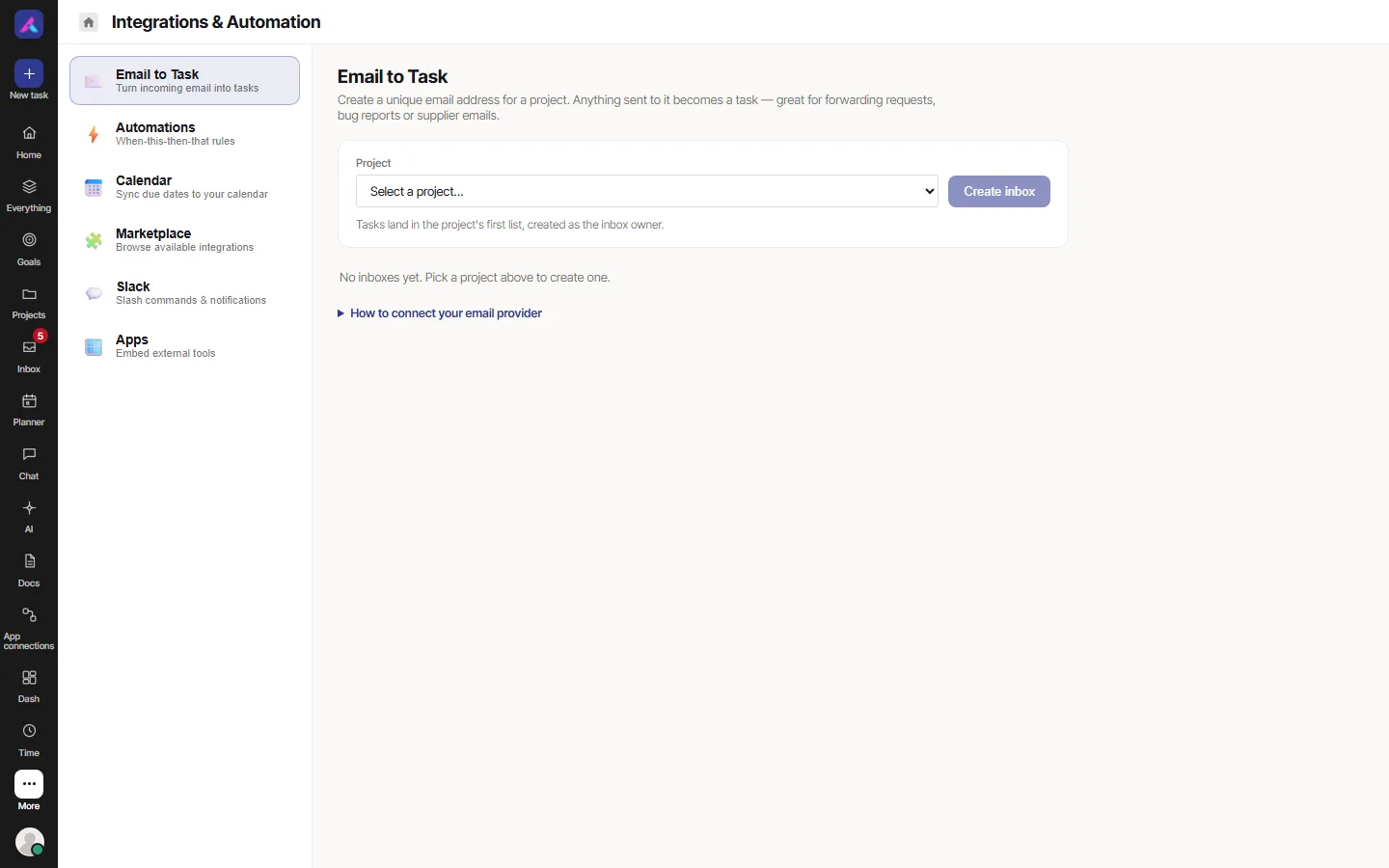
Integrations opens from More, in the Work group. Its page is titled Integrations & Automation, with a list of categories on the left.
Sign-in
Google, GitHub and GitLab
The log-in page shows Continue with Google, Continue with GitHub or Continue with GitLab when the person who runs your server has set them up. You sign in with that account's email, so it must match the email your workspace invited.
Company sign-in (SSO)
If your company uses an identity provider such as Okta or Azure AD, owners and admins can set up Sign-in & SSO with SAML 2.0 or OIDC. People then choose Continue with company sign-in (SAML / OIDC). People on a verified domain can sign in with SSO; everyone else needs an invitation.
SCIM lets the identity provider create, update and deactivate members automatically. New members get the default role you choose.
Setup details are in Sign-in: OAuth, SSO and SCIM.
Email to Task
Give a project its own email address. Anything sent to it becomes a task. It suits forwarded requests, bug reports or supplier emails.
- Open Integrations, then Email to Task.
- Under Project, pick a project.
- Select Create inbox. AlianHub shows the Inbox email address.
- Your mail provider must pass incoming mail to AlianHub. The person who looks after your mail adds a route for that address, pointing at the Email provider callback address shown on the card. Providers such as Mailgun, SendGrid, Amazon SES and Postmark support this.
- Send a test email. A task appears in the project within seconds.
Good to know:
- Tasks land in the project's first list, created as the person who made the inbox.
- Each inbox shows how many emails it has received. Pause stops it filing tasks; Resume starts it again.
- Only the person who made the inbox, an owner or an admin can pause or delete it.
- If the person who made it can no longer open the project, the card warns that mail is not being filed.
Calendar feed
Subscribe to a live, read-only calendar of task due dates.
- Open Integrations, then Calendar.
- Under What to include, choose My tasks or A project's tasks.
- Select Create feed.
- Copy the Calendar subscription URL (iCal) at once. For your security it is shown only once.
- In Google Calendar, Outlook or Apple Calendar, choose "Add from URL" (or "Subscribe to calendar") and paste it.
The feed updates by itself. If the link leaks, select Regenerate link: calendars using the old link stop updating.
Slack slash commands
Owners and admins can let people run /alianhub commands from your Slack workspace.
- Open Integrations, then Slack.
- In your Slack app's settings, copy the verification token into Slack verification token, and optionally set a Default channel. Select Connect Slack.
- In Slack, create a slash command
/alianhuband paste the request address AlianHub shows. - In Slack, run
/alianhub helpto check it works.
The commands are /alianhub help and /alianhub projects.
Outgoing webhooks
A webhook sends a message to another app when something happens to a task. Use it to post task updates to a Slack or Discord channel, or to feed your own tools.
- Open Settings, then Integrations.
- Select Add a webhook.
- Pick a Destination: Slack, Discord, or any web address.
- Give it a Name and paste the Webhook URL.
- Slack: Apps, Incoming Webhooks, Add to a channel, then copy the URL.
- Discord: the channel's Edit, Integrations, Webhooks, New Webhook, then copy the URL.
- Under Events, choose All task events, or some of Task created, Task updated, Task deleted, Task archived and Task restored.
- Select Create webhook.
- AlianHub shows a signing secret once. Save it if your own tool checks that messages really come from AlianHub.
Each webhook shows whether it is Active or Paused, and Logs lists each delivery with its status and time. If a webhook says Needs attention, delete it and add it again.
GitHub pull requests
Connect a GitHub repository so pull requests show up on the tasks they are about.
- Open App connections in the left bar.
- On GitHub, select Connect and sign in to GitHub. If one-click GitHub is not set up on your server, use a personal access token instead.
- Pick the repository it reads.
- Select Link projects and choose the projects it feeds.
What happens then:
- When a pull request names a task key (such as
WEB-42), the task gets a link to the pull request and a comment. - When that pull request is merged, the task gets a comment and moves to its project's review status, if it has one and is not already finished.
Only owners and admins can connect, pause or disconnect apps. Each connection shows its last sync, its last error and the projects it feeds. Secrets are never shown.
Embedded apps
Show an outside tool, such as a dashboard, a BI board or docs, as a panel inside AlianHub.
- Open Integrations, then Apps.
- Type an App name and an Embed URL (https://…), and select Add app.
- Select the app's tab to open it. The ✕ on the tab removes it.
Only owners and admins can add or remove an app. Only https addresses work, and the other site must allow being shown inside another page. Some sites block it.
Google Drive and Dropbox
Attach files straight from your own cloud storage instead of uploading them.
- Open Settings, then Integrations, and find Cloud storage for attachments.
- On Google Drive or Dropbox, follow the setup steps, then select Connect my account.
- When you attach a file to a task, choose the provider and pick the file in its own picker.
Your connection is private to you. Nobody else in the workspace can see or change it, and uploading from your computer works as before. If it says "Your access expired — connect again.", connect again.
Agents and Slack
Owners and admins can let AlianHub's agents propose messages to Slack. Open AI, then Connections, and set up Slack messages from agents. You choose which public channels agents may post to and, separately, which they may read.
Nothing is posted until an owner or admin approves the exact channel and text in the AI Inbox. Private channels and direct messages are never read. See Agents in AlianHub.
Your own AI app
Connect Claude, ChatGPT, Claude Code or any AI app that supports MCP, so it can find, add and update work for you. It sees and changes only what you can. See Connect your AI.
Moving in from another tool
Settings, Import & export brings tasks in from ClickUp, Jira, Trello, Asana, Monday.com or a CSV file. See Import from ClickUp for a full walk-through.
Good to know
- The Marketplace in Integrations also lists Microsoft Teams, Zapier, GitLab and two-way Google Calendar sync. You can save their details, but they do not send or sync anything yet. Use outgoing webhooks for chat updates, and the calendar feed for due dates.
- My connections (in AI, Connections) lets you connect your own Google account, but nothing reads or writes your calendar yet.
- An agent can use a connection only if it is in that agent's allowed actions. Connecting an app does not give agents access.
- The Automations category in Integrations holds simple bulk rules, such as "bump all low-priority tasks in a project to high". For full rules that run when something happens, see Rules (automations).