
Time and timesheets
You log the hours people spend on tasks. AlianHub adds them up on a weekly timesheet. Each person sends their week in, and an owner or admin approves it. This page covers every way to log time, the weekly timesheet, billable time, who can see and do what, and the limits.
Time is always logged against a task. You cannot log time on a project or a list on its own.
The timesheet screens are being reworked
The screens under Time are changing. This page describes what they are for and the main steps. Button positions and tab names may differ slightly from what you see.
Where time lives
| Place | What you do there |
|---|---|
| A task, in its Time part | Start a timer. Add time by hand. See, edit and delete the entries on that task. |
| Time in the left bar | Open your weekly timesheet and, if your role allows, the other timesheet screens. |
| Log time on your timesheet | Log hours on any task assigned to you. |
| Approvals | Owners and admins review submitted weeks. See Approvals. |
| The desktop tracker | Records time and screenshots from your computer. See Desktop time tracker. |
The Time part of a task shows only when the project's Time Tracking app is on. You choose it under Apps when you make a project, or later in Settings, then Projects, then Apps.
Start a timer
- Open a task and find Time.
- Select Start timer. A clock appears with Pause and Resume.
- When you are done, select the stop button, named Stop and log time. A toast says "Time logged".
You can also start a timer from a task row on Home, where the buttons read Start timer, Pause, Resume and Stop & log. While a timer runs, it shows at the top of your timesheet with a Stop link.
Good to know:
- You have one timer at a time. Starting a timer on another task stops the first one and logs it. A toast says "Stopped the timer on" and the task key.
- A timer that ran for less than a minute logs nothing.
- You cannot start a timer on a task that is done. Reopen the task first.
- You cannot start a timer on a day inside one of your approved weeks.
- If a timer cannot be saved when you stop it, it keeps running and nothing is lost. If the day is in an approved week, ask an approver to reopen the week, then stop it again.
- The timer lives in the browser you started it in. It does not follow you to another device or browser.
- Timer entries are billable. You can change that afterwards (see Billable time).
A timer left running
If a timer has run for 12 hours or more, the Log time form shows a box headed "Timer left running overnight". A desktop tracker session left open from an earlier day gets the same box. It offers:
- Trim to 3h: saves the entry as 3 hours long.
- Edit: puts the task and hours into the form so you can type the right time and log it.
Log time by hand
On a task
- In the task's Time part, select Add time.
- Fill in the form:
| Field | What it takes |
|---|---|
| Date | The day the work happened. |
| Start | The time you started. |
| Hours | Whole hours, 0 to 23. |
| Minutes | Whole minutes, 0 to 59. |
| Note | What you did. Up to 500 characters. Left blank, it reads "Logged from the task". |
| Billable | A tick box. Ticked to start with. |
- Select Save time. A toast says "Time saved".
The entry has to end by midnight, so pick an earlier start if the hours do not fit. The task's Time part also shows a bar of time logged against the estimate, and each entry with the person, the day and the note.
On the Log time form
- Open Time in the left bar, then select Log time. A panel opens at the side (on a phone, as a page).
- Task: pick from Recent (tasks on this week's timesheet) or Assigned to you, or search.
- Hours: type 1:30, 1.5, 1h 30m or 90m. The buttons +15m, +30m and +1h add to it. Round to 15 rounds what you typed to the nearest quarter hour.
- When: Today, Yesterday or Custom. You cannot pick a day after today.
- Add a Note if you like, and tick or untick Billable.
- Select the button that reads Log and the hours, such as "Log 1:30".
For today the entry ends now. For an earlier day it ends at 18:00. You can also select a day's cell on a task row of your timesheet: the same form opens with the task and day filled in.
Edit or delete an entry
You change entries from the task, in its Time part. The weekly timesheet is for reading and adding time, not for changing entries.
- Edit opens the entry in the form. Save time keeps your change.
- The bin button, Delete time entry, asks "Delete?" in place. Select it again to confirm.
- A lock beside an entry means it is in an approved week. It cannot be changed.
- A monitor beside an entry means it came from the desktop tracker. It cannot be edited or deleted here.
- An entry that is still running shows "Running".
Edits and deletes are written to the task's history.
The timesheet screens
Time in the left bar opens the timesheet. Depending on your role and your workspace plan, you may see several screens:
| Screen | What it is for |
|---|---|
| Your own timesheet | One week of your time, a row for each task. |
| Project time | Time logged against projects, for people who may see it. |
| Workload | How busy people are against their capacity. See Workload. |
| Tracker | Recordings and screenshots from the desktop tracker. |
| Approvals | Weeks, time off and agent proposals waiting for a decision. |
You see a screen only if your role has it. Some also need a plan that includes them; without it, the screen offers an upgrade.
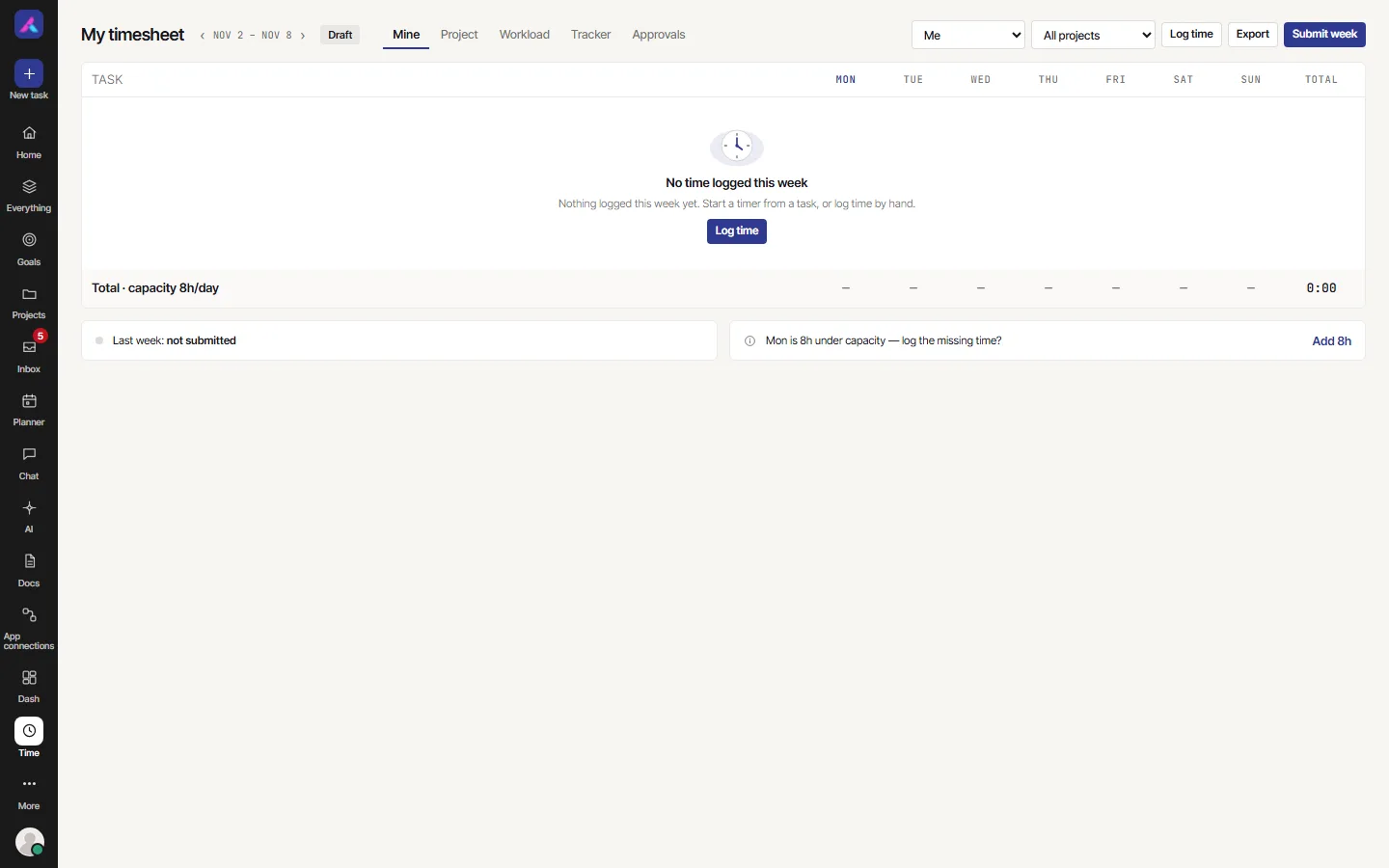
Your weekly timesheet
Your timesheet shows one week, Monday to Sunday. Each row is a task and each column is a day, with totals for each task and each day.
- Arrows beside the date range move between weeks.
- A project filter narrows the rows. It only changes what you see; a submit still covers the whole week.
- Select a day's cell to add time to that task on that day. Days after today, and every cell in an approved week, are greyed out.
- Days you do not work, and days of approved time off, are dimmed. The grid counts a capacity of 8 hours a day, minus time off.
- When a past working day is below capacity, a line under the grid offers a button such as Add 2h that opens the form with that time filled in.
- Export downloads a CSV of the week, with the columns User, Project, Date, Description, Billable and Hours.
- A line at the bottom shows how last week stands: not submitted, submitted, approved or rejected.
Submit your week
A week has four states, shown as a chip beside the date range:
| State | Meaning |
|---|---|
| Draft | Not sent. Every week starts here. |
| Submitted | Sent, waiting for an owner or admin. |
| Approved | Accepted. The week is locked. |
| Rejected | Sent back with a reason, shown on the chip. |
To send a week, select Submit week. A toast says "Week submitted for approval." After a rejection the button reads Resubmit week.
- You submit a whole week, for all projects. You cannot submit one task, one day or one entry.
- A submitted week is not locked. You can still change its time until it is approved.
- You can submit an empty week.
What happens next, and what approvers do, is on Approvals.
Billable time
Every entry has a billable flag. It is on to start with.
- On a task, tick or untick Billable when you add or edit time.
- On the Log time form, tick or untick Billable.
- A timer always logs as billable.
- On your timesheet, each task row has a small button that reads Billable or Non-billable. Select it to flip every entry on that row for the week.
You can flip the flag even on an approved week. Approval does not lock it.
| Where billable matters | What it does |
|---|---|
| Export | A Billable column says Yes or No. |
| Approvals | Each week shows its billable hours and its internal (non-billable) hours. |
| A project's Billing page | Draft from this month, and Generate in the hourly view, count only billable time. The project needs a saved billing contract first. |
Who can see and do what
Your role decides it. Owners and admins set this under Settings, Security & permissions, in the Sheet Settings group. Each timesheet screen can be Own (only your own time), Everyone, or not given. In a new company, the Member role sees only its own timesheet.
| Owner or admin | Role with Everyone | Role with Own | |
|---|---|---|---|
| See other people's time | All projects | Only in projects they can open | No |
| Pick another person's timesheet | Yes | Yes | No |
| Log or run a timer on a task | On tasks they can open | Same | Same |
| Edit or delete another person's manual entry | Yes | Yes, in projects they can open | No |
| Submit a week | Their own, or anyone's | Their own | Their own |
| Approve, send back or reopen | Yes | No | No |
| Flip Billable on another person's entries | Yes | No | No |
- Time on a task in someone's personal list is not shown to others. Owners and admins are no exception.
- An AI agent cannot submit, approve, send back or reopen a week, and cannot delete a time entry.
Daily reminder
Owners and admins can turn on a daily email that nudges people who have not logged time that day. In Settings, find the card Daily "log your time" reminder, turn on Enable daily reminder, choose people under Send to, and select Save recipients. It is off to start with.
Limits
| Limit | Value |
|---|---|
| Timers | One at a time, in each browser |
| Shortest timer that is logged | One minute |
| Longest single entry | 23 hours 59 minutes |
| A task's Add time entry | Must end by midnight |
| Log time form days | Today or earlier |
| Note on a task's Add time form | 500 characters |
| The week | Monday to Sunday |
| Capacity shown on the grid | 8 hours a day |
Time is kept in whole minutes. AlianHub does not cap the hours in a day or week, and does not check whether entries overlap.
What it cannot do
- Log time on a project or list without a task.
- Keep a timer across devices or browsers.
- Edit an entry on the timesheet grid. Change it from the task.
- Edit or delete a desktop tracker entry or a running entry.
- Log from the Log time form on any task. It lists your assigned and recent tasks; for another task, use that task's Time part.
- Set an hourly rate. There is no screen for rates today, and time is not rounded to a unit unless you press Round to 15.