
Ask AlianHub
Ask AlianHub is the AI assistant built into AlianHub. You type a question in plain words, such as "what is blocked in the website project?", and it answers from your own workspace: your tasks, docs, comments and call transcripts. It can also draft tasks, docs and messages, and plan changes for you to approve.
It only uses what you can already open. It never shows you a project, task or doc you could not see yourself.
Ask is being reworked
Ask is changing, and new ways to point it at a task, doc or project are being added. This page describes what Ask is for and the main steps. Some labels may differ from what you see.
Before you start
Ask needs an AI model. Someone has to set one up:
- The person who runs your server adds an AI provider. It can be a hosted service with an API key, or a model running on your own server. See AI providers.
- An owner or admin can switch AI on or off for the workspace, in Settings, General.
If neither is done, Ask tells you instead of answering:
| Message | What it means |
|---|---|
| "AI is turned off" | The server owner, or an owner or admin of your workspace, turned AI off. Nothing is sent to an AI model. |
| "Set up an AI provider" or "AI is not available" | No AI provider is set up on this server yet. Ask whoever runs it. |
When the built-in AI is not available to you, Ask in the menu leads to Connect your AI app instead. Your own AI app (such as Claude or ChatGPT) can then work in AlianHub for you.
Open Ask
- Select AI in the left bar. Ask opens first. If you use the Simple menu, the item reads Ask.
- In Chat, type
@aior choose Ask AI to ask inside a conversation. In a channel, Ask about this channel asks about what was said there. - On a task, the quick menu has Ask AI about this task.
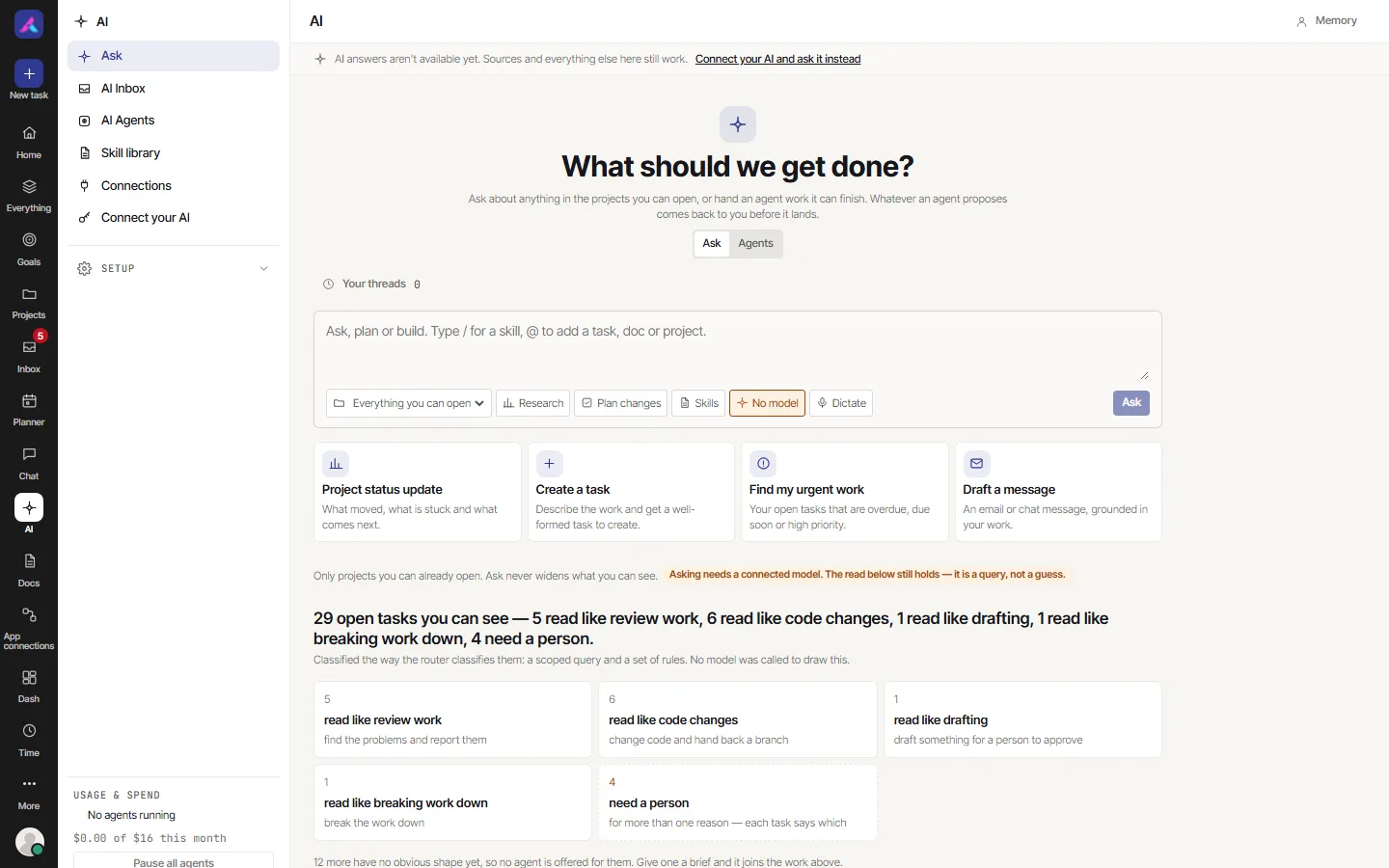
Ask a question
- Type in the box. You can ask, plan or build.
- To point Ask at something specific, add a task, doc or project to the question. Type
@and pick one, or use Add context in the box's menu. - Press Enter. While it works it shows "Answering…"; select Stop to cancel.
- Read the answer. Ask a follow-up in the same box.
Not sure where to start? Pick a starter under Start with:
| Starter | What it gives you |
|---|---|
| Project status update | What moved, what is stuck and what comes next |
| Create a task | A well-formed task from your description |
| Find my urgent work | Your open tasks that are overdue, due soon or high priority |
| Draft a message | An email or chat message, grounded in your work |
Good questions to ask
- "What did the design team finish this week?"
- "Which of my tasks are overdue?"
- "Summarise the comments on the checkout bug."
- "What does the onboarding doc say about laptops?"
- "Write a status update for the Website project."
What you can do with an answer
| Button | What it does |
|---|---|
| Why this answer | Shows the passages Ask found and may cite, and why you can see each one. "The answer may cite these and nothing else." |
| Copy | Copies the answer |
| Make a task | Opens a new task with the answer |
| Create tasks | Turns a list in the answer into tasks. You check each one, untick what you do not want, and edit the title, due date or assignee. Up to 20 at a time. You can undo right after. |
| Create a doc | Saves the answer as a draft doc in a project you choose. You can undo right after. |
| Post to chat | Posts the answer to a channel or direct message, with its sources as links |
Post to chat only posts what everyone in that conversation can open. If the answer rests on things some of them cannot see, Ask tells you, and offers to post only the lines that everyone can open.
Plan changes
Ask can turn a sentence into real changes, such as tasks, custom fields, a saved view or an automation, for you to approve.
- Turn on Plan changes and type what you want, naming the project. For example: "In Website, add a task to update the pricing page for Sam, due Friday."
- Select Plan it. A plan appears, listing each step.
- Read it. Select Approve to make it, or Decline.
Nothing is made until you approve. The plan also waits in your Inbox, and after you approve it you can undo it from there. A step you are not allowed to do is left out, with the reason. See Approvals.
Your threads
Each new question starts a thread. Your threads lists your recent ones so you can go back to them. Only you can see your threads. Ask keeps a limited number of recent threads, and you can delete one with its delete button.
Your AI memory
Ask can remember a few things about you, such as your nickname, your role, how you like answers written ("short answers, bullet points first"), and facts to keep in mind. Open Memory in Ask, or AI memory in My settings.
Only you can see your memory, admins included. It is never used for anyone else's questions. You can edit it or delete it at any time.
Privacy and permissions
- Ask sees what you see. It searches only projects you can already open, private docs that are yours, company-wide docs, and calls you took part in. "Ask never widens what you can see."
- Ask acts as you. A task or doc it creates is created by you, with your permissions. It cannot do what you could not.
- Text goes to the AI model your server uses. To answer, Ask sends your question and the passages it found to that model. If your server uses a model on its own hardware, nothing leaves it. If it uses a hosted service, that service receives the text. Ask your admin which one you use.
- AI off means off. When AI is turned off, nothing is sent to any model.
Limits
- Ask answers from your workspace, not from the web.
- An answer can only cite what Ask found. If nothing matches, it says so: "Nothing in the projects you can open matches that."
- A plan can only make the kinds of change listed above, in one project per sentence.
- Ask cannot approve anything for you, and cannot change settings, roles or permissions.