
Chat and the Inbox
AlianHub has two places for talk and for "what needs me". Chat is where you write to people. The Inbox is where AlianHub tells you what needs you. This page covers channels, direct messages, mentions, every Inbox tab, the Needs your approval tab, and what none of it can do.
The two are not the same list. A plain chat message never lands in the Inbox. A mention does.
Chat at a glance
Select Chat in the left bar. The list on the left has a search box, Direct messages and Channels. Pick one and it opens on the right.
| Channel | Direct message | |
|---|---|---|
| Who is in it | Everyone in the company (public), or the people you name (private) | You and one other person |
| Start one with | New channel | The plus button next to Direct messages, titled New message |
| Belongs to a project | No. Chat is company-wide | No |
| Shown in the list as | #name, with a lock if it is private | The person's name and a status dot |
Chat is part of your plan. If your plan lacks it, Chat shows an upgrade message instead.
Channels
Who can make one
Anyone whose role allows creating chat channels. A new Member role has it on. An owner or admin can turn it off for a role; then the New channel button is not shown.
Your plan also limits how many public and private channels the company can have. When one kind is used up, the form only lets you make the other kind. When both are used up, it says you reached the limit and offers an upgrade.
Make a channel
- In Chat, select New channel.
- Type a Channel Name. It needs at least 3 characters.
- Pick an icon under Icons, or upload an image with Upload.
- Leave Private Channel off for a public channel, or turn it on for a private one.
- Leave Send Messages on if members may write. Turn it off for a read-only channel.
- For a private channel, choose people under Only Share with. You are on the list already.
- Select Create Channel. The channel opens.
Public and private
| Public | Private | |
|---|---|---|
| Who sees it in the list | Everyone in the company | The people on its list, and owners and admins |
| Who gets its unread counts | Everyone in the company | The people on its list |
| Who can be mentioned in it | Everyone in the company | The people on its list |
| Who can join | Nobody needs to. Everyone is already in | Only someone named when it was made |
Good to know:
- Only Share with offers teams as well as people, but the Chat list checks whether your own name is on the channel. Name people one by one, or a team member you did not name may not see it.
- With Send Messages off, everyone except owners and admins reads "Sending is turned off for this channel. Only owners and admins can post." where the message box would be.
- If your company has channel categories, a new channel goes under the first one.
- Channel details, at the top right of a channel, shows its purpose, members, Pinned messages and Files. It is for reading only.
Direct messages
Under Direct messages, select a person you have written to before. To start with someone new, select the plus button (New message) and pick a name, or type a name in the search box. Nothing is sent until you write the first message.
- A green dot means the person is available. A red dot means Do not disturb.
- Your role decides whether you can use direct messages. With read-only access you see conversations but not the message box: "You have read-only access to direct messages."
- In a direct message, the header has Start an audio call and Start a video call. Calls work between two people on a secure (https) connection, once the first message is sent. Channels have no calls.
- If your company has AI on, agents appear in the list with an AGENT tag. Writing to one is like writing to a person. See Agents in AlianHub.
Writing a message
The box at the bottom takes text. Press Enter to send and Shift with Enter for a new line. Half-written text is kept for each conversation if you move to another.
| Button or key | What it does |
|---|---|
| Attach | Adds files, up to 10 at a time |
| Clip | Records a short video clip |
| Voice note | Records an audio message up to 5 minutes. Stop, then Send |
| Talk to text and Ask AI | Shown only when AI is on |
| The arrow beside Send | Send and make a task sends the message and opens the new-task sheet |
Type / | Shows Commands: make a task, summarize the thread, record a clip, record a voice note |
Mention someone
Type @ and pick a name from People to mention. The list holds the members of that channel, or the other person in a direct message. Agents are listed under Agents. Typing @ai or picking Ask AI asks the built-in AI, when it is on. There is no "mention everyone".
What a mention does:
- It adds a row to that person's Inbox, in Primary: "{name} mentioned you in chat". Notification settings do not remove it.
- It adds to the person's unread count in Chat.
- It sends a push alert or email if the person's notification settings ask for one. See Notifications.
- It reaches only people who can open that conversation.
What you can do with a message
Point at a message. A face button for reactions and a More actions (three dots) menu appear.
| Action | Notes |
|---|---|
| Reply | Quotes the message in your next one |
| Reply in thread | Opens a Thread panel. Replies stay out of the main flow, and the message shows how many replies it has |
| Add reaction | Eight emojis: thumbs up, heart, smile, party, surprised, sad, rocket, eyes |
| Copy text | Copies it |
| Edit message | Your own text messages only. Shows "(edited)" after |
| Delete message | Your own messages only. Asks "Delete this message?". Others then see "This message was deleted" |
| Pin message and Unpin message | Keeps it in Pinned messages and in Channel details. Anyone in the conversation can pin |
| Mark as unread | Marks the conversation unread from that message |
| Make a task | Opens the new-task sheet with the message text |
| Save for later | See the warning below |
Save for later is not private
Save for later and Pin message do the same thing: both pin the message for everyone in the conversation.
At the top of a conversation, Search in conversation looks through that conversation for message text and file names. With AI on you also see Summarize thread, and in a channel Ask about this channel.
Files and voice notes
Files you attach, and voice notes and clips you record, stay in the conversation. A channel's files are also listed under Files in Channel details.
What is unread in Chat
Each channel and direct message shows a number when you have unread messages, up to "99+". The left bar's Chat item shows no number; only Inbox does.
- A new message from someone else adds to the count. A reply inside a thread does not.
- Opening a conversation marks it read, but only while your browser window is in focus.
- Inside the conversation, a line and "{count} unread messages" mark where the new ones start.
- Mark as unread puts the count back from that message on.
The Inbox
Select Inbox in the left bar. The number on it is your unread notifications and mentions together, up to "99+".
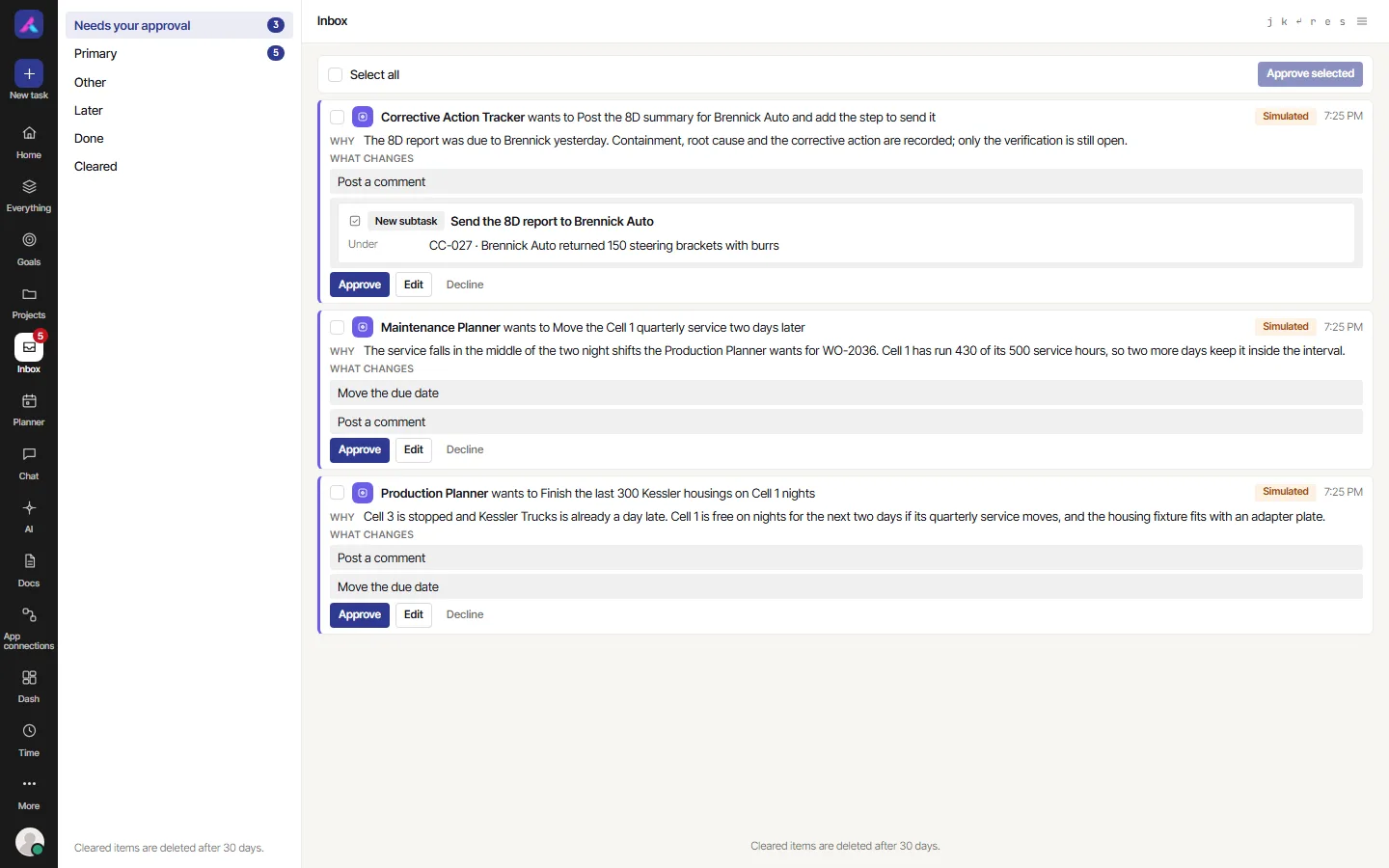
| Tab | What is in it |
|---|---|
| Needs your approval | Time-off requests, and changes an AI proposes. See below |
| Primary | Unread things for you: mentions, assigned comments, replies, reminders, and updates on things you are directly part of. It opens first |
| Other | Unread updates on things you only watch. A mention or an assignment never goes here |
| Later | Things you snoozed |
| Done | Things you have read |
| Cleared | Things you cleared in the last 30 days |
Filter
On every tab except Needs your approval, the side panel has Filter:
| Choice | Shows |
|---|---|
| Everything | All rows on the tab |
| Mentions | Where someone mentioned you, in tasks and in chat |
| Assigned comments | Comments given to you |
| Reminders | Reminders that came due |
| Updates | Everything else, such as a status change on something you watch |
What you can do with a row
| Button | What it does |
|---|---|
| Open task, Open chat or Open | Goes to it. A task opens over the Inbox. This also marks the row read |
| Reply here | Answers a task mention without leaving the Inbox. For a chat mention, use Open chat |
| Mark done | Moves it to Done |
| Mark as unread | In Done, moves it back |
| Snooze | Sets it aside until later |
| Unsnooze | In Later, brings it back now |
| Clear | Moves it to Cleared |
| Restore | In Cleared, puts it back in Primary |
After Clear, Snooze, Mark all read and Clear all, a bar at the bottom shows Undo for about 6 seconds.
Snooze offers Later today, Tomorrow, Next week, Until it changes and Pick a date and time. "Until it changes" brings the row back on new activity. You can snooze only from Primary and Other. When its time comes, the row returns to Primary as unread.
Keyboard: j and k (or the arrow keys) move, Enter opens, r replies to a mention, e clears, s snoozes. If you switched single-key shortcuts off in My settings, only the arrow keys and Enter work.
Clearing the Inbox
| You do this | The row |
|---|---|
| Open it, or Mark done | Becomes read and moves to Done |
| Reply with Reply here | Becomes read and moves to Done |
| Snooze it | Becomes read and moves to Later until its time |
| Clear it | Becomes read and moves to Cleared |
| Mark all read | Every unread row on Primary or Other becomes read |
| Clear all | Clears every row on the tab, narrowed by the Filter you picked |
Cleared rows are deleted after 30 days. Until then Restore brings one back. A page shows 10 rows; select Load more for more, newest first.
Needs your approval
This tab holds two kinds of card. You cannot clear or snooze them; a card leaves when someone decides it.
Time-off requests. Only owners and admins see these, and never their own. Each reads "{name} requested {dates} off · needs your approval", with the type of leave and the reason. Approve or Decline; Undo sets it back to waiting for about 6 seconds. See Approvals.
Changes proposed by an AI. These come from a connected AI app or an agent. Each shows who asks, why, and "What changes". You can Approve, Edit (on agent cards that allow it) or Decline, or tick several and use Approve selected. The number on the tab counts only cards you may decide. See Approve in the Inbox.
What it cannot do
- Link a channel to a project. Chat is company-wide.
- Change a channel after you make it. You cannot rename it, change its icon, add or remove members, switch public or private, archive or delete it.
- Join, leave or mute a channel. The only switch is the chat line in your notification settings, which covers all chat.
- Mention everyone. There is no
@allor@here. - Search all of Chat at once. Search in conversation covers one conversation; the list search matches names only.
- Edit or delete someone else's message.
- Call a group. Calls are one to one.
- Search the Inbox. There are tabs and a filter, no search box.
- Show plain chat messages in the Inbox. Only mentions and thread replies reach it.