
Views, filters and saved views
A view is a way of looking at the same tasks. A project can show its tasks as a list, a board, a table, a calendar, a Gantt chart or a workload, and more. This page covers what all views share: adding a view, search, filters, grouping, sorting, columns, totals and saved views. Each view has its own page for what only it does.
Changing the view never changes your tasks. Changing a task in one view shows in all the others.
The views
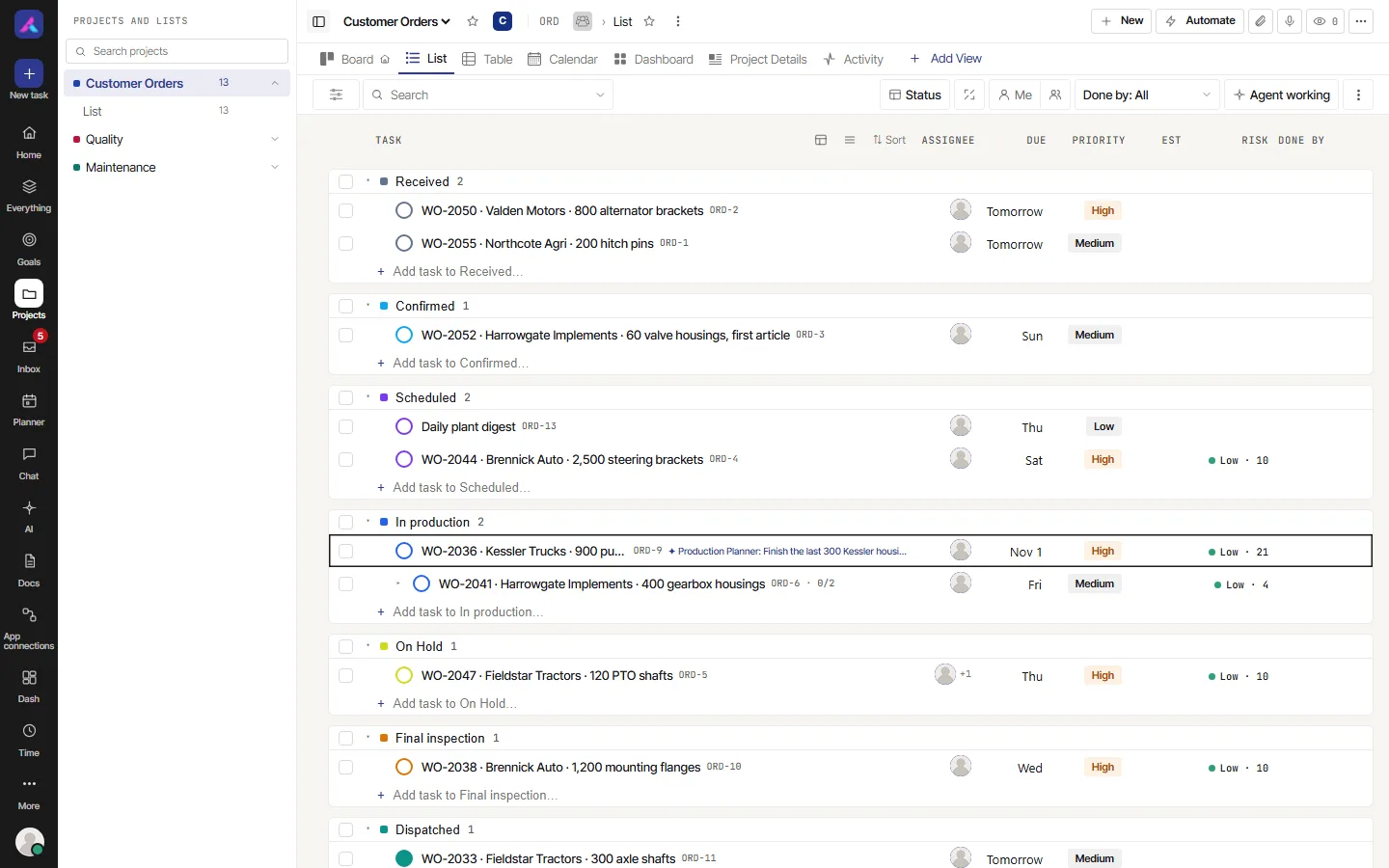
The tabs sit at the top of the project. A new blank project has List and Board. To add more, select Add View at the end of the tabs (see Add a view).
| View | What it shows | Use it when | It cannot |
|---|---|---|---|
| List | Tasks in rows, in groups | You want to read and edit many tasks fast | Show tasks on a time line |
| Board | One column per group, one card per task | You want to see work move, and move it by dragging | Show totals. Show more than one list |
| Table | A grid, like a spreadsheet | You want to compare tasks side by side | Sort by every column |
| Calendar | A month, with tasks on their dates | You care about what is due this week or month | Group, sort, or show a week or a day |
| Gantt | A bar per task, from start date to due date | You plan in time and tasks wait on each other | Search, filter, group or sort. Open on a phone |
| Workload | People down the side, days across the top | You want to see who has too much on | Show tasks as a list. Open on a phone |
Other views, such as Embed, Docs, Forms, Activity, Dashboard, Timeline, Mind Map and Whiteboard, are on Embed and other views.
Which controls each view has
| Control | List | Board | Table | Calendar | Gantt | Workload |
|---|---|---|---|---|---|---|
| Search | Yes | Yes | Yes | Yes | No | No |
| Filter | Yes | Yes | Yes | Yes | No | No |
| Me and Assignee | Yes | Yes | Yes | Yes | No | No |
| Done by | Yes | Yes | Yes | No | No | No |
| Agent working | Yes | Yes | Yes | No | No | No |
| Group by | Yes | Yes | Yes | No | No | No |
| Sort | Yes | Yes | Yes (headings) | No | No | No |
| Columns | Yes | Yes (Card fields) | Yes | No | No | No |
| Row density | Yes | Yes | Yes | No | No | No |
| Group totals | Yes | No | Yes | No | No | No |
| Saved views | Yes | Yes | Yes | Yes | No | Yes |
Workload has its own controls: the dates, Filter by, the unit and Balance.
Search
The search box is at the top of List, Board, Table and Calendar. Type a few letters. The view updates after a short pause.
The small arrow in the search box is Search In. Turn on or off Task Name, Task key and Description. At least one must stay on.
Me, Assignee, Done by, Agent working
- Me shows only tasks you are on. Select it again to turn it off.
- The Assignee button opens a list of people. Pick one or more. A number on the button says how many. If you use Me and also pick people, you see the tasks any of them are on.
- Done by is a menu that reads "Done by: All". The choices are All, Human, Agent, Mixed and Unchecked. Human means people did the work. Agent means an agent did it and a person checked it. Mixed means a person and an agent both worked on it. Unchecked means an agent did it and nobody has checked it.
- Agent working shows only the tasks an agent is working on right now. It is not remembered by a saved view.
Your role can limit this. If your role lets you see only your own tasks, that is all you see in every view.
More, then Show Archive, switches List, Board and Table to archived tasks. While it is on, Group by, Me, Assignee, Done by and Agent working are hidden. Search and Filter still work.
Filter
Select the Filter button, left of the search box. A panel called Filters opens. A number beside the button says how many conditions are on. The small red button beside it is Clear all.
Each condition is a row with three parts: a field, an operator, and a value.
- Choose a field. A field can be used once in the panel.
- Choose an operator.
- Choose the value. Then select Show Result.
To add a row, select + Add Filter. The first row starts with "Where". The second row has a switch that reads And or Or. It joins all the rows. With And, a task must match every row. With Or, it may match any row.
The panel has a Clear all link too, to take every condition off.
Fields and operators
| Field | Operators | Values |
|---|---|---|
| Status | Is, Is Not | One or more of the project's statuses. Select All picks them all. |
| Due Date | Is, Greater Than, Less Than | One of: Today, Yesterday, Tomorrow, This week, Next week, Next 7 days, Last 7 days, Last month, This month, Next month, Date range. Date range opens a calendar to pick the dates. |
| Priority | Is, Is Not | One or more priorities |
| Created by | Is, Is Not | One or more people on the project |
| Task Type | Is, Is Not | One or more task types |
| Tags | Is, Is Not | One or more tags |
For Due Date, Is means inside that period. Greater Than means after the period. Less Than means before the period.
There is no Assignee field in the panel. Use Me and Assignee (above).
Your custom fields are in the field list too. The operators depend on the kind of field:
| Kind of field | Operators |
|---|---|
| Dropdown, People | Is, Is Not, Is set, Is empty |
| Checkbox | Is (then Yes or No) |
| Number, Money, Rating, Progress | Equal To, Is Not, Greater Than, Less Than, Is set, Is empty |
| Date | Is on, Is after, Is before, Is set, Is empty |
| Text, Long text, Email, Phone, Link | Contains, Is, Is set, Is empty |
| Files | Is set, Is empty |
| Relationship | Contains task, Is set, Is empty |
| Voting | I voted, Equal To, Greater Than, Less Than |
Is set, Is empty and I voted need no value. Formula, Rollup and AI fields cannot be filtered.
Save a filter for later
In the panel, Save Filters asks for a name. The small arrow beside it opens My Filter, your list of saved filters. Pick one to apply it. Point at one to edit its name or delete it. After you load one, Update filter saves your changes to it.
These saved filters are yours alone and are not the same as saved views. A saved view keeps the filter that is on when you save the view (see Saved views). It keeps up to 20 conditions.
Group by
The Group by button shows the current choice, such as Status. It is in List, Board and Table. The choices are:
- Status
- Assignee
- Priority
- Due Date
- Any custom field of these kinds: dropdown, checkbox, date, people, rating, number, money, progress, voting and relationship.
What each one makes:
- Status makes one group per status.
- Assignee makes one group per person, plus Unassigned. A task with two people appears in both groups.
- Priority makes one group per priority.
- Due Date makes Overdue, Today, Tomorrow, This week, Later and No due date. On some days of the week one of these groups is not there.
- A number or money field makes ranges, plus a group for no value.
On the Board, the groups are the columns. If a saved view groups by a field that was later deleted, or that you cannot see, the view groups by Status.
Sort
- List and Board: select Sort. A panel called Sort tasks by opens. Choose one of: Manual, Due date, Priority, Created, Updated, Name, Status, Assignee, Points, Estimate, or one of your custom fields that can be sorted. Then choose Ascending or Descending under Order. Choose Manual to go back to the order you dragged. Tasks with no value for the sort go last. Each group is sorted by itself.
- List only: while a sort is on, dragging is off. The List says "Sorted, so dragging is off. Choose Manual to reorder."
- Table: select a column heading. Only some headings sort (see Table above).
Only one sort works at a time. A sort is remembered by a saved view.
Columns and density
- List: the Columns button. The choices are Tags, Assignee, Due, Start, Priority, Est, Points, Created, Updated, Risk and Done by, and your custom fields. It opens with Tags, Assignee, Due, Priority, Est, Risk and Done by on. Custom fields are off.
- Table: the Columns button. The choices are Status, Assignee, Due, Start, Priority, Est, Points, Tags, Created, Updated, Summary, Risk, Area and Done by, and your custom fields. All of these are on except Start, Created and Updated.
- Board: the Card fields button. The choices are Points and your custom fields. It opens with none on.
In each list, tick a column to show it. Use the up and down arrows to move it. Reset to default puts the columns back. A column can be missing when the project has that feature turned off, or your role may not use it.
Row density is in List, Table and Board. Choose Comfortable or Compact.
Totals
Totals are in List and Table only. A Total row appears under a group when at least one shown column can be added up. These columns can be added up:
- Points
- Number and Money fields
- Formula and Rollup fields that give a number
In the List, custom fields are off until you turn them on in Columns. In the Table they start on.
Good to know:
- The total covers every task in the group, even tasks you have not loaded yet.
- Subtasks are not added in. Only tasks are.
- A blank counts as zero.
- A Money total shows the field's money symbol.
- When the Points column is on, the group header also shows a total like "8 pts".
- Point at a total to see "Sum of" the field and its value.
The Board, Calendar and Gantt have no totals. The Workload has a total for each person.
Saved views
A saved view is a tab with its own settings. Two people can look at the same tasks in two different ways.
What a saved view remembers
- Group by
- Me and the people you picked with Assignee
- The search text, and the Search In choices
- Done by
- Whether subtasks are collapsed or expanded (List)
- The conditions in Filter
- The sort
- The columns you showed, and their order (Card fields on the Board)
- Row density
- For the Workload, whether it counts Hours, Points or Tasks
Each view keeps only what it uses. A Calendar view keeps search, Me, Assignee and the filter. A Workload view keeps only its unit.
A saved view does not remember Agent working, Show Archive, the month in the Calendar, the dates and By estimate or By logged in the Workload, or anything about the Gantt. The Gantt has no saved settings.
Change a view, then save it
When you change something that a view remembers, a bar appears under the toolbar. It says Unsaved changes. Nothing is saved yet, and nobody else sees your changes. The bar has these buttons:
- Save saves the settings on the view. On a shared view this saves for everyone. On your private view it saves for you. On a shared view, Save shows only if you may change the project's views.
- Save for me is on a shared view. It keeps the settings in a private copy that only you see, and opens that copy. If you already have a private copy of that view, it updates it. The shared view stays as it was.
- Save as new view asks for a View name (up to 60 characters). Tick Only me to keep it private. If you may change the project's views, it starts unticked. If not, it is ticked and cannot be changed. Select Create view, or Cancel. The new view is the same kind of view as the one you changed. If you may not change the project's views, the new view is always private.
- Reset throws away your unsaved changes and goes back to the saved settings.
A toast says "View saved" or "View added". If it fails, it says "The view could not be saved".
If you move to another tab and back, your unsaved changes are still there until you reload the page.
Name, rename, pin, make default, delete
Point at a tab and select the three dots. The menu is called "Options for the (name) view". It has:
- Pin View (or Unpin View). A pinned tab goes first and shows a pin.
- Rename. Type the new name (up to 60 characters). Press Enter to save, or Esc to cancel. A tab with no name of its own shows the kind of view, such as List.
- Set as Default (or Remove as Default). The default tab opens first. Only one tab can be the default, and only a shared tab can be. To move the default, choose Remove as Default on the old one first.
- Save as template (see Saved views).
- Delete View. It asks "Are you sure want to delete (name) View?". Select Delete. A shared view is deleted for everyone. The last tab cannot be deleted, so the menu has no Delete View then.
You need permission to change the project's views for a shared tab. You always have the menu on your own private tabs.
Add a view
Select Add View. You see it only if you may change the project's views. A menu opens with the kinds of view. Type to narrow the list. A kind the project already has is greyed out. To keep a second List, use Save as new view, or a template.
At the bottom are two tick boxes:
- Private view makes the new tab yours alone. Leave it off to add it for everyone on the project.
- Pin View pins the new tab.
Share a view
There is no share button. A view is either shared or private.
- A shared view is in the tab bar for everyone who can open the project.
- A private view has a lock on its tab (Private view). Only you see it. It sits right after the shared view it came from.
To share, save as a new view with Only me off. You need permission to change the project's views.
Templates
A template keeps a view's saved group, sort, filters and columns, so you can add a view like it to any project. List, Board, Table, Calendar and Workload views can be templates.
- Open the tab's three dots menu and select Save as template. Give it a name, then Save. Unsaved changes are not included, so save the view first.
- To use one, select Add View. Templates are at the top, under From a template. Select one to add the view. A template can be added even when the project already has that kind of view.
- If the project lacks something the template uses, such as a custom field, the view is added without it. A message says what was left out: grouping, sorting, some filters or some columns.
- Anyone who may add views can add from a template. Only an owner or admin can Rename or Delete one. Delete asks "Delete for everyone?".
On a phone
- On a narrow screen the tabs become a menu. It has Add View at the bottom.
- In List, Board and Table, the filter controls move into a sheet named Filters. A number shows how many are on, like "Filters, 2 active". The search box stays outside.
- On the Board, press and hold a card for a moment before you drag it.
- Gantt and Workload do not open on a phone. They say "Open this on a desktop".
Related
- List, Board, Table, Calendar, Gantt, Workload
- Embed and other views
- Custom fields: filter, group, sort and total by your own fields
- Templates