
Calendar view
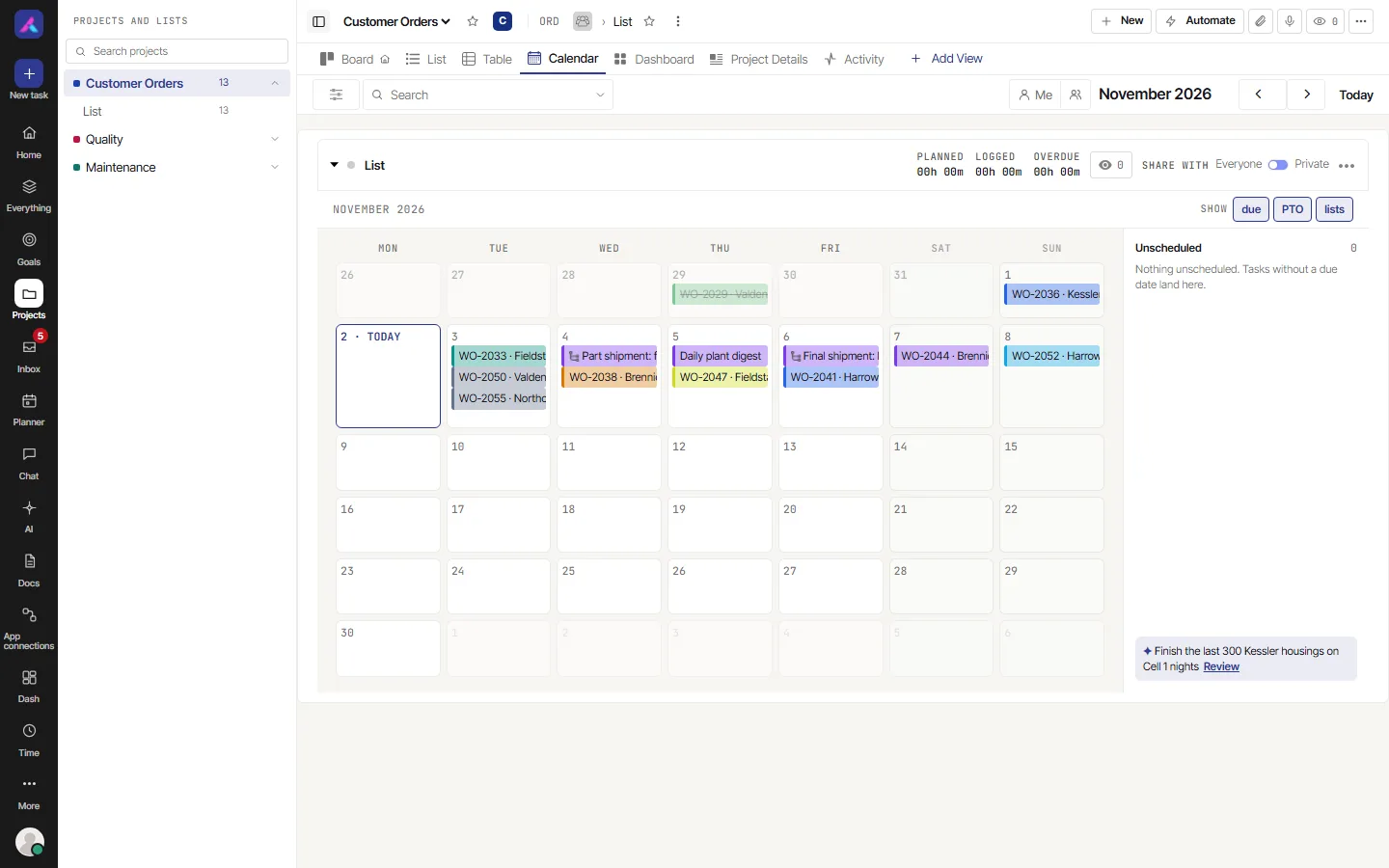
The Calendar view shows one month, with each task on its dates. Use it when what matters is what is due this week or this month.
How it works
The Calendar shows one month. A task with a start date and a due date is a bar across those days. A task with only one date shows on that day.
- Tasks with no date wait in the Unscheduled tray on the side. Drag one onto a day to give it a due date.
- Select a task to open it. Drag a task to another day to move it. Drag its right edge to change only its due date. You need permission to change dates for both of these.
- Select a run of days to start a new task with those dates. This needs the same permission, and it is off while a search or filter is on.
- Above the grid, Show has three buttons you can turn on and off: due (the tasks), PTO (approved time off, shown on the day) and lists (a band for each list that has a start and an end date).
- The month name opens a month picker. Next to it are Previous month, Next month and Today.
- The Calendar draws one list at a time.
Limits
- It has no week or day view.
- It has no Group by, Sort, Done by or totals. It does have search, Filter, Me and Assignee.
Plan a month
- Open the list you want. The Calendar draws one list at a time.
- Turn on due under Show to see the tasks, and PTO to see who is away.
- Drag tasks from the Unscheduled tray onto the days they are due.
- Drag a task's right edge to stretch it to a later due date.
- Use Previous month, Next month and Today to move around.
What it shows
| Task has | Shown as |
|---|---|
| A start date and a due date | A bar across those days |
| Only one date | A chip on that day |
| No date | A card in the Unscheduled tray |
Related
- Views, filters and saved views: search, filter, group, sort, columns, totals and saved views
- Tasks