
Milestones
A milestone is a dated, paid stage of a project, such as "Design signed off" or "March support hours". Each milestone has dates, an amount and a status, so you can see what has been delivered, what has been billed and what is still to come. Milestones suit client work: fixed-price projects paid in stages, and hourly projects billed week by week or month by month.
This page covers turning milestones on, adding them to a fixed-price or an hourly project, the milestone statuses, refunds, and the two places milestones are reported.
Before you start
Milestones need three things:
- Your plan includes them. If not, the screen shows To Unlock Milestone and an upgrade button.
- The project's Milestones app is on. Turn it on under Apps when you create the project, or in Settings, then Projects, then Apps. See Projects.
- The project has a Type. Open the project's Project Details tab and set Type in the Details on the right: fixed price or Hourly. For an hourly project, also set the Billing Period (weekly or monthly), the Currency and the Start Date.
Your role must also allow project milestones. In a new workspace, owners and admins can change them.
Where milestones live
Open the project, then its Project Details tab (add it with Add View if it is not there). The Milestone section sits below the description, checklist and attachments. What it shows depends on the project's type.
Fixed-price projects
A fixed-price project is paid in stages you name yourself.
| Column | What it holds |
|---|---|
| Milestone Name | What the stage is |
| Start Date and End Date | When the stage runs |
| Due Date | When it is due |
| Amount | What the stage is worth, in the project's currency. Up to 2 decimal places. |
| Status | One of your workspace's milestone statuses |
| Status Date | When the status last changed |
Add a milestone
- Select Add a New under the table.
- Type the name, pick the dates, type the amount, and choose a Milestone Status.
- Save the row.
To change a milestone, select its row. To reorder milestones, drag a row. To delete one, use the row's delete button and confirm "Are you sure want to delete milestone?".
Total Amount under the table adds up every milestone, minus anything refunded.
Hourly projects
An hourly project is billed by period. The project's Billing Period decides the periods: one row per week, or one per month, counted from the project's start date.
| Column | What it holds |
|---|---|
| Milestone Name | A name for the period |
| Date | The period, such as "1 Mar to 31 Mar" |
| Logged Users | The time logged on the project in that period, taken from time entries |
| Billing Hours | The hours you bill for the period, typed as hours and minutes |
| Amount | What the period is worth |
| Status | One of your milestone statuses |
The logged time comes from your team's timesheets, so it fills in as people log time. The billing hours are yours to set: you can bill fewer or more hours than were logged. Minutes must be 59 or less.
Milestone statuses
Your workspace has one list of milestone statuses, shared by every project. Owners and admins manage it in Settings, then General, under Project Milestone Status.
- Each status has a Milestone Status Name (at least 3 characters, unique) and a colour.
- Date Displayed in Calendar has two choices, Past and Future.
- Use the menu on a status to Rename or Delete it.
Examples of the statuses a workspace might use: Estimated Release, Release Request Sent, Released, Funded, Not Funded.
Refunds
When money for a milestone is given back, record a refund on the milestone instead of changing its amount.
- Open the milestone's row and choose to refund.
- Type the Refund Amount. It cannot be more than the milestone's amount.
- Save.
The milestone then shows as Partially refunded or All amount refunded, and Refund details lists each refund. The amount of a milestone cannot be set lower than what was already refunded. Total Amount takes refunds off.
Milestone reports
There are two reports. Both read the same milestones.
The Milestones tab in Reports
Open More, then Reports, then the Milestones tab. It asks one question: is each milestone on time?
| Column | What it shows |
|---|---|
| Milestone | The name and project |
| Baseline | The first date recorded for the milestone |
| Now | Its date today |
| Slip | How far it has moved from the baseline |
| State | On track, At risk, Missed or Signed off |
Pick a project at the top, or All projects. The headline counts how many are dated, at risk and missed. A milestone appears only once it has a due or end date. Every change to a milestone's date is in the activity log, with who moved it.
The full milestone report
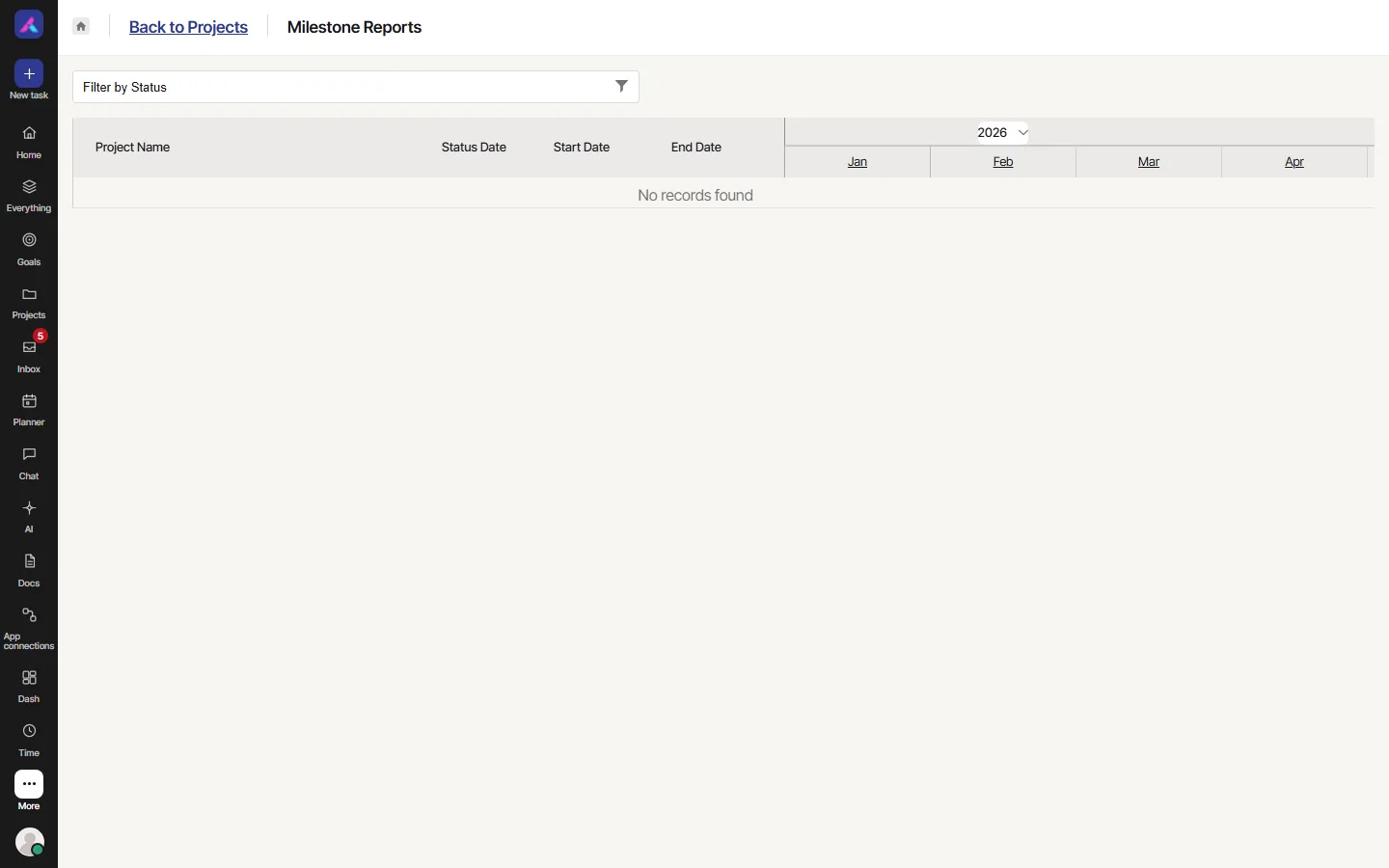
The Milestone Report card on the Home dashboard sums up what is Receivable, Received and Outstanding, by status. It is for owners and admins only. View full report opens the full milestone report:
- One table for the year, with a column for each month. Select a month to see its days.
- Pick the year at the top.
- Rows are grouped by currency, then by project, then by milestone, so amounts in different currencies are never added together.
- Filter by Status narrows the report to the milestone statuses you choose. Each one shows as a chip you can remove.
Milestones in other places
- Gantt: milestones show as diamonds on the time line. See Gantt.
- Project dates: once a project's start date falls within a milestone's range, it cannot be changed.
Good to know
- Milestones are kept per project. They are not tasks and do not show in List, Board or Table.
- An hourly project's periods follow its billing period and start date. Change those first.
- The milestone amounts in the full report are grouped by currency. The Home card converts to one currency, and says so when the exchange rates are approximate.