
Projects
A project is one piece of work with a goal, such as a product launch, a client job or a quarter's marketing. Everything else lives inside a project: its folders and lists, its tasks, its views and its docs. This page covers creating a project, the project details page, project settings, and the life of a project from open to closed, archived and deleted.
If a button on this page is missing on your screen, your role may not allow it. In a new workspace, only owners and admins create, close, archive and delete projects. See People and roles.
The Projects page
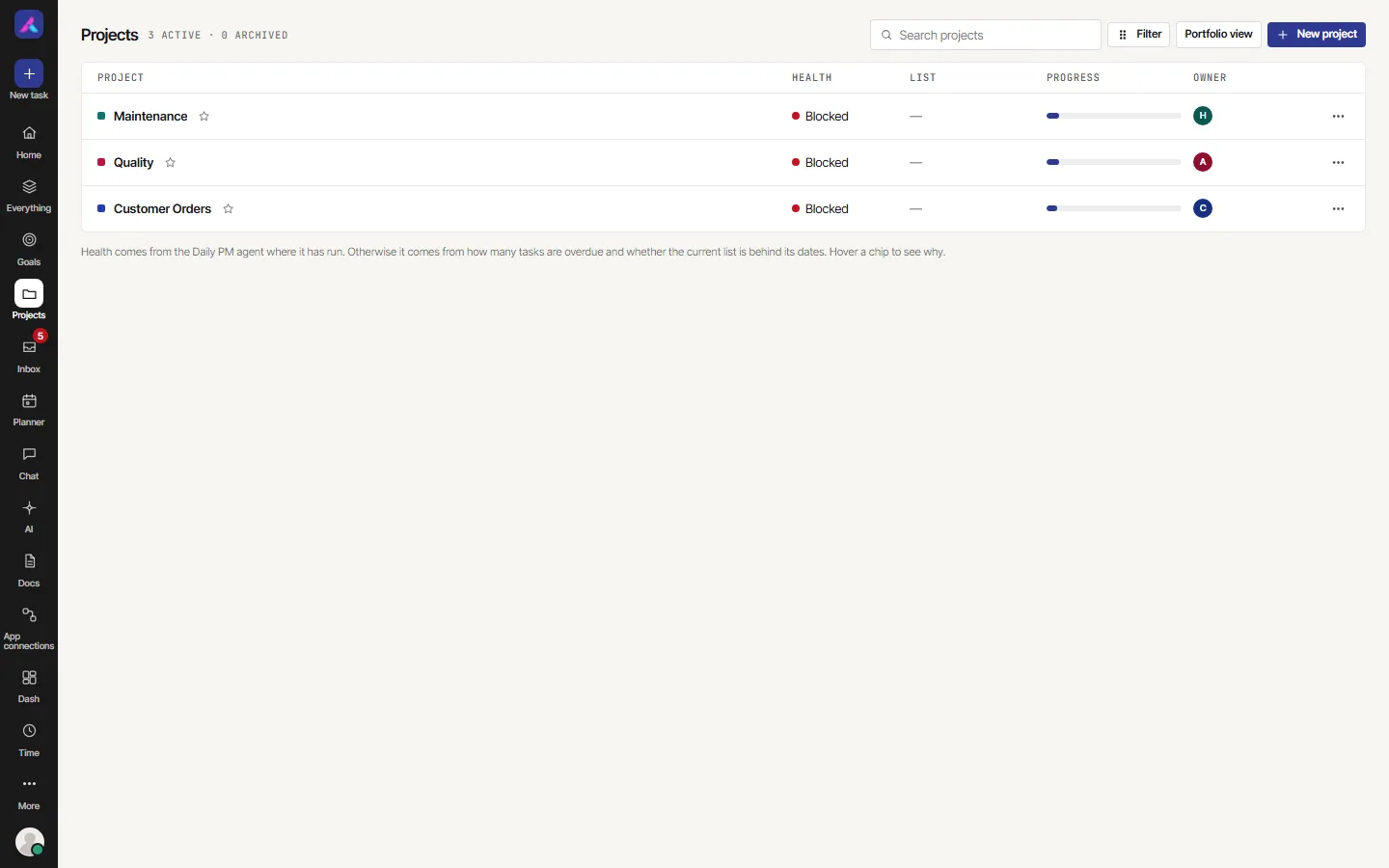
Select Projects in the left bar. The top shows how many projects are active and archived, such as "12 ACTIVE · 3 ARCHIVED".
| Column | What it shows |
|---|---|
| Project | The name, a star to make it a favourite, and chips such as SAMPLE or Archived |
| Health | On track, At risk or Blocked. Point at the chip to see why. |
| List | The current list or sprint, and how many days it has left |
| Progress | How many of the project's tasks are closed |
| Owner | The project's lead |
Health comes from the Daily PM agent where it has run. Otherwise it comes from how many tasks are overdue and whether the current list is behind its dates.
Above the rows:
- Search projects finds a project by name.
- Filter switches between Active projects and Archived projects, and turns on Favourites only.
- Portfolio view opens a roll-up across projects, when your plan includes it.
- Create with AI starts a project from a description, when AI is on.
- New project opens the New project window.
The three dots on a row open a menu with Open, Favourite, Duplicate project, Save as template, Close project, Archive and Delete. An archived project shows Restore instead of close and archive.
Create a project
- Select New project on the Projects page. On Home, Create a project does the same.
- On the left, choose how to start:
- Blank: three statuses (To do, In progress, Done) and nothing else.
- A template: the list is grouped, with templates for your team's kind of work first, then All, then your workspace's own templates. Type in Search templates to narrow it. Each template shows how many statuses and sample tasks it brings, and a preview on the right.
- Create from a description: describe the project and AI drafts the lists and tasks for you to review. Shown only when AI is on for you.
- Import from Jira, ClickUp, Asana, Monday or CSV: brings work in from another tool.
- Fill in the form (see the table below).
- Select Create project. The project opens on its List view.
The fields
| Field | What to put | Notes |
|---|---|---|
| Project name | The name everyone sees | At least 3 characters, up to 100 |
| Key | A short code, filled in from the name | Up to 10 characters. Every task key starts with it, such as WEB-12. It must not match another project's key. |
| Visibility | Everyone in your workspace, or Only people I add | See "Private projects" below |
| Source | Where the project came from: Upwork, Fiverr or Other | Required. For Upwork, a Proposal ID is required too. |
| Due date | When the project should be finished | Optional. Today or later. |
| Lead | The person who leads the project | Shown as the project's owner |
| Skills | The skills the project needs | Optional. Chosen from your workspace's list of project skills. |
| Apps | The features this project uses | See "Apps" below. You can change them later. |
| Include the sample tasks | Bring the template's example tasks | Shown only for a template with sample tasks. You can delete them later in one go. |
A template saved from one of your own projects asks different questions: what to keep (Include the tasks, Keep the assignees, Keep the dates, counted from the start date, Include the automations, switched off) and a Start date. See Templates.
Apps
Apps are features you switch on or off for each project. A project only shows what it uses.
| App | What it adds |
|---|---|
| Priority | Flag tasks as urgent, high, medium or low |
| Multiple assignees | Let more than one person own a task |
| Time estimates | Estimate hours per task and compare against logged time |
| Milestones | Group work toward dated goals and track progress. See Milestones. |
| Tags | Label and filter tasks across the project |
| Custom fields | Add your own fields to tasks. See Custom fields. |
| Time tracking | Log time against tasks. See Time and timesheets. |
| AI | Draft tasks, summaries and plans with AI |
To change them later, open Settings, then Projects, and use the Apps row on the project. An app your plan does not include cannot be switched on.
Inside a project
A project page has the project tree on the left, a header at the top, and the view tabs.
The header holds:
| Control | What it does |
|---|---|
| The name, key and star | Star the project to keep it at the top of your Projects list |
| Automate | Opens Automations with this project picked. Owners and admins only. See Rules. |
| Files & Links | The files and links shared in the project |
| Audio Files | The audio files in the project |
| Watchers | Who follows the project |
| The three dots | Project Permissions, Rename, Color & Avatar, Duplicate project, Save as template, Close project, Delete |
The More button in the view toolbar holds the rest, in groups:
| Group | Items |
|---|---|
| View | Show Archive: see archived lists and tasks, and restore them |
| Find | Search all and Recent tasks |
| Insights | Burn-down, Epics, Pages |
| Share & export | Export (CSV or XLSX), Public link, Who can see this project |
| Import | Import tasks… from a CSV file, Jira, Trello, Asana, Monday.com or ClickUp |
| Project settings | Auto-archive and Estimation scale |
Project details
Project Details is a view tab. Add it with Add View if your project does not show it. It holds the project's own information, rather than its tasks:
- A Description of the project.
- A Checklist and Attachments for the project as a whole.
- Milestones, when the Milestones app is on.
- Cards for AI help on the project, such as the project's memory, a default task template, agent limits and Assignment rules.
On the right, Details lists the project's fields:
| Field | What it is |
|---|---|
| Status | The project's own status, such as active or closed. Each project has a list of project statuses. |
| Created by | Who made the project |
| Assignee | Shown on private projects only: the people and teams who can open it |
| Key | The project key |
| Type | How the project is billed: fixed price or hourly |
| Billing Period | For an hourly project: weekly or monthly |
| Currency and Amount | The project's currency and value |
| Source and Proposal ID | Where the project came from |
| Skills | The skills it needs |
| Start Date and End Date | When it runs |
| Lead | Who leads it |
| Custom fields | Your project fields. See Custom fields. |
Each field shows only if your role may see it.
Auto-archive and estimation scale
- Auto-archive: tick Enable auto-archive for this project and set Archive after a number of days. Completed tasks nobody has touched for that long are archived every night.
- Estimation scale: choose the story point values offered in this project: Fibonacci (1, 2, 3, 5, 8, 13, 21), Linear (1 – 10), T-shirt (1, 2, 3, 5, 8) or Hours (1, 2, 4, 8, 16, 24, 40).
Public link
Public link shares the project read only with people who are not in your workspace.
- Open More, then Public link.
- Select Create public link.
- Optionally set Expires and Password.
- Turn on Accept public requests to let visitors send in requests. They arrive under Requests, where you Accept or Reject each one.
- Copy the link. Delete link stops it working.
Project settings
Open Settings, then Projects. Each project is a card. You need both the project list setting and project details to be allowed for your role.
| Part of the card | What you can change |
|---|---|
| The star | Favourite the project |
| Go to Projects | Open the project |
| Owner | The project's lead |
| Share With | Everyone or Private |
| Project Status | The project's list of statuses |
| Task Type | The task types the project uses |
| Task Status | The statuses tasks move through |
| Apps | Switch apps on or off |
| Required views | The views that are created for you in this project. At least one stays on. |
The page has three tabs: Open, Archived and Closed, each with a count. Archived and closed projects are read only. A project that was closed and then archived shows under Archived with a Closed chip.
Close, reopen, archive, restore and delete
A project moves through these states. Each one can be undone.
| State | What it means | Where it shows |
|---|---|---|
| Open | Normal, active work | Open tab, Active projects |
| Closed | Finished. Read only. Its tasks are closed with it. | Closed tab |
| Archived | Put away. Hidden from the project lists, with its tasks. Nothing is lost. | Archived tab, Archived projects |
| In the Trash | Deleted. Kept until you restore it. | More, then Trash, Projects tab |
The actions in Settings, then Projects follow the state:
| On the tab | Menu |
|---|---|
| Open | Close project, Archive project |
| Closed | Reopen Project, Archive project |
| Archived | Restore Project, Delete Project |
The Projects page and the project's own menu offer the same actions.
Close a project
- Open the project's menu and choose Close project.
- Type the word close to confirm, then select Close project.
The project moves to the Closed tab and its open tasks are closed. Reopen Project puts it back to the status it had before it was closed, and reopens exactly the tasks the close moved.
An owner or admin can also have inactive projects closed for them. In Settings, then General, turn on Enable auto-close under Auto-close inactive projects and pick an Inactivity period in months. A project with no logged time and no task changes for that long is closed during the nightly run. It can be reopened like any other.
Archive a project
- Choose Archive (or Archive project).
- Type the word archive to confirm.
"This project and its tasks move to Archived. Nothing is lost: restore it any time and it comes back exactly as it was." Restore (or Restore Project) brings back exactly the tasks that were active. Tasks that were archived, closed or deleted on their own stay that way. A closed project that was archived comes back closed.
Delete a project
- Choose Delete (or Delete Project on the Archived tab).
- Type the word delete to confirm.
The project and its tasks go to the Trash. To bring it back, open More, then Trash, choose the Projects tab and select Restore. A project that was archived before you deleted it comes back archived. Tasks you deleted one by one before the project stay in the Trash.
The sample project
The Welcome to AlianHub sample project has a Remove sample data button on the Projects page. It moves the sample project and its tasks to the Trash.
Duplicate a project
- Open the project's menu and choose Duplicate project.
- Change the Name of the copy if you like. It starts as the name with "(copy)".
- Under Also copy, choose Tasks (with subtasks, checklists and field values), the Assignees of the tasks, and the Dates.
- Confirm. A bar shows "Copying tasks" with a count. You can hide it; the tasks keep arriving.
Folders, lists, statuses, views and custom fields always come along. Automations are copied switched off. Comments, files and logged time stay behind. The copy uses the same custom fields as the original, so a change to a field applies to both projects.
Private projects
A project is either public or private.
- Everyone in your workspace: every member, guests included, can open it.
- Only people I add: only the people and teams added to it, plus owners and admins.
To change it later, use Share With in Settings, then Projects. To add people to a private project, use Assignee in its Details. Who can see this project in the More menu lists everyone who can open it, and why. See People and roles for the full rules.
Good to know
- A project key cannot be shared with another project.
- A closed or archived project is read only. You cannot add tasks to it.
- Your plan may cap how many private or public projects you have. If so, you read an upgrade message.
- Deleting a project does not erase it. There is no way to empty the Trash for good from this screen.