
People, roles and privacy
This page is about who is in your workspace, what each person may do, and who can see what. It goes deeper than Bring people in. It covers the four roles, guests, private projects and private lists, and how to remove someone.
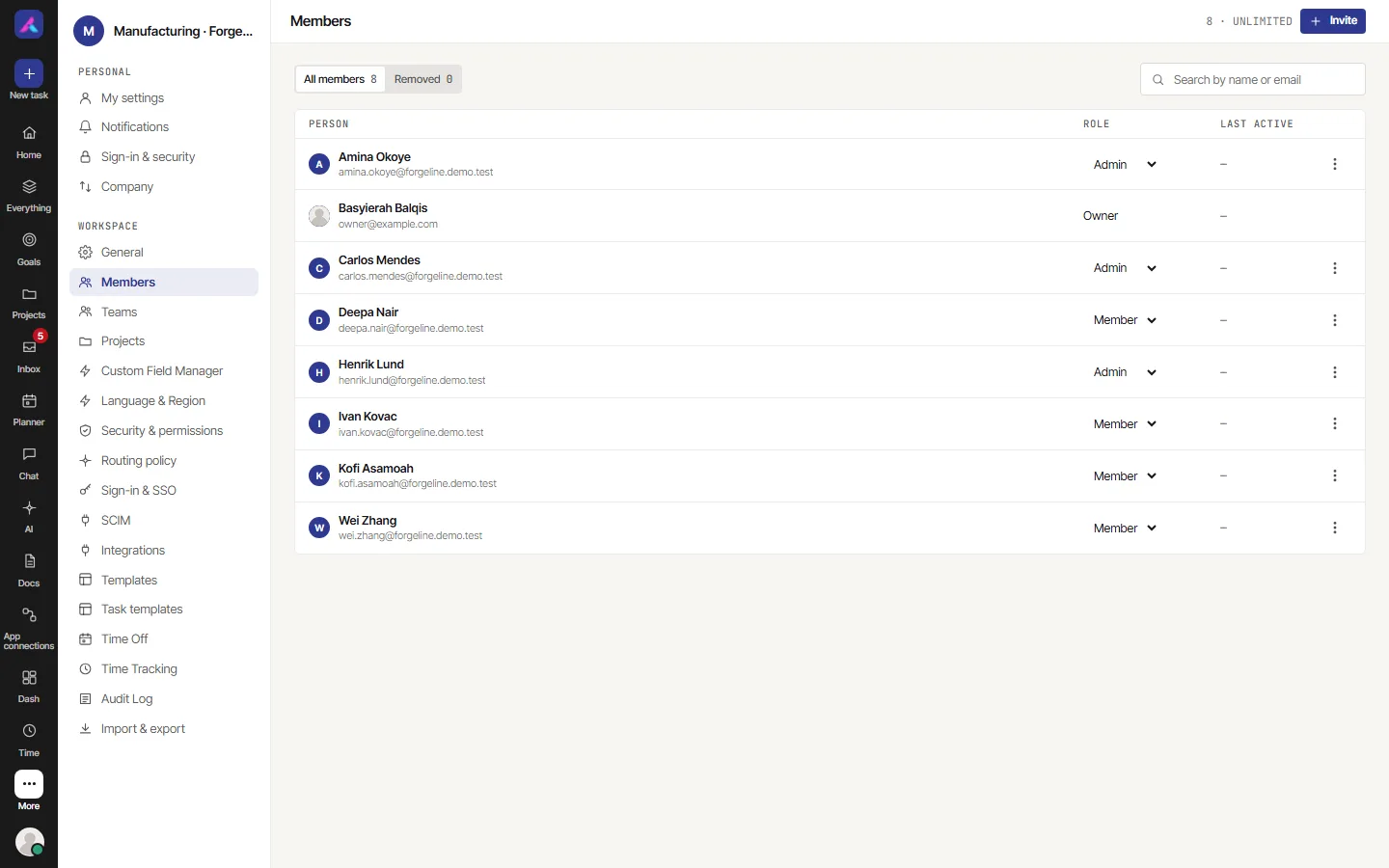
A person gets a role for the whole workspace. A person gets access to a project one by one. A role does not put anyone in a project.
The four roles
Every workspace has the same four roles. You cannot add, rename or delete one.
| Role | In short |
|---|---|
| Owner | Full control, including billing and deleting the company. |
| Admin | Can do everything except billing and deleting the company. |
| Member | Works on projects and tasks day to day. |
| Guest | Can look around and comment. Cannot create or change anything. |
Pending invitations show a role too, but the person is not a member until they accept.
What each role may do
This table shows what a new workspace starts with.
| Owner | Admin | Member | Guest | |
|---|---|---|---|---|
| Open public projects | Yes | Yes | Yes | Yes, read only |
| See private projects | All of them | All of them | Only ones they are on | Only ones they are on |
| Create, edit and comment on tasks | Yes | Yes | Yes | No |
| Delete a task | Yes | Yes | Yes | No |
| Create or delete a project | Yes | Yes | No | No |
| Create, edit or delete docs | Yes | Yes | In projects they can edit | No, unless a doc is shared with them as editor |
| Invite people | Yes | Yes | No | No |
| Change someone's role | Yes | Yes, with limits (see below) | No | No |
| Remove people | Yes | Yes, except an owner | No | No |
| Change Security & permissions | Yes | Yes | No | No |
| Make or change Automations | Yes | Yes | No | No |
| See Billing | Yes | No | No | No |
| Delete the company | Yes | No | No | No |
Things to know:
- Owner and Admin skip every permission row. Nothing in Security & permissions can take something away from them.
- Member and Guest follow the rows in Security & permissions. An owner or admin can change those rows. A new workspace gives Member the day to day task rows and Guest "Read" on almost every row. The Guest column above comes from those starting rows. If your owner changed them, yours may differ.
- Some Guest limits are fixed and no row changes them. A guest cannot open the billing pages that show hours and costs (only a project's client view), cannot create goals, and cannot connect a Google account. A guest only reads docs, unless a doc is shared with them by name as an editor.
- A guest does not appear in the people directory.
- Only an owner can make someone an Admin or an Owner. An admin can pick Admin in the list, but the server refuses it.
- Nobody can change their own role.
- Only an owner can change another owner. The last owner cannot be demoted or removed.
Invite someone
- Open Settings, then Members.
- Select Invite.
- Type an email address. Press Enter, a comma or the space bar to turn it into a chip. Add as many as you like.
- Pick a Role: Guest, Admin or Member. Owner is not in the list. A line under the box explains the role you picked.
- If your workspace has designations, you can also pick one. It is optional.
- Select Send.
Notes:
- Only an owner or an admin can invite. A member who is given the Invite Member row may see the Invite button, but the server answers "Only an owner or an admin can invite members."
- The page checks each address first. You read "User is already in the company." or "You have already sent an invitation. Please resend invitation from members list." and nothing is sent for that address.
- When the mail goes, you read "Invitation mail sent sucessfully".
- When it does not, you read "Couldn't email this invite. Copy the join link instead." Select Copy link and send it yourself. The invitation is saved either way.
- Under the box, "Or share a join link:" shows the link of the last invitation. The link works for the invited address only.
What the invited person sees
The email has a link. What happens next depends on the person.
- No account yet: a "Create your account" page that says which workspace they are joining. They give a name and password, then select Continue.
- Already has an account and is signed in as the invited address: "Accept your invitation", then Accept invitation.
- Signed in as someone else: "This invitation is for another account", with Switch account.
- Link no longer good: "This invitation isn't valid any more". They ask you for a new one.
The emailed link for someone who already has an account stops working after 24 hours. Use resend to get a new link. Each resend makes a new link and the old one stops working.
Being invited puts a person in the workspace. It does not put them in a project.
Pending invitations
Pending people show on the All members tab with "invited" and a date, and a resend link. Open the dots menu on the row to Copy link or Remove. Remove on a pending person cancels the invitation. You read "Invitation cancelled successfully".
Seats and plan limits
The top of the page shows a count and your plan, like "12 · UNLIMITED". The count includes guests and pending people. A connected AI app takes no seat.
When you pick Guest and your plan has a guest limit that is used up, the role is cleared and you read "Upgrade your Plan.You have reached the maximum limit of guest users". The Invite screen does not check the total seat number.
Change a role
On the All members tab, use the ROLE menu on a person's row. You read "User role changed successfully". The menu is not there for owners, for yourself, or for pending people. Only owners and admins can change roles.
Remove someone
- Open Settings, then Members.
- Open the dots menu on the person's row and choose Remove.
- Confirm. The question is "Are you sure you want to delete" and their name. Choose Yes.
You read "User removed successfully". The person moves to the Removed tab.
What it does:
- They can no longer open the workspace. Their sessions and connected apps are cut off.
- Their past tasks and comments stay.
- Their own AlianHub account stays, and so do their other workspaces.
- You cannot remove an owner or yourself from this screen.
To bring someone back, open the Removed tab, open the dots menu and choose resend. They get a new invitation and must accept it.
There is no separate "deactivate" button. If you use SCIM sync from your identity provider, it can turn a person off from there. Owners and admins find it in Settings as SCIM.
Guests
A guest is a person with a login who is not part of your team. A client is the usual example.
- A guest can open every public project, because a public project is open to everyone who is in the workspace.
- A guest sees a private project or a private list only when they are added to it by name, or through a team.
- A guest is read only in a new workspace, as the table shows.
- Guests are left out of the people directory and of the choice of who approves something. They cannot create goals.
- When an AI question names people, a guest only hears about people who share a project with them.
If you want a guest to see one project and nothing else, make your other projects private and add the guest to that one project. See the next section.
Private projects
A project is either public or private.
| Public | Private | |
|---|---|---|
| Who sees it | Everyone in the workspace, guests too | The people and teams added to it, plus owners and admins |
| New projects start as | Everyone in your company | Only people I add |
Roles that set Private Project List to Everyone also see all private projects. A new workspace has it at Own for Member, which means only the projects they are on.
Make a project private
When you create a project, use Visibility and pick Only people I add. You and the lead are added for you.
To change an existing project:
- Open Settings, then Projects.
- On the project's row, find Share With.
- Choose Everyone or Private.
You need both Project List in settings and Project Details to be writable for your role. In a new workspace that means owners and admins. Your plan may cap how many private or public projects you have. If so, you read an upgrade message.
Add people to a private project
Open the project. On a private project, the details panel on the right shows Assignee. Add people and teams there. You need the Project Assignee row, or be an owner or admin. The Assignee row is not shown on a public project.
Making a project private does not add anyone. Whoever is not on its list loses it. Making it public again keeps the list of people, but it no longer matters.
What changes for people who are not on it
- The project is gone from their project list.
- If they try a link, they read "Project not found."
- Their search never shows its tasks, comments or messages.
- A mention or a notice about it does not reach them, so nothing lands in their Inbox.
- Someone who cannot open the project cannot be put on its work. You read "A person named here cannot open this project."
What owners and admins still see
Owners and admins see every private project, list and shared doc. No setting turns that off. Two things are hidden from them:
- A personal list belongs to one person. Nobody else opens it, owners and admins included.
- A private doc shows only to its author and to the people the author shared it with.
Check who can see something
Open the project's menu and choose Who can see this project. It gives the list of people, and a reason for each, such as "Project members", "Through a team", "Owners and admins" or "Their role sees every private project". It uses the same checks the server uses, so it matches who can really open it.
Private lists
A list in a project can be private too, even when the project is public.
- Open the project and find the list's header.
- Find Share With and switch the toggle from Everyone to Private.
- Add people or teams with the avatars that appear.
You need the List Type Change row for this. Despite its name, it also controls who a list is shared with. In a new workspace that is owners and admins.
What it does:
- You are added to the list when you switch it to private.
- On a private project, you can only pick people who are on the project. On a public project, you can pick anyone.
- People not on the list do not see it. Its tasks do not show in their lists, boards, reports, search or comment threads.
- Owners and admins still see it.
- Switching back to Everyone clears the list's people.
- Taking the last person off a private list switches it back to Everyone in the app.
- To check who can see it, open the project's public link window and choose Who can see this list.
The Who can see this list reasons are "Shared with them" and "Shared with their team".
Teams
A team is a named group of people. Open Settings, then Teams. Use Team at the top to add one. Pick a name and a colour, then add people. You need the Create Team row to add a team and the Team List row to change one.
- A team can be added to a private project or a private list like a person. Everyone in the team then gets in.
- Teams also drive Workload and the reach of an AI agent.
- Teams are part of some plans. If yours is not, the page offers an upgrade.
What it cannot do
- Custom roles. There are four roles. No screen adds, renames or deletes one. Fine control is in the rows of Security & permissions, for Member and Guest only.
- Make someone an Owner. The invite list and the role menu have no Owner.
- Permissions on one list. A list is Everyone or Private. You cannot make it view only for one person.
- Hide a project from an owner or an admin. No setting does this.
- A link anyone can use to join. A join link only works for the address you invited.
- Stop you at the seat limit. The Invite screen shows the count but does not block you at the number.
- Pause a person. On the Members page, Remove is the only switch. A removed person has no access until you invite them again.