
Workload view
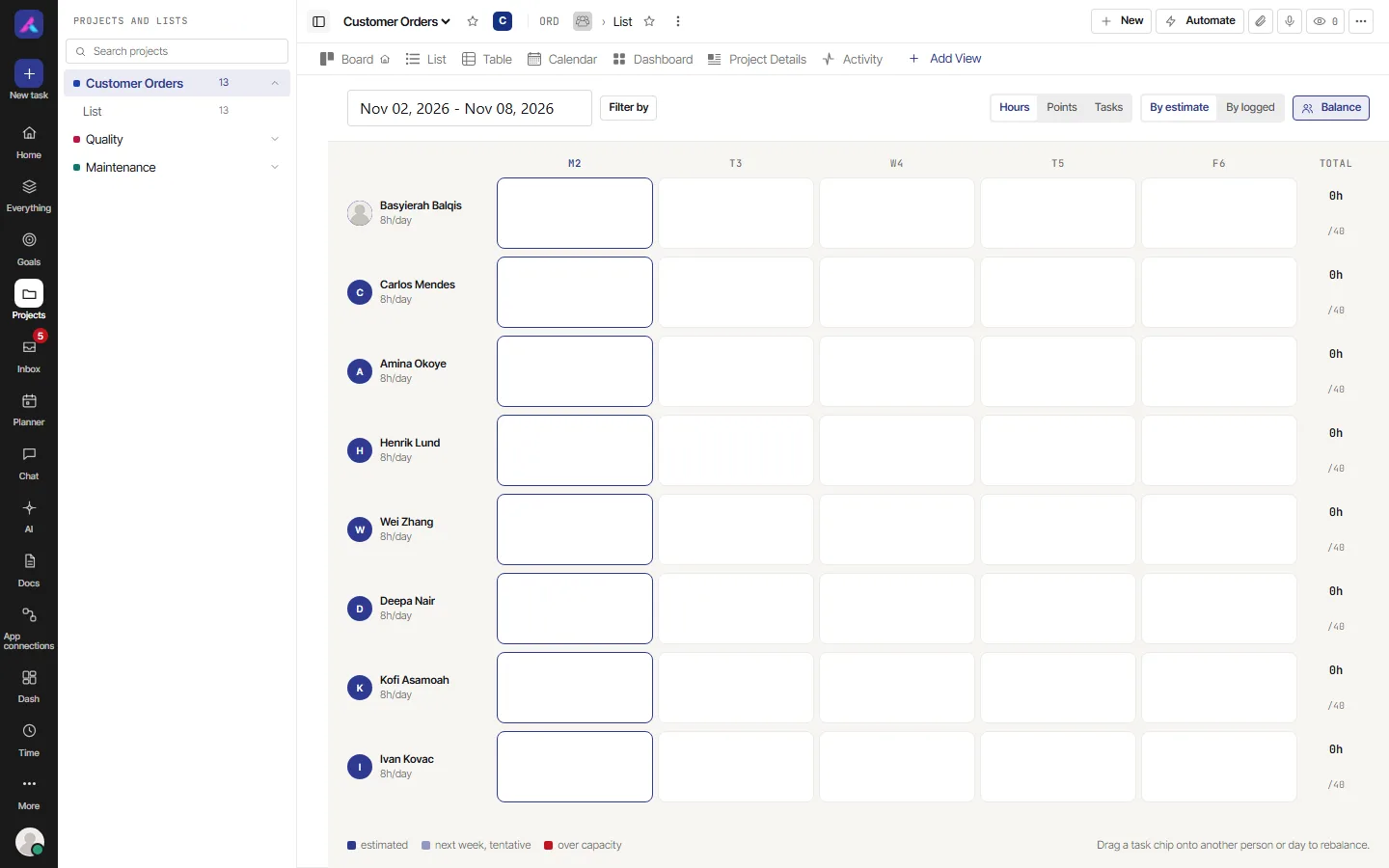
The Workload view shows each person as a row and each day as a column, with how loaded they are against what they can do. Use it to see who has too much on, and to move work to someone who has room.
How it works
The Workload shows each person as a row and each day as a column. Each cell is filled as far as that person is loaded for that day. The last column shows the total against the person's capacity.
- Pick the dates at the top. It opens on the current week. Days off are left out.
- Hours, Points and Tasks choose what is counted (the label is "Measure workload in").
- Hours counts the time planned on tasks for that day, or the time logged. Pick By estimate or By logged.
- Points and Tasks count the open tasks that are due in the range, by story points or by number of tasks.
- Capacity in Hours comes from the person's working hours, minus approved time off. Time off shows as "PTO". To others it may show as "Unavailable".
- Capacity in Points and Tasks is 10 a week unless the person changed it. Each person sets their own under My settings, in "Workload capacity".
- A person or a day over capacity is marked. Days after this week are marked as tentative. The key at the bottom explains the marks.
- Task chips show in the cell. Select one to open the task. Drag one onto another person or another day to move that work. A line at the bottom says what the move will do.
- Balance suggests one move, such as taking one task from an overloaded person. Select Apply to make it.
- Filter by picks people or teams. It shows only if your role lets you see everyone. Without that, you see only your own row.
Limits
- It has no search, group or sort. It cannot filter by status or other task fields.
- Your workspace plan must include it, or it says "To Unlock WorkLoad View".
- Chips show only when you count Hours by estimate, or count Points or Tasks. A "By logged" cell shows time only.
- It needs a wider screen. Below 768 pixels it says "Open this on a desktop".
Balance the team's week
- Pick the dates at the top. It opens on the current week.
- Choose what to count under "Measure workload in": Hours, Points or Tasks.
- Look for people and days marked over capacity.
- Drag a task chip from an overloaded person or day onto someone or a day with room. Read the line at the bottom that says what the move will do.
- Or select Balance for one suggested move, and Apply it.
Where capacity comes from
| Counting in | Capacity is |
|---|---|
| Hours | The person's working hours, minus approved time off |
| Points or Tasks | 10 a week, unless the person changed it under My settings, in "Workload capacity" |
Working hours are set by each person in My settings. Approved time off comes from Approvals.
Related
- Views, filters and saved views: search, filter, group, sort, columns, totals and saved views
- Tasks