
Approvals
Some things in AlianHub wait for a person to say yes. A weekly timesheet waits for an owner or admin. A time-off request waits too. Changes that an AI agent wants to make can wait, and so can a step in a workflow. This page shows each kind, who may decide it, and where to find it.
| What waits | Who decides | Where you decide it |
|---|---|---|
| A weekly timesheet | Owners and admins | Approvals |
| A time-off request | Owners and admins | Approvals, the Inbox's Needs your approval tab, or Settings, Time Off |
| A change an AI agent proposes | Anyone who may make that change (some need an owner or admin) | The Inbox's Needs your approval tab, or AI Inbox |
| A plan from Ask AlianHub | The person who asked | In Ask, or in the Inbox |
| An approval step in a workflow | The person or role the step names, or an owner or admin | AI Inbox, Approvals tab |
Timesheets
Submit a week
Each person sends their own week in from their timesheet with Submit week. The week moves from Draft to Submitted. See Time and timesheets for the details.
- A week covers Monday to Sunday and all projects. You cannot submit one task, one day or one entry.
- A submitted week is not locked. Its time can still change until it is approved. The reviewer sees the week as it stands when they open it.
- Owners and admins can submit a week for someone else: open that person's timesheet and select Submit week.
- Nobody is notified when a week is submitted. Reviewers see it waiting in Approvals.
Open the approval queue
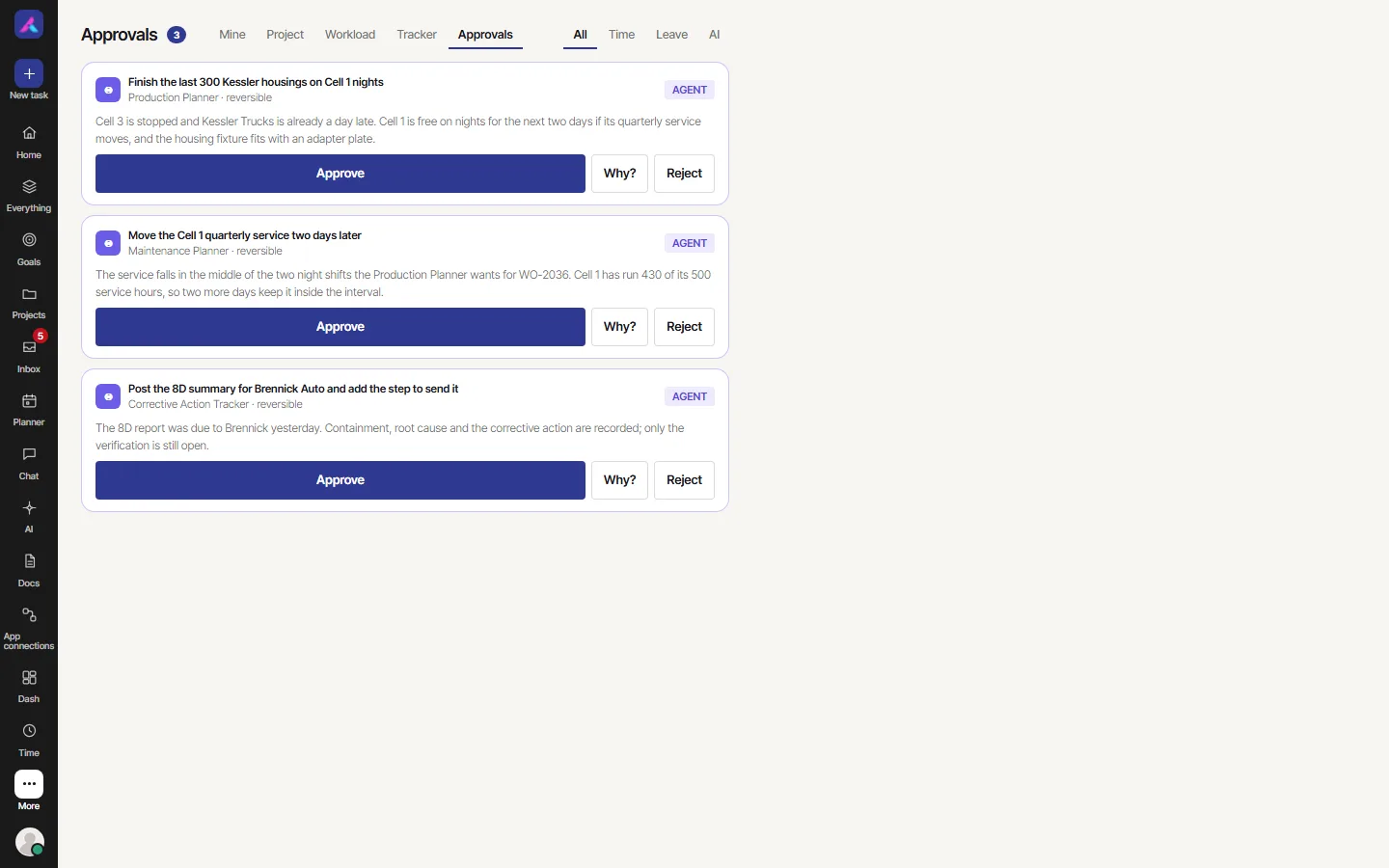
Owners and admins open Approvals. It is under More, in the Work group, and also as a screen under Time. A number beside the title counts what is waiting.
Filters at the top narrow the list to one kind: timesheets, time off (leave), or proposals from AI agents. Show all approvals brings everything back.
Each timesheet shows as "(name)'s timesheet" with the week, the total, the billable hours, the internal (non-billable) hours and any hours over capacity.
Approve or send back one week
- Find the week in Approvals.
- Select Detail to open that person's week and check it, if you want.
- Choose one:
- Approve accepts it. A toast says "Approved."
- Reject asks for a reason, labelled "Reason (the requester sees this)". Type it and select Confirm reject. A reason is required. The person sees it on their timesheet.
Approve or send back many weeks
- Tick the weeks, or tick Select all timesheets on this page. A bar shows how many are picked.
- Select Approve, or Send back. Send back asks for one note for everyone, up to 500 characters.
- Read the result. It says how many were approved, sent back or skipped, and why each was skipped (for example, "already reviewed").
After a decision
| Decision | What happens to the week |
|---|---|
| Approved | Locked. Nobody can add, edit or delete time in it, or start, stop or trim a timer on its days. Entries on the task show a lock. |
| Rejected or sent back | Not locked. The person fixes it and selects Resubmit week. |
Reopen an approved week
An owner or admin opens the week and selects Reopen beside the date range. A box asks "Reopen this week?". The week goes back to Submitted, its time can change again, and it needs approving again. A note on the week says who reopened it and when.
Approving your own week
Owners and admins may approve their own week. In Approvals it carries a chip, Your own week, with the hint "If you approve it, the week shows that you approved your own." Afterwards the week reads "Approved by (name) (own week)".
Who can approve timesheets
- Only owners and admins approve, send back and reopen. A custom role cannot, even with Everyone on the timesheet screens.
- You cannot name an approver for one project or one person. Every owner and admin can decide every week.
- An AI agent cannot submit, approve, send back or reopen a week. A person must do it, signed in.
Time off
Request time off
- Open Settings, then Time Off.
- Fill in Request time off:
| Field | What it takes |
|---|---|
| Type | Casual Leave, Privilege Leave, Sick Leave, Vacation, Holiday, Personal or Unpaid. |
| Start date and End date | The days off. The end date must be on or after the start date. |
| Duration | Full day, Half day or Custom hours. |
| Reason | An optional note. The approver sees it. |
- Select Request. A toast says "Time off requested." The request shows under My time off as Pending.
Decide a request
Owners and admins see waiting requests in three places: Approvals (filter to time off), the Inbox's Needs your approval tab, and Team time off in Settings, Time Off.
- In the Inbox, each row reads "{name} requested {dates} off · needs your approval", with the type and the reason. Approve accepts it and Decline turns it down. For about 6 seconds an Undo button sets it back to waiting.
- In Team time off, use Approve or Reject on the row. You can filter by member, status and type.
The person is told the decision, in the app and by email. An approved request shows on the Calendar as time off, dims those days on the timesheet, and lowers that person's capacity. An approved request cannot be deleted.
Changes proposed by AI agents
When an AI agent (your own AI app, or an agent inside AlianHub) wants to change something that a project says needs approval, it files a proposal. The proposal waits in the Inbox's Needs your approval tab and in AI Inbox. A card shows who asks, why, and "What changes". You can Approve, Edit (on agent cards that allow it) or Decline, or tick several and use Approve selected.
- A card says "Needs an owner or admin" or "Needs someone who may make this change" when you may not decide it.
- Only a signed-in person can decide. No agent can approve its own proposal.
- An approved change can be undone for a short time.
All the steps, Always do this and undo are on Approve in the Inbox and Undo a change.
Plans from Ask AlianHub
When you ask Ask AlianHub to plan something, such as tasks, fields, a view or an automation, it shows a plan for your approval. Nothing is made until you select Approve. The plan also waits in your Inbox, and after approval you can undo it from there. See Ask AlianHub.
Workflow approval steps
A workflow can include a step that asks a person to approve before it carries on. Open AI, then AI Inbox, then the Approvals tab. It lists every approval waiting on you. If none is, it says "No workflow is waiting on you".
Select one to read it. It shows the Owner (a person, or "Whoever holds" a role), the Deadline, and who it Escalates to if it is not decided in time.
| Button | What it does |
|---|---|
| Approve | "Approved. The run carries on." |
| Reject | "Rejected. The run skips what came after it." |
| Reassign | Hands the approval to somebody else, with an optional reason. Who moved it, and to whom, is recorded. |
Only the owner of the approval, an owner or an admin can decide it. Everyone else sees it read-only. See Agents in AlianHub for what workflows are.
Good to know
- Timesheet submissions and decisions send no email or alert. Approvers must open Approvals.
- A card in Needs your approval cannot be cleared or snoozed. It leaves when someone decides it.
- Every agent proposal and every decision on it is written to the audit log.