
Table view
The Table view shows tasks in a grid, like a spreadsheet. Use it to compare tasks side by side and to edit values cell by cell.
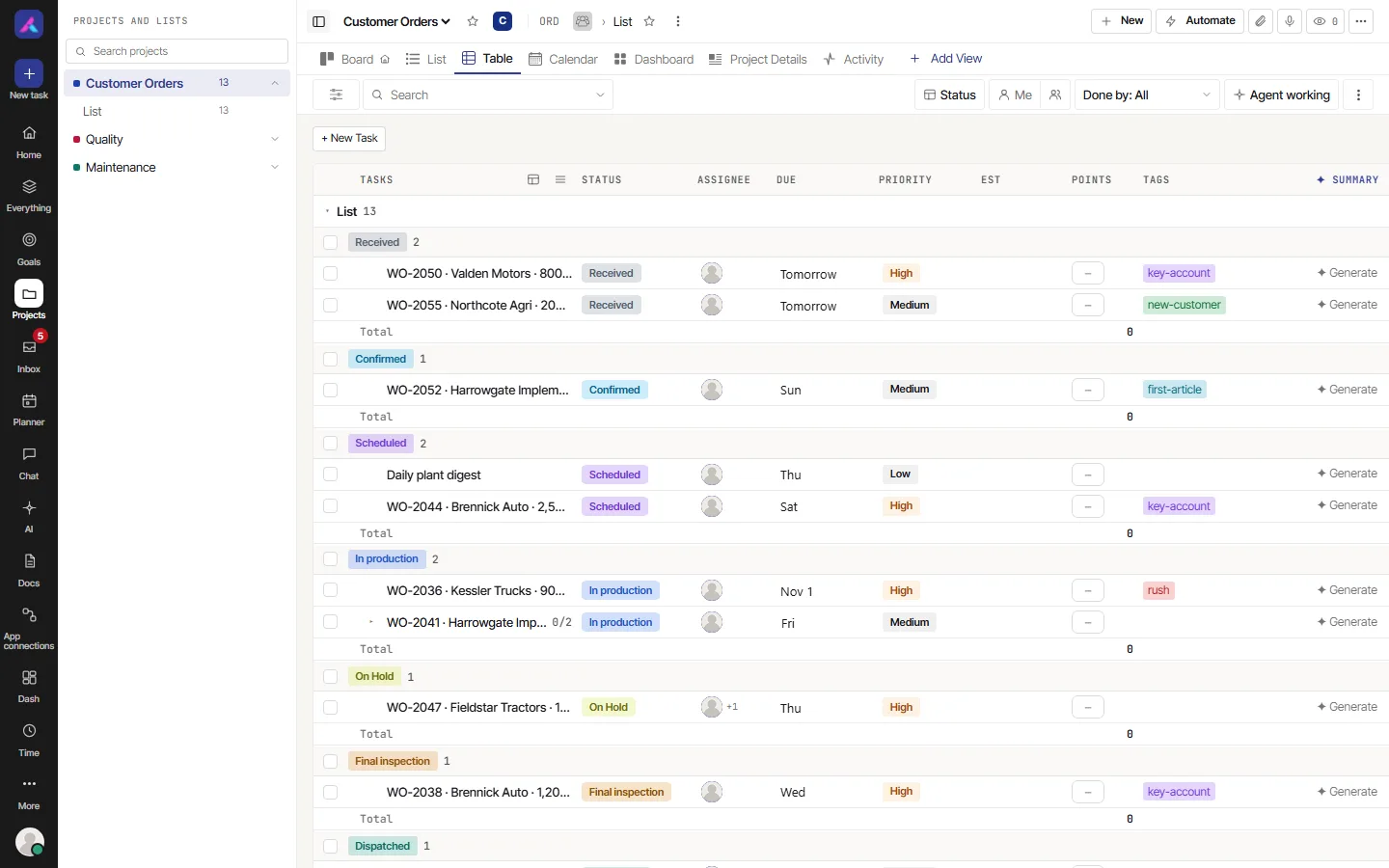
How it works
The Table is a grid. Each group has a chip with its name and a count. Select + New Task above the grid to add a task.
- Select a column heading to sort by it. Select again to switch between up and down.
- The Columns button chooses which columns show and in what order.
- Row density switches between Comfortable and Compact.
- Each group can end with a Total row (see Totals).
Limits
- Only some headings sort: Tasks, Status, Est, Points, and your custom fields that can be sorted. Assignee, Due, Priority, Tags and the others do not sort here. The List has more sort choices.
- You cannot clear a sort by selecting a heading. Use Reset on the unsaved changes bar instead (see Saved views).
Controls in the toolbar
The Table has search, Filter, Me, Assignee, Done by, Agent working and Group by, like the List. Sorting is done by selecting a column heading instead of a Sort button.
Columns offers Status, Assignee, Due, Start, Priority, Est, Points, Tags, Created, Updated, Summary, Risk, Area, Done by and your custom fields. All are on except Start, Created and Updated. Custom fields start on in the Table, unlike the List.
Edit in the grid
Select a cell to change its value, as you would in a spreadsheet. Most custom fields can be edited in their cell. A formula or rollup field cannot, because AlianHub works it out.
Related
- Views, filters and saved views: search, filter, group, sort, columns, totals and saved views
- Tasks