
Docs and whiteboards
A doc is a page of writing: a brief, a decision, meeting notes. A whiteboard is something else. It is a view of a list where tasks sit as cards you can move around. This page covers both. It tells you where they live, who can see them, how to share a doc with named people, how comments and versions work, and what neither can do.
Docs and whiteboards are separate things. A whiteboard is not a doc, and a doc is not a whiteboard.
Where docs live
There are two places to work with docs.
| Place | How to open it | What it shows |
|---|---|---|
| Docs in the left rail | Select Docs | Every doc you can see, across the workspace |
| A project's Docs tab | Open the project, then its Docs tab. If it is not there, select Add View | That project's docs only, as a page tree |
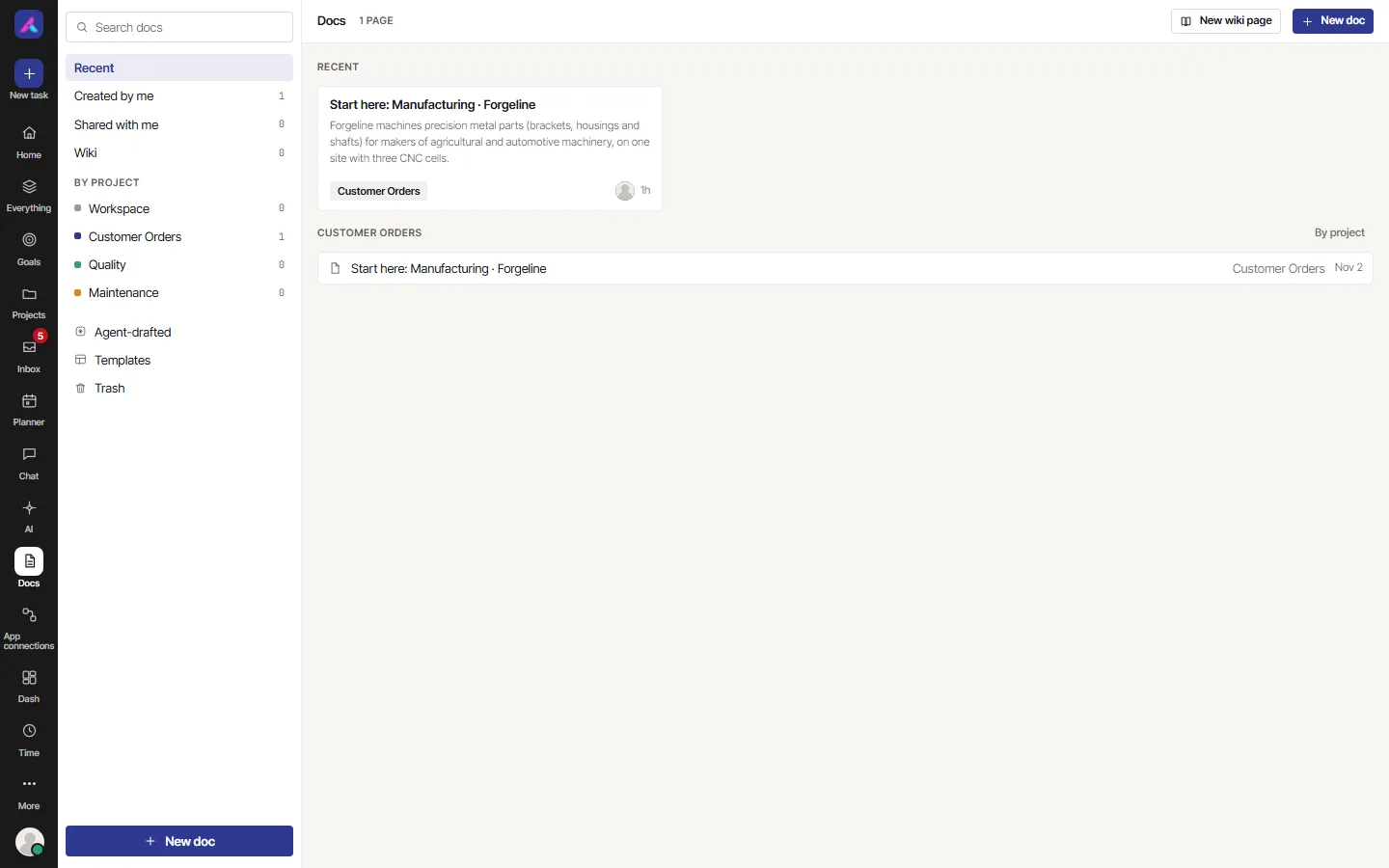
The Docs screen has a list on the left:
- Recent: the newest docs first.
- Created by me: docs you started.
- Shared with me: docs someone shared with you by name.
- Wiki: wiki pages (see "Wiki pages" below).
- By project: Workspace (docs that belong to no project) and one entry for each project.
- Agent-drafted: pages an AI agent wrote, for you to review.
- Templates: starting points (you only see this if you can write docs).
- Trash: deleted docs.
A doc belongs to one project, or to no project (Workspace). Inside a project, docs form a tree. Select the plus button on a row (Add a nested page) to put a page under another.
Make a doc
- Select New doc. You get a blank page named "Untitled". In Docs, it goes into the project you have picked in By project, or into Workspace if you have not picked one.
- Type a title. Type the text. Type
/for blocks (Task, Task list, Callout, Image, Embed, Divider, Quote). - Nothing else to do. The doc saves by itself a couple of seconds after you stop typing. The small status next to the title says Saving… and then Saved. Save saves now.
To start from a structure, open Templates. The choices are Spec, Sprint retro, Runbook, Meeting notes and Release notes. Runbook starts as a wiki page. Select Blank doc or from template for an empty page.
Along the top of a doc:
| Control | What it does |
|---|---|
| Edit and Preview | Switch between writing and reading |
| Link tasks | Attach tasks of this project to the doc. Only for docs in a project |
| Comments | Open the comments side (see "Comments") |
| History | Open the versions (see "Versions") |
| Present | Turn the headings into slides. If there are no headings you read: "Add a heading or two and Present will turn them into slides." |
| Share | Open the sharing box (see "Share a doc") |
| Ask about this doc | Ask AI about the doc. Only when AI is on for your workspace |
| Delete (bin icon) | Move the doc to the Trash |
Under the title are the properties: Owner, Project, Visibility, Wiki page, and Review date (once Wiki page is ticked). On a wide screen, On this page lists your headings.
Wiki pages
Tick Wiki page on a doc to make it a wiki page. It gets an owner and a review date. A wiki page is Verified until its review date, Due now after it, and Stale when it has gone about three months past its date. Select Mark reviewed to start the clock again. Reviewing moves the next review date three months ahead. Needs review in Wiki shows only pages that are due or stale.
Who can see and edit a doc
| The doc is | Who can read it | Who can edit it |
|---|---|---|
| Shared, in a project | Everyone who can see that project | People who can edit that project |
| Shared, in no project | Every member of the workspace | Every member except guests |
| Private | Its author only | Its author only |
| Shared with a person by name | That person | That person, if you gave Can edit |
Guests can read docs they can reach. They cannot start, delete or restore a doc. A guest can edit only a doc that was shared with them by name as Can edit.
Visibility is the chip under the title. It reads Shared or Private. Select it to switch.
- Only the author can make a doc Private. Once private, nobody else can open it. Owners and admins cannot open it either.
- A person who was shared a doc to edit can change its text and title. They cannot change its properties (owner, visibility, review date, linked tasks).
- A person who can only read the doc sees View only where the properties would be. They can still comment.
To check who can open a doc, open Share, then select Who can see this doc. It lists the people and why each one can see it. It uses the same rules the server checks.
Share a doc
Select Share. The box Share this doc has three parts.
Shared with this project
This switch is the same as Visibility. On means everyone who can see the project can read the doc. Off means Private.
Share with named people
Under People you share this doc with someone by name. The box says they get this doc only, not its project.
- Select Add people.
- Pick one or more people.
- For each person, choose Can view or Can edit in the list beside their name.
To take someone off, select the cross beside their name (Stop sharing with that person).
What to know:
- Only the author of the doc can do this. An owner or admin can too, if they can open the doc. A private doc stays its author's to share.
- You can pick only active members of the workspace. A doc can be shared with at most 50 people.
- The first time you name someone, they get a notification. They see the doc under Shared with me.
- There are only two roles: Can view and Can edit. There is no "can comment" role. Anyone who can read the doc can comment.
- If a person leaves the workspace, their name stays in the list with No longer a member. They can open nothing meanwhile. Remove them yourself.
- The doc shows Shared with 1 person or Shared with {n} people (a number) to the people who manage it. The people it is shared with see Shared with you.
Share link with anyone
This is a public link. Anyone with the link can read the doc without signing in.
- Make sure the doc is Shared. For a private doc the box says "Set the doc to Shared first".
- Turn on Share link with anyone.
- Select Copy public link.
To stop sharing, turn the switch off. The link then stops working.
- The link is read only. It shows the doc and the sub-pages under it. A sub-page that is Private is left out.
- You need to be allowed to edit the doc's project to make or remove a link. Guests cannot.
- If someone later makes the doc Private, the link stops working.
- The screen has no password and no expiry date for a doc link.
Comments
Select Comments to open the side. The tabs read Open ({n}) and Resolved ({n}).
- Type in the box and select Comment. Type
@to mention a person, a doc or a task. - A comment is on the whole doc (On the whole doc) or on one block. To put it on a block, click into the block, then select Use the selected block. Select the cross to go back to the whole doc. Select Show this block in the doc to jump to it.
- If the block is later deleted, the comment moves to the whole doc and says so.
- Reply answers a thread. A reply goes under the first comment. There are no replies to replies.
- Resolve closes a thread and Reopen opens it again. This applies to threads, not to single replies.
- You can assign a thread to a person who can read the doc. Once a thread has an assignee, only the assignee, the person who assigned it, or an admin can resolve it. The Resolve button is then not shown beside Reply. Use the assign control.
- Edit works on your own comments only. Delete works on your own comments, and for admins on any. Deleting a thread deletes its replies too ("Delete this comment and all its replies?").
- Attach a file adds one file to a comment.
- Reactions are there too. Eight emoji are allowed.
- People who are mentioned or assigned get a notification. Only people who can read the doc can be picked.
- A doc holds up to 500 comments. After that: "This doc has reached its limit of 500 comments. Delete some to add more."
- A comment can be up to 10,000 characters.
You can comment on a doc that is in the list for you, even when you cannot edit it. You cannot comment on a doc in the Trash.
Versions
A version is a saved copy of the doc, kept so you can look back or go back. Select History to see them. The box is called Version history.
What gets kept
Most versions are made for you. A version of the doc as it was is kept:
- before someone else edits it (Kept before someone else edited),
- before a save removes or rewrites a good part of the text (Kept before text was removed or rewritten),
- about every ten minutes while the doc is being edited (Kept while editing),
- before a restore (Kept before a restore).
You can also keep one yourself. Type an optional name in Name (optional) and select Save a version. These say Saved by hand. A doc that is blank gets no version.
To name a version later, open it and select Name this version, type the name, and select Save name. A name can be up to 80 characters. Clear the name to remove it.
How many are kept
| Kind | Kept |
|---|---|
| Unnamed versions | Up to 100. Every one from the last day. Then the newest of each day for 30 days. Then the newest of each week |
| Named versions | Up to 30. They are never thinned. At 30 you read: "A doc can have up to 30 named versions. Clear a name to add another." |
All the versions of one doc together are capped at 32 MB. When that is passed, the oldest unnamed ones go first.
Look and restore
- Select a version. It opens as Read-only.
- Choose what to compare with: The version before or The doc now. You see "{added} added, {removed} removed, {changed} changed" in numbers, and the words that changed are marked.
- To go back, select Restore this version, and confirm. The doc as it is now is kept as a version first, so a restore can be undone by restoring that one.
Good to know:
- Only people who can edit the doc see Save a version, Name this version and Restore this version. Readers can look.
- A version made while the doc was private shows From when the doc was private. Only the author sees it. Restoring it asks first, because it shows that text to everyone who can read the doc.
- A restore does not send mention notifications for names in the old text.
Whiteboards
A whiteboard is a view of one list, not a page of writing. Open a list, then select Add View and pick Whiteboard if it is not already a tab. Its tab shows as Canvas in some places.
What you see:
- Every task of the list appears as a card with its key and name. The top shows the number of cards.
- Drag a card anywhere. Auto-arrange puts the cards back in a grid.
- Add note puts a coloured note on the board. Add text puts a plain text label. A note has six colours: Amber, Green, Red, Violet, Brand colour and Grey. Select a note to Edit or Delete it. Drag its corner (Drag to resize) to change its size.
- A card for a task you are not allowed to open shows A task you cannot open, with no name.
- Status next to the title: Saved, Saving…, Offline: changes kept on this device, or Not saved: changes kept on this device.
Who can use it:
- It follows the list. Anyone who can open the list can see the board. Anyone who can edit the project can move cards and add notes. Everyone else sees View only.
- There is one board for each list. Everyone who opens the list sees the same board. Changes show up for others as they are saved.
- If two people save at once, each person's own moves are kept on top of the other's.
- Cards come from the list's tasks. A task moved to another list or deleted drops off the board.
History on the whiteboard keeps earlier states:
- It keeps up to 20. A state is kept when someone else changed the board, when many items changed at once, or about every ten minutes.
- Each row shows who saved it, when, and "{n} items". Select Restore on a row to go back to it. Only people who can edit see Restore.
- If it says "No earlier states yet." nothing has been kept yet.
Older boards that were kept only in your browser still work. The board then says "This board is kept in this browser only." Select Save this board to the workspace to share it with everyone who can open the list.
Delete a doc, and the Trash
Select the bin icon (Delete). You are asked Delete this doc? and told: "The doc and every sub-page under it go to the Trash in Docs. You can restore them from there."
- Nothing is erased. The doc goes to the Trash.
- You can delete a doc if you can edit its project. A private doc can be deleted by its author. Guests cannot delete.
- Sub-pages that you can see go with it. Sub-pages you cannot see stay.
- To bring a doc back, open Trash in Docs, or open Trash from the main menu and pick the Docs tab. Select Restore. Restoring a doc brings back that doc only, not its sub-pages (see the last section).
- The Trash page says: "Deleted work stays here until you restore it. Nothing is removed for good." It lists up to 200 items for each kind.
- Whiteboards have no trash of their own. A board lives as long as its list does. While the list or project is in the Trash, its board is gone. When they come back, the board is back as you left it.
Search
| Where | What it searches |
|---|---|
| Search docs in Docs | The title and the first 160 characters of the text, of the docs already loaded |
| Find a page… in a project's Docs tab | The same, within that project |
| The command palette (Search or run a command), Docs chip | The title only |
There is no search through the whole text of a doc.
Limits
| What | Limit |
|---|---|
| Title | 200 characters |
| One doc's body | About 512 KB. Over that: "Page content is too large." |
| People a doc is shared with by name | 50 |
| Comments on a doc | 500 |
| One comment | 10,000 characters |
| Unnamed versions of a doc | 100 |
| Named versions of a doc | 30 |
| Version name | 80 characters |
| Images in a doc | PNG, JPEG, GIF or WebP. Larger ones are refused: "That image is too large to upload." |
| Whiteboard cards | 2,000 |
| Whiteboard notes and texts together | 500 |
| Text in one note | 2,000 characters |
| Whiteboard history | 20 states |
What it cannot do
- Edit together live. Two people can open one doc, but the text does not update as the other types. If someone saved after you opened the doc, your save is refused and you read: "This doc was changed somewhere else after you opened it, so your changes were not saved over it. They are kept on this device." Choose Keep mine as a copy or Reload the saved doc. Comments do update live.
- Merge changes. Two people editing the same doc cannot have their text joined. One copy wins.
- Share a doc by team or by role. You name people one at a time. There is no "everyone in this team".
- Give a "can comment" role. Only Can view and Can edit exist for named people. Anyone who can read can comment.
- Make a doc private after someone else made it. Only the author can switch Visibility to Private. An owner or admin cannot open a private doc to help.
- Protect a public link. No password, no expiry date for a doc link on this screen.
- Delete a doc for good. There is no empty-the-trash button for docs.
- Restore sub-pages with the parent. The Trash brings back one doc at a time.
- Find a word deep in a doc. Search reads the title and the start of the text only.
- Resolve single replies. Only whole threads are resolved.
- Keep every version for ever. Old unnamed versions are thinned, and you cannot turn that off.
- Draw on a whiteboard. There are cards, notes and text only. No shapes, arrows, lines or pictures.
- Comment on or share a whiteboard. It has no comments and no public link. It follows the list's access.
- Keep many boards for one list. There is one board for each list.
- Show a board for a trashed list. It is gone until the list comes back.
Related
- Embed and other views, where the Whiteboard and Docs tabs sit among the other views
- Chat and the Inbox, where doc shares, mentions and comment replies arrive
- People and roles