
Tasks
A task is one piece of work that someone does. Everything about that work lives on the task: what it is, who does it, by when, how big it is, the files, the conversation and every change made to it. This page covers creating tasks, the task panel field by field, subtasks, checklists, comments, files, relations, repeating tasks, changing many tasks at once, and the keys that make it faster.
If a field described here is missing, the project may have that app switched off (see Projects), or your role may not allow it.
Create a task
| Where | How |
|---|---|
| Anywhere | Press C, or select New task at the top of the left bar |
| In a project | New, then Task |
| In the List view | Add task to at the bottom of a group |
| On the Board | The plus button at the top of a column. The task starts in that column. |
| In the Table view | New Task above the grid |
| In the Calendar | Select a run of days to start a task with those dates |
| From a comment or chat message | The message menu has Create Task |
The New task window:
- Type a Task name of at least 3 characters.
- Pick the Project and the List (or your Personal List). Inside a project, these are filled in for you.
- Optionally set Status, Assignee, Due date and Priority.
- Optionally pick a Template to fill in the rest. A project can have a default template chosen for you.
- Select Create task.
| Keys in the window | What they do |
|---|---|
| Enter | Create the task |
| Shift and Enter | Create it and start another |
| Ctrl and Enter (Cmd and Enter on a Mac) | Create it and open it |
Tick Create another to keep the window open after each task.
The task panel
Select a task to open it in a panel at the side. Expand makes it full size, Minimize to tray parks it at the bottom so you can come back to it, and Esc closes it.
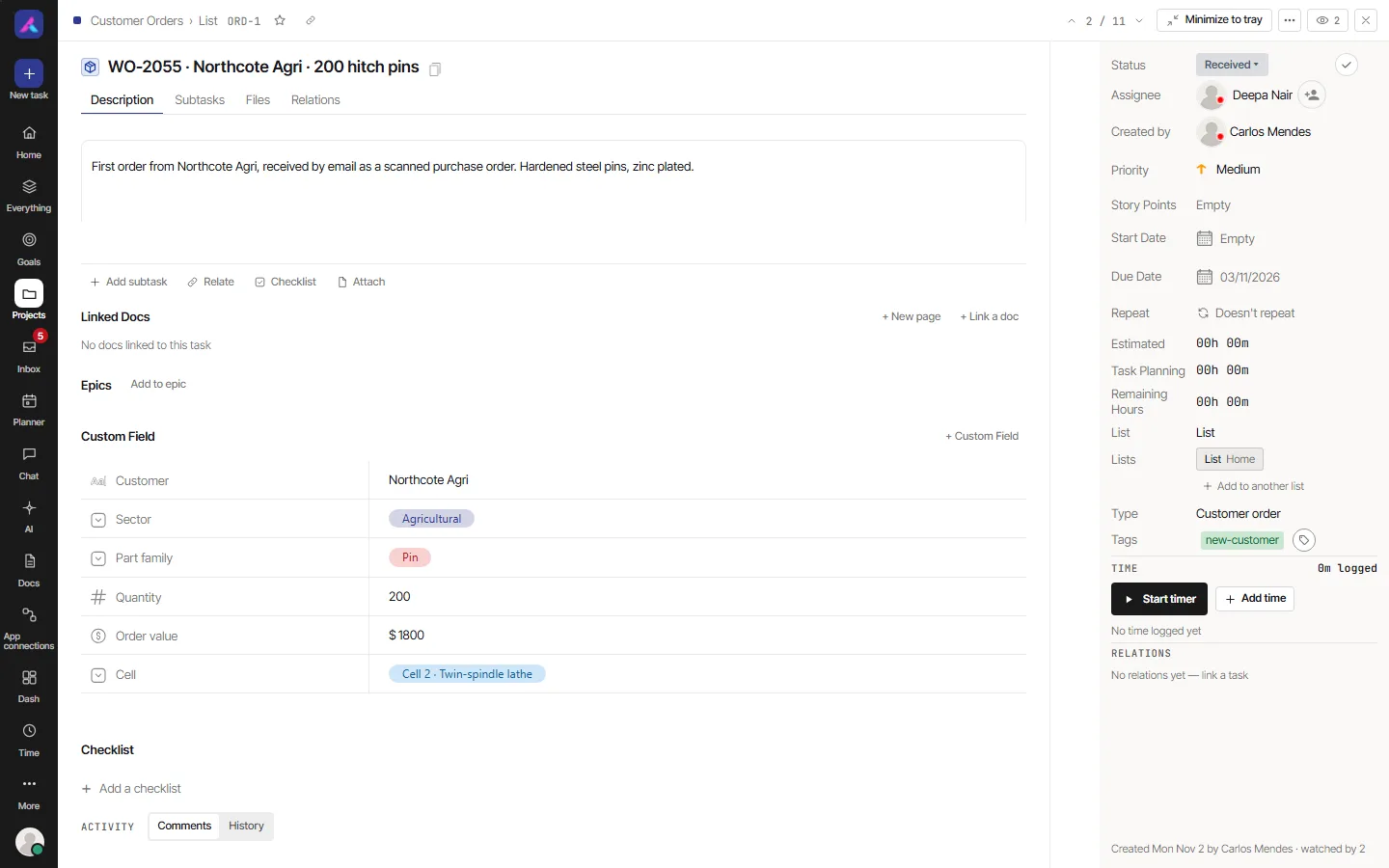 At the top:
- The task's key, such as WEB-12. Select it to copy it. The link button copies a link to the task.
- The path to the task (project, list, and parent tasks for a subtask).
- Previous task and Next task move through the view you came from. K and J do the same.
- A star to make it a favourite, and More actions (see "The task menu" below).
- Complete moves the task to its project's done status. Select it again to move it back.
Details
| Field | What it holds |
|---|---|
| Status | Where the task is. Pick one of the project's statuses. |
| Assignee | Who does the work. More than one person when the Multiple assignees app is on. You see only people who can work on the project. |
| Created by | Who made the task |
| Priority | Urgent, High, Medium or Low, shown as a coloured flag |
| Story Points | The size of the task, on the project's estimation scale |
| Start Date and Due Date | When work starts and when it is due |
| Estimated | How long the task should take. Suggest asks AI for an estimate, which you Apply or ignore. |
| Task Planning and Remaining Hours | The hours planned on the task, and how many are left |
| List and Lists | The list the task lives in, and any other lists it has been added to |
| Type | The task type, such as Task or Bug |
| Tags | Coloured labels. Type to search, or press Enter to create a new tag. |
| Custom fields | Your project's fields. See Custom fields. |
| Time | Logged time and a timer, when the project tracks time. See Time and timesheets. |
| Repeat | Whether the task comes back on a schedule. See "Repeating tasks" below. |
At the bottom you see when the task was created, by whom, and how many people watch it.
The tabs
| Tab | What it holds |
|---|---|
| Description | What the work is, in formatted text |
| Subtasks | Smaller tasks inside this one |
| Files | Attachments |
| Relations | Links to other tasks |
Above the tabs, Quick actions offer Add subtask, Relate, Checklist and Attach.
Status
Each project has its own statuses, such as To Do, In Progress and Done. Each status is also of a kind: open, in progress, or done. AlianHub uses the kind to know when a task is finished, whatever the status is called.
To change a status:
- select the status dot in a List row,
- use the Status field in the panel,
- drag the card to another column on the Board, or
- select Complete.
The project's statuses are set in Settings, then Projects, under Task Status.
Assignees and watchers
- Assignee: the people responsible. An unassigned task appears under Unassigned when you group by assignee. Some projects show AI agents in the list too; handing a task to an agent leaves the assignees as they are. See Agents in AlianHub.
- Watchers: people who follow a task without owning it. Open More actions, then Watchers, to add or remove them. Watchers get updates in their Inbox.
You can choose how closely you follow a task yourself: All activity, Participating and mentions, or Ignore. You can only change your own notifications. See Notifications.
Dates and estimates
- Start Date and Due Date: both are needed for a task to show as a bar on the Gantt. A task with only a due date shows on that day in the Calendar.
- Estimated: the time the task should take. Your workspace may ask for a reason when an estimate changes ("Reason for changing estimated hours").
- Story Points: a size on the project's scale (Fibonacci, Linear, T-shirt or Hours). The scale is set in the project's More menu, under Estimation scale.
- The time logged against the estimate shows in Time, such as "3h of 5h", or how far it is over.
Subtasks
A subtask is a task inside another task. It has its own assignee, status and dates.
- Open the task and select Add subtask, or open the Subtasks tab.
- Type the name. Enter adds the next subtask; Esc stops.
- In the List view, the ... menu on a row also has Add subtask.
Good to know:
- Subtasks go three levels deep. On the third level you cannot add another.
- The parent shows how many of its subtasks are done, such as "2 of 5".
- Suggest subtasks asks AI to propose them, when AI is on.
- In the List view, Collapse subtasks and Expand subtasks hide or show them under their parent.
- Convert to Subtask puts a task under another task. Convert to Task lifts a subtask out to be a task of its own.
Checklists
A checklist is a list of small steps inside one task, ticked off as you go. Select Checklist in the quick actions to add one. Suggest Checklists asks AI to propose items. A comment's menu has Add to Checklist to turn a comment into an item.
Use a checklist for steps that do not need their own owner or date. Use subtasks for the ones that do.
Comments and mentions
Open Activity, then Comments.
- Type your comment. Enter sends it. Shift and Enter start a new line.
- Type
@to mention someone. A list called People to mention opens. The person is told in their Inbox. Agents can be mentioned too. - Type
/aito draft a comment with AI. - Point at a comment to Reply in a thread, Edit your own, add a reaction, Copy Message, or Create Task from it.
- Assign gives a comment to a person, so it shows as theirs to resolve. They see it under Assigned comments on Home and in the Inbox. Resolve closes it, Reopen opens it again.
- Summarise this thread asks AI for a short summary of a long conversation, when AI is on.
History, next to Comments, lists every change made to the task, with who made it and when.
Files
Drag files onto the task, or use Attach. They appear in the Files tab. Select a file to preview it without downloading.
Relations and dependencies
A relation links two tasks. Open Relate or the Relations tab, search for the other task, and pick the kind of link:
| Relation | Meaning |
|---|---|
| Blocks | This task must finish before the other can |
| Blocked by (waits on) | This task cannot finish until the other does |
| Duplicates / Duplicated by | The two tasks are the same work |
| Relates to | A reading aid. Nothing more. |
The Gantt draws only "blocks" and "waits on". A task that waits on open tasks shows "Blocked by" and how many. Remove link takes a relation off.
Task types
Each project has a list of task types, such as Task and Bug, each with an icon. Pick one in Type on the task. The project's task types are set in Settings, then Projects, under Task Type. A custom field can be shown for some task types only.
Repeating tasks
A task can come back on a schedule. Each time, a copy of the task is created.
- Open the task and select Repeat ("Doesn't repeat" until you set it).
- Choose Repeats: Daily, Weekly or Monthly.
- Set Every how many days, weeks or months.
- For weekly, pick the days under Repeat on. For monthly, pick the Day of the month.
- Choose when it Ends: Never, On a date, or After a number of occurrences.
- Choose what happens When the last one is still open.
- Select Save repeat. The next dates show under the settings.
Stop repeating removes the schedule. The project's Recurring Tasks view lists every repeat rule in the project, and lets you add one from scratch with Rule, pause it, or Run now. See Embed and other views.
The task menu
More actions in the task panel, the ... on a row, or a right-click on a task row open the task menu. You see only what your role allows.
| Item | What it does |
|---|---|
| Watchers | Add or remove watchers |
| Duplicate | Makes a copy. Name it, and choose what to copy: everything, or without the assignees or watchers. |
| Move | Moves the task to another list or project |
| Merge | Merges the task into another task |
| Convert to List | Turns the task into a list. Threaded comments are lost, and it cannot be undone. |
| Convert to Subtask / Convert to Task | Puts the task under another, or lifts a subtask out |
| Copy Task Link / Copy Task Key | Copies the link or the key |
| Remind me | Sets a reminder for yourself, with a time and an optional note. It arrives in your Inbox. |
| Add to Queue List | Puts the task in your queue list on Home |
| Save as template / Apply template | See Templates |
| Ask AI about this task | Opens Ask with the task in view |
| Archive | Hides the task from its list. Nothing in it is lost. Turn on Show Archive to see it or restore it. |
| Delete | Moves the task, and its subtasks, to the Trash. Restore it from More, then Trash. |
Change many tasks at once
In the List view, tick the box beside each task you want. A bar shows how many are selected, and offers:
| Button | What it changes |
|---|---|
| Status | The status of every selected task |
| Priority | The priority |
| Assignee | Adds or removes a person |
| Due date | A new date, or Clear due date |
| List | Moves them to another list, Another project…, or Add to another list |
| Tags | Adds or removes a tag |
| Convert | Makes the selected tasks subtasks of one task, or turns selected subtasks into tasks |
| Ask AI to… | Summarise the selected tasks, or fill an AI field for them |
| Archive / Delete | Archives them, or moves them to the Trash |
After a change, Undo appears for a moment. Tasks the change could not apply to are listed with the reason, such as "insufficient permission". A subtask moves with its parent. The Board has the same bar: tick cards to use it.
Keyboard shortcuts
| Keys | What they do |
|---|---|
| C | New task |
| J / K | Next task / previous task, while a task is open |
| Esc | Close the task panel |
| Ctrl and K (Cmd and K on a Mac) | Search or run a command |
| ? | Show every shortcut |
Good to know
- A task always lives in one list. It can be added to up to 10 other lists. See Folders, lists and sprints.
- Subtasks stop at three levels.
- You cannot track time on a task that is done, or that you are not assigned to.
- A task in a closed or archived project cannot be changed.