
Gantt view
The Gantt view draws a bar for each task on a time line, from its start date to its due date, with arrows for tasks that wait on each other. Use it to plan in time and to see what moves when one task slips.
How it works
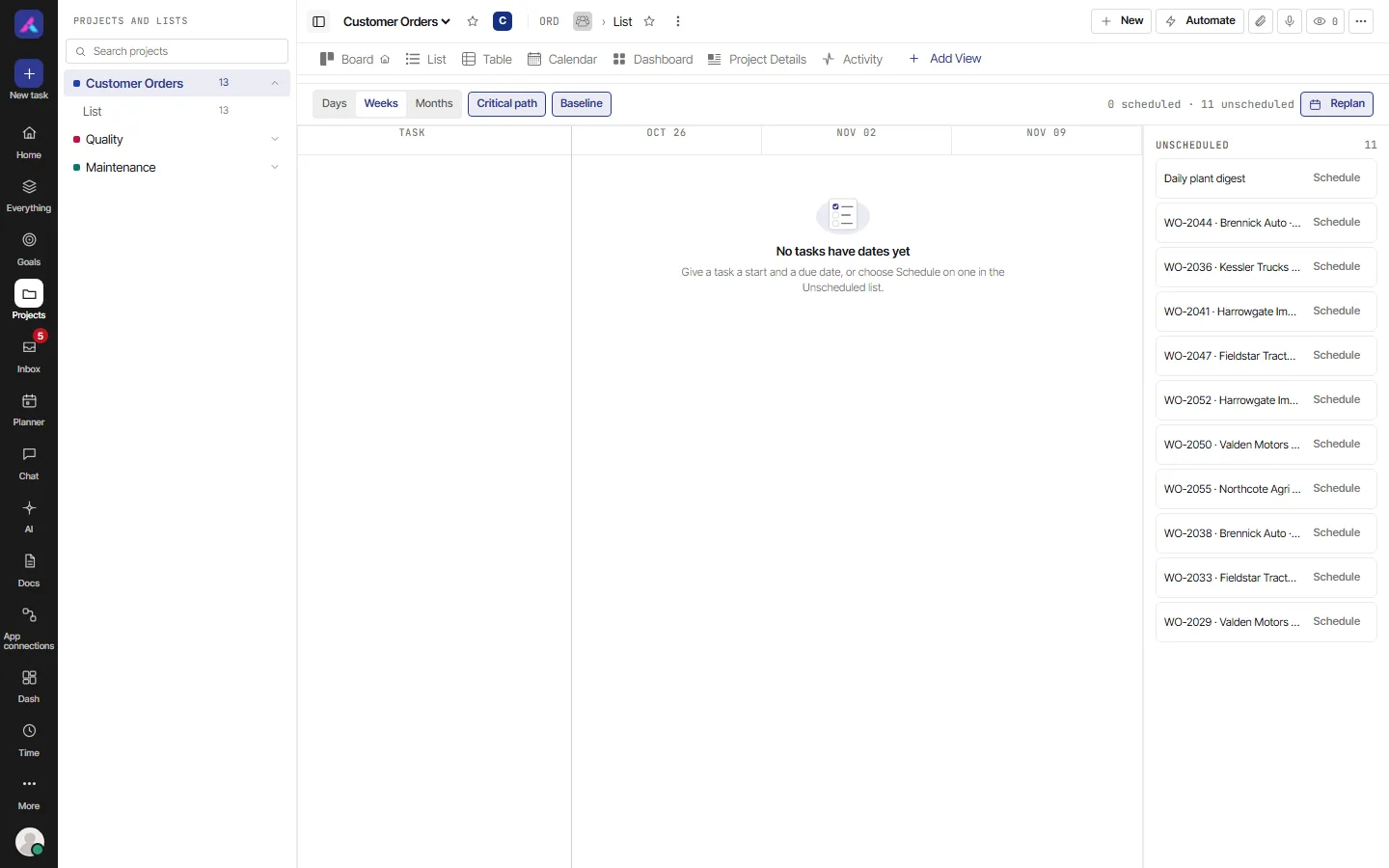
The Gantt draws a bar for each task, from its start date to its due date. Lists are the rows that hold the tasks. Milestones show as diamonds.
- Tasks need both a start date and a due date. Others wait in the Unscheduled tray. Select Schedule on one to give it dates (today to tomorrow). Then drag to adjust.
- Choose Days, Weeks or Months for the scale. It opens on Weeks.
- Critical path and Baseline are buttons you turn on and off. Both start on. The critical path marks the chain of tasks that sets the end date. A baseline is a thin line where the task was first due, shown when the due date has since moved later.
- Replan opens a short note about the critical path, and any change an AI agent has proposed, with a Review link.
- Drag a bar to move it. Drag its edge to change a date. Draw a line from one bar to another to say the first blocks the second. The same links show in a task's Relations tab. Gantt draws only the links that say one task blocks another. It does not draw "Duplicates" or "Relates to".
- When a bar moves later and other tasks wait on it, a box lists the tasks that would move. Choose Shift dependants, Move only this task or Cancel. After a shift, an Undo appears.
- Double-click a bar to open the task.
- If you may not change due dates, it shows View only.
Limits
- It has no search, filter, group or sort, and the toolbar row is not there.
- On a tight scale (Weeks or Months) a small drag snaps back, with a note to switch to Days.
- It does not remember anything for a saved view (see Saved views).
- It needs a wider screen. Below 768 pixels it says "Open this on a desktop".
Plan with dependencies
- Give the tasks a start date and a due date, or select Schedule on each one in the Unscheduled tray.
- Draw a line from one bar to another to say the first blocks the second.
- Turn on Critical path to see the chain of tasks that sets the end date.
- Drag a bar later. If others wait on it, choose Shift dependants to move them too, or Move only this task.
- Turn on Baseline to see where each task was first due.
Working days
When the Gantt moves dependent tasks, it moves them onto working days. Your workspace's working days are set in Settings, then General. A project can set its own in its Project Details.
Gantt or Timeline?
The Timeline view also lays tasks out on dates, more simply: a shared date axis with a tray of unscheduled tasks, and no dependencies. See Embed and other views.
Related
- Views, filters and saved views: search, filter, group, sort, columns, totals and saved views
- Tasks