
Agents in AlianHub
An agent is an AI helper that works on tasks for your team. It can read a task, write a plan, suggest subtasks, post a summary, or nudge work that is stuck. Agents propose changes for a person to approve, and earn more freedom as you come to trust them.
There are two kinds, and both follow the same rules:
| Kind | What it is | Where to read more |
|---|---|---|
| Agents inside AlianHub | Agents your workspace sets up and AlianHub runs, on the AI model your server uses | This page |
| Your own AI app | Claude, ChatGPT or another AI app you connect, which then works in AlianHub for you | Connect your AI |
Every agent acts as a person. It sees only what that person can open, and changes only what that person may change.
Before you start
- AI must be on, and the person who runs your server must have set up an AI provider. See Ask AlianHub.
- Only owners and admins create, change and switch off agents. Everyone else can work with the agents that exist: mention them, assign them, and approve what they propose.
- Some parts, such as workflows and team packs, are switched on by whoever runs your server. If a page says it is switched off on this server, ask them.
Where agents live
Open AI in the left bar. The menu holds:
| Item | What it is for |
|---|---|
| Ask | The built-in assistant. See Ask AlianHub |
| AI Inbox | Everything agents want to change, waiting for a decision, plus their reports and history |
| AI Agents | The agents in this workspace. Owners and admins make new ones here |
| Skill library | The skills agents use |
| Connections | What this workspace is connected to, and what agents may do through each connection |
| Connect your AI | Connect your own AI app |
| Teammates, Routing, Team packs | Agents as members of your team, and which agent takes which task. Under Setup |
| Workflows | Multi-step workflows. Owners and admins only. Under Setup |
| Audit log | Every change an agent made, proposed or was refused |
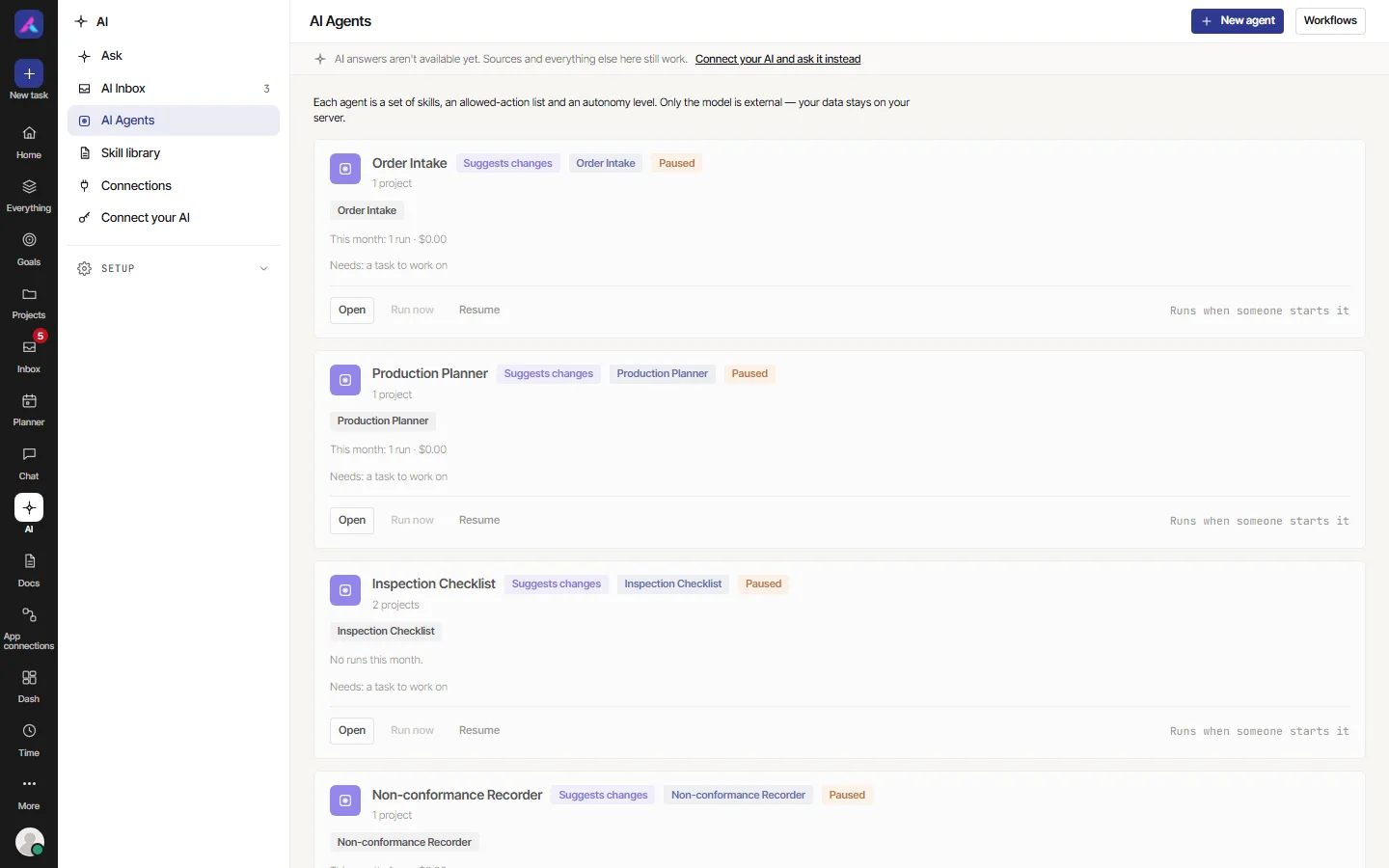
What an agent is made of
| Part | What it means |
|---|---|
| Skills | What the agent knows how to do. For example, "Suggest what to do next", turn a brief into subtasks with estimates, or summarise a Slack channel. |
| Allowed actions | The list of changes it may ever propose, such as commenting or creating subtasks. Anything not on the list does not exist for it. |
| Autonomy | How much it may do without asking. See below. |
| Projects | The projects it may change. With none picked it can still read, but every change is refused. |
| Owner and budget | The person responsible for it, and how much it may spend on the AI model. |
The autonomy ladder
| Level | Name | What it does |
|---|---|---|
| L0 | Answers and suggests | Reads and answers. Any change it finds waits in the AI Inbox for a person. |
| L1 | Suggests changes | Proposes every change. Nothing is written until a person approves it. |
| L2 | Acts, you approve the rest | Makes low-risk, reversible changes to its own task directly (a comment, a nudge, a status within a list, a report). Anything riskier waits in the AI Inbox. |
| L3 | Acts, also on a schedule | Like L2, and may also run on a schedule without anyone starting it. |
A new agent starts low. At L2, moving a task between lists and changing who is assigned still wait in the AI Inbox. Destructive actions, such as deleting, are never available to an agent at any level.
Make an agent (owners and admins)
- Open AI, then AI Agents, and select New agent.
- Start from a template, or choose No template — pick actions yourself.
- Name it, and pick its skills and the projects it may change.
- Choose its autonomy level.
- Save. Every save is a numbered revision, so you can always see which setup produced a given run.
Work with an agent
Anyone can start an agent on a task they can open:
| Way | How |
|---|---|
| Mention it | In a task comment, type @ and the agent's name, then send. "Mentioning an agent starts a run on this task." |
| Assign it | Use Assign an agent on a task. It runs its skills on the task, posts what it found as a comment, and hands back to a person with a suggested next assignee. It never marks a task done. |
| Run it on a task | On the agent's page, select Run now and pick a task. |
| Write to it | Agents appear in Chat with an AGENT tag. Writing to one is like writing to a person. |
| On a schedule | An L3 agent can run a read-only report every day, Monday to Friday or once a week. The report lands in the Inbox of the person it runs as, and can also be emailed. |
Agents show as a rounded square with an AGENT tag everywhere they speak or act, so they are never mistaken for a person. An agent takes no seat on your plan.
Follow a run
Each run has a page with its steps, what it read, what it proposed and what it changed.
| Status | Meaning |
|---|---|
| Queued | Waiting to start |
| Running | Working now |
| Waiting for approval | It proposed a change, and a person must decide |
| Done | Finished |
| Skipped | Nothing to do |
| Failed | Something went wrong. The run page says what |
| Stopped | A person stopped it. Everything it had done so far is kept |
| Abandoned | It did not finish and was given up |
Approve what it proposes
A change waiting for a person appears in the AI Inbox and in your Inbox's Needs your approval tab. You can Approve, Edit (where allowed) or Decline. An approved change can be undone for a while afterwards. See Approve in the Inbox and Undo a change.
The AI Inbox also has tabs for Reports that agents delivered, changes Done by AI, and changes you Declined. When you decline the same kind of change several times, My settings may suggest a preference so agents ask less often.
Team packs and role agents
AlianHub ships written job descriptions, called role playbooks, for teams in eight kinds of company: an IT company, a manufacturer, an agency, an online store, a professional services firm, a school, a construction firm and a clinic. A role might be a Bug Triager, a Release Manager or a Quote Preparer.
- A team pack switches a team's roles on in the projects you pick, in one go. Open AI, then Team packs.
- A project's dispatcher can then suggest which role should take each new task, or send it straight to that role's queue. A project lead accepts, dismisses or changes a suggestion.
- Your own AI app can "work as" a role, following its playbook.
A playbook gives no new rights. The agent still acts as a person and still needs approval where the project asks for it. All the details are in Team packs and role agents.
Workflows
A workflow chains steps together: for example, an agent drafts a plan, a person approves it, then another agent creates the tasks. Owners and admins build them in AI, Workflows: "Compose the steps once, try it against a real task, then turn it on."
- Each run of a workflow has its own page showing every step and where it is now.
- An approval step waits for a named person or role. It appears in AI Inbox, on the Approvals tab. See Approvals.
- A step that fails says what went wrong. Depending on the failure, it can be retried or skipped.
- A workflow can have a time and spending limit.
Pause and limits
- Pause all agents, in the AI menu, stops every connected agent from changing anything in the workspace until an owner or admin resumes them.
- Each project can pause agents or limit how many work at once.
- Each agent has an hourly run limit and a spending budget.
See Limits and pause.
What agents never do
- Act outside what the person they run as can open or change.
- Approve their own proposals, or decide anything that needs a person, such as timesheet approval.
- Delete things. Destructive actions do not exist for agents.
- Mark a task done when assigned to it.
Every change, proposal and refusal is written to the audit log.