
Board view
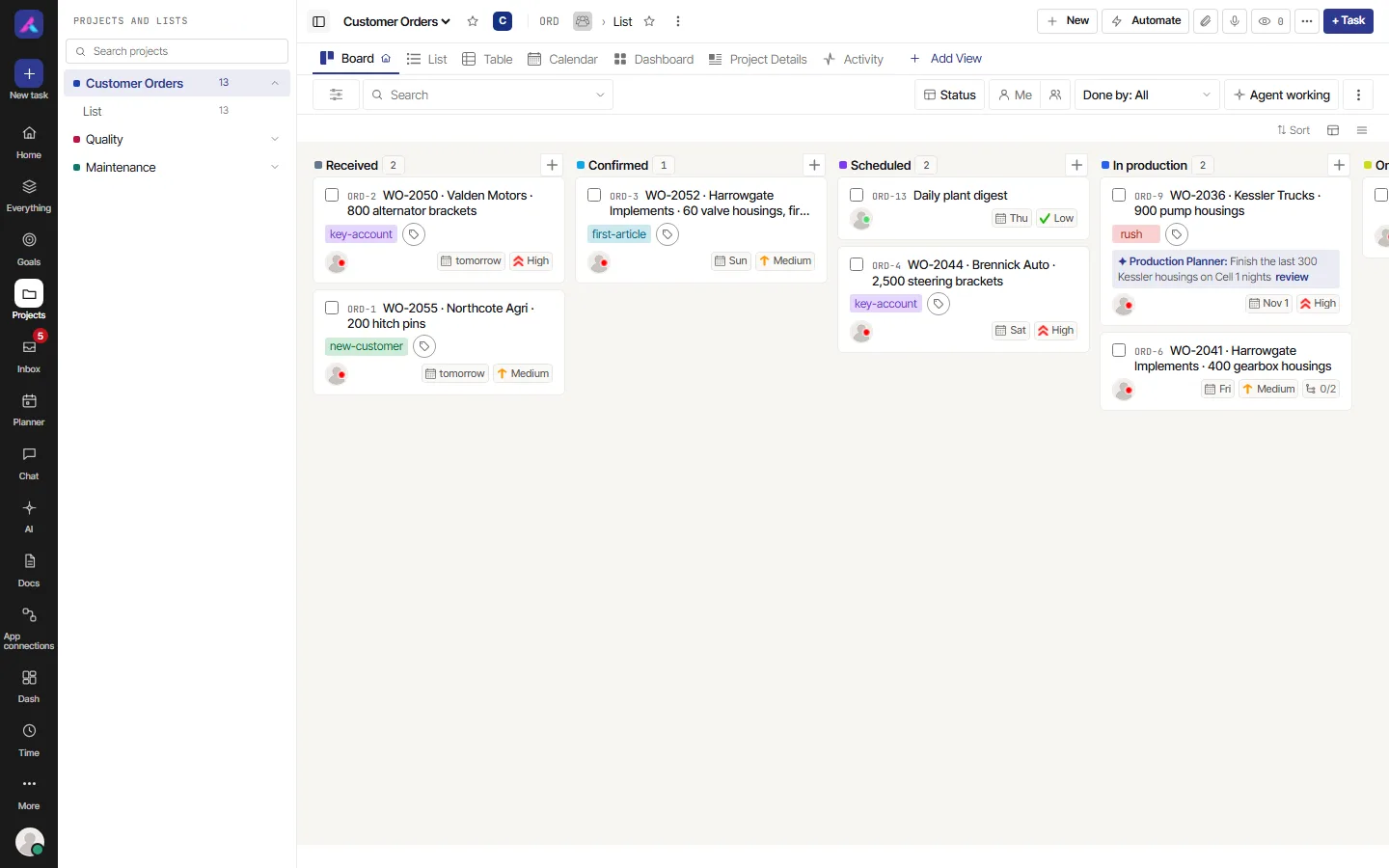
The Board view shows one column per group and one card per task. With the columns set to statuses, it is a kanban board: drag a card to the next column to move the work along.
How it works
The Board has one column for each group. Each card is a task. With Group by on Status, drag a card to another column to change its status. With another Group by, the same drag changes that value instead (the assignee, the priority and so on).
- The number at the top of a column is its task count. Select it to open In-progress limit. Type a number. The limit is saved for everyone on the project. Going over it shows a warning. It never stops a move.
- Select the plus button on a column to add a task to it.
- When a column has more cards, the bottom shows a button like "+5 more". Select it to load them.
- Above the columns are Sort, Card fields and Row density.
Limits
- It shows one list at a time. Open the list you want.
- It has no totals. A column shows only its count.
- A few columns are for reading only, such as the number ranges made from a Number field. You cannot drop a card there.
- The Collapse subtasks button is not on the Board.
Use the Board for a stand-up
- Open the list you want. The Board shows one list at a time.
- Leave Group by on Status, so each column is a status.
- Select Me to see only your cards, or pick people with Assignee.
- Drag each card to where it really is.
- Set an In-progress limit on the busy column, so the team sees when too much is started at once.
Change many cards at once
Tick several cards. The bar at the top changes status, assignee, list or tags, or archives and deletes, for all of them in one go.
On a phone
Press and hold a card for a moment before you drag it.
Related
- Views, filters and saved views: search, filter, group, sort, columns, totals and saved views
- Tasks