
List view
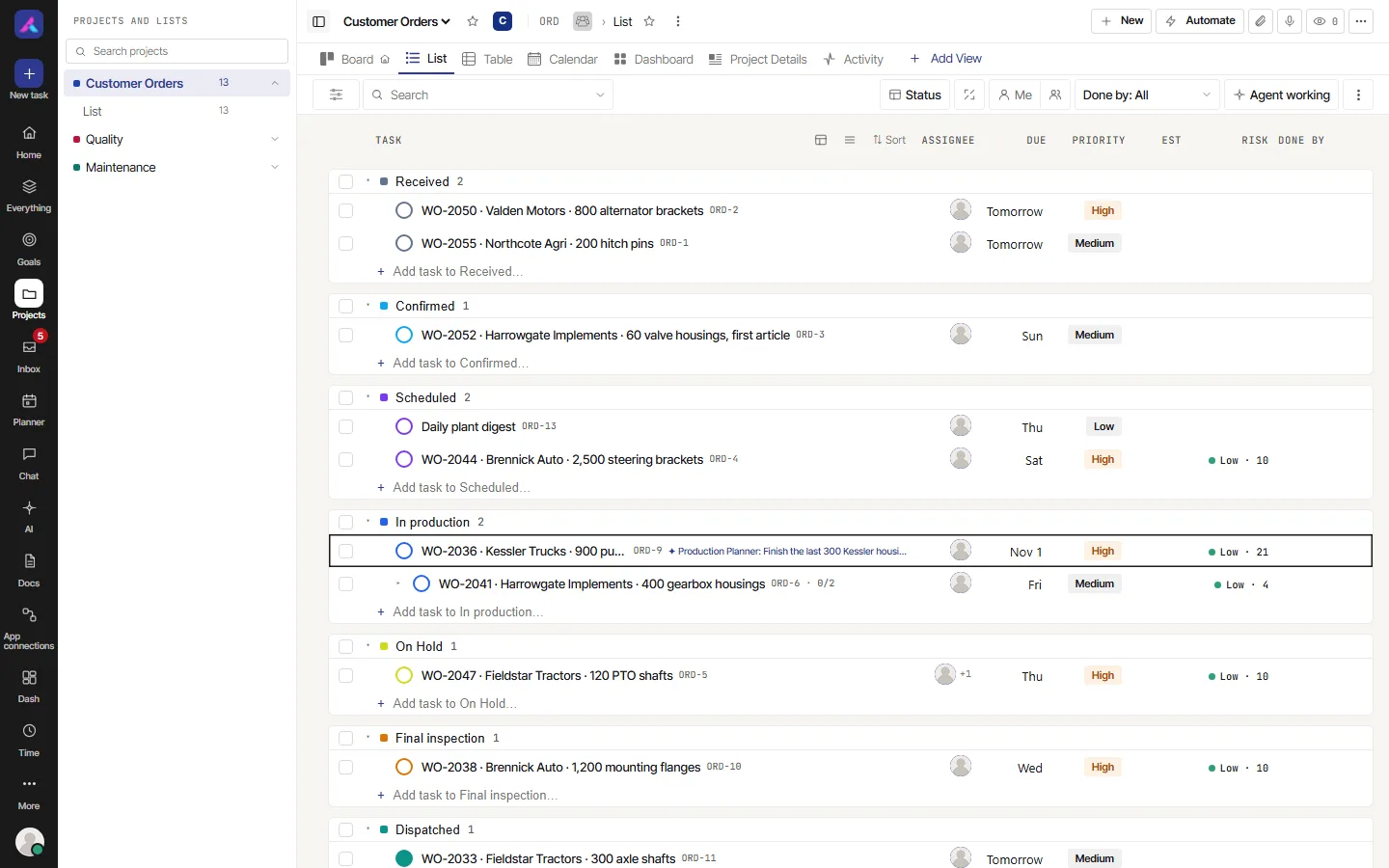
The List view shows tasks in rows, in groups. It is the view a project opens on, and the fastest way to read and change many tasks at once.
How it works
Tasks sit in rows. If the project has several lists, each list has a heading. Opening one list closes the others. Inside a list, tasks are grouped by the Group by choice (Status unless you change it).
- Each group has a header with its name and its task count. When the tasks have estimates, the header also shows hours, like "5 · 12H". Those hours add up only the tasks loaded so far.
- At the bottom of each group, select Add task to that group to add a task.
- Change status, assignee, due date and priority right in the row.
- Drag a row by its handle to put it in another place or another group. Dragging is off while a sort is on.
- Tick the box beside tasks to change many at once. A bar shows how many are selected.
- A group that has more tasks than fit shows Load more.
Good to know
- Only one sort works at a time, and it sorts the tasks that are loaded. When some tasks are still waiting to load, the List says "Only the (number) loaded tasks are sorted."
- On a narrower screen the List hides some columns. At 1100 pixels wide or less it hides Done by. At 1024 or less it keeps only Tags, Assignee, Due and Priority.
- The Collapse subtasks and Expand subtasks button is only in the List.
Controls in the toolbar
| Control | What it does |
|---|---|
| Search | Finds tasks by name, key or description |
| Filter | Narrows the tasks by status, due date, priority, fields and more |
| Me and Assignee | Shows only tasks you, or the people you pick, are on |
| Done by | Shows work done by people, by agents, or both |
| Group by | Splits the list into groups. Status unless you change it. |
| Sort | Orders the tasks in each group |
| Columns | Chooses the columns: Tags, Assignee, Due, Start, Priority, Est, Points, Created, Updated, Risk, Done by and your custom fields |
| Row density | Comfortable or Compact |
| Collapse subtasks / Expand subtasks | Hides or shows subtasks under their parent. Only in the List. |
All of these are explained on Views, filters and saved views.
Change many tasks at once
- Tick the box beside each task.
- Use the bar that appears: Status, Priority, Assignee, Due date, List, Tags, Convert, Ask AI to…, Archive or Delete.
- Undo appears for a moment after each change.
See Tasks for what each button does.
Related
- Views, filters and saved views: search, filter, group, sort, columns, totals and saved views
- Tasks