
Quick tour
This page walks you through the main screens of AlianHub in the order you are likely to meet them. For each one it says what it is for and what you do there. You can read it before you sign in, or keep it open beside the app the first time you look around.
The built-in tour
AlianHub has its own short tour too. On Home, the Getting started card has Take the tour. It points at the left bar, the project tree, the view tabs and the task panel in turn.
The left bar
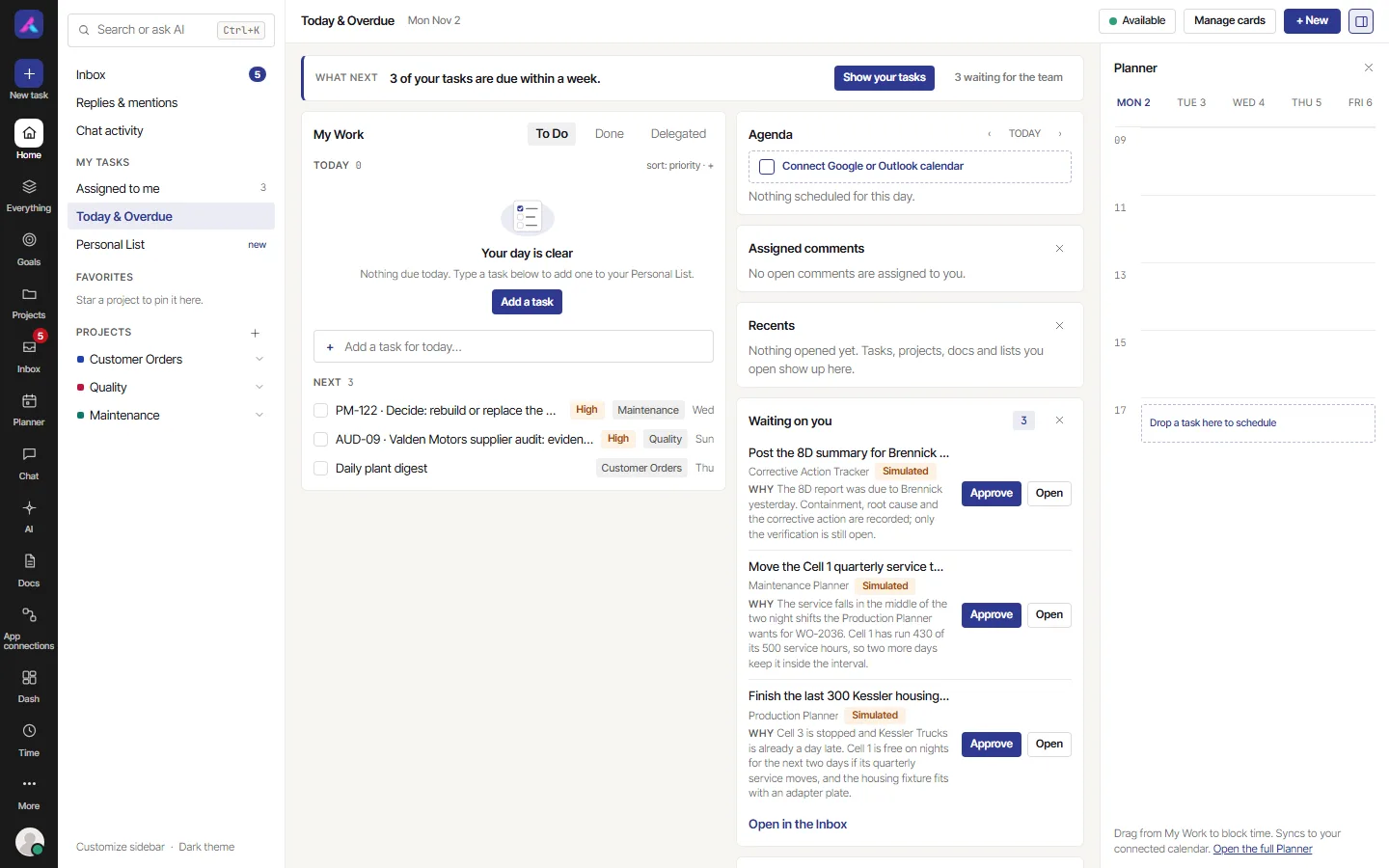
The bar down the left edge is how you get everywhere. Home, Projects and Inbox are always one click away. On a phone, it moves to the bottom of the screen and the rest sits under More.
| Place | What it is for |
|---|---|
| New task | Add a task from anywhere. The key C does the same. |
| Home | Your day: what is due today, what is late, and what is next. |
| Everything | Every task you can open, across all projects, with filters. In the simple bar it is called My work. |
| Projects | All your projects, and the way into each one. |
| Inbox | What needs you: mentions, replies, reminders and approvals. |
| Planner | Block out time for your tasks across the week. |
| Chat | Channels and direct conversations with your team. |
| AI | Ask the built-in assistant, or Connect your AI app. |
| Docs | Pages of writing: briefs, specs, notes, wiki pages. |
| Time | Your timesheet, logged time and timers. |
| More | Reports, Members, Approvals, Automations, Trash, Settings and the rest. |
At the bottom of the bar is your picture. It opens My profile, Keyboard shortcuts, the light and dark theme, Switch workspace and Log out.
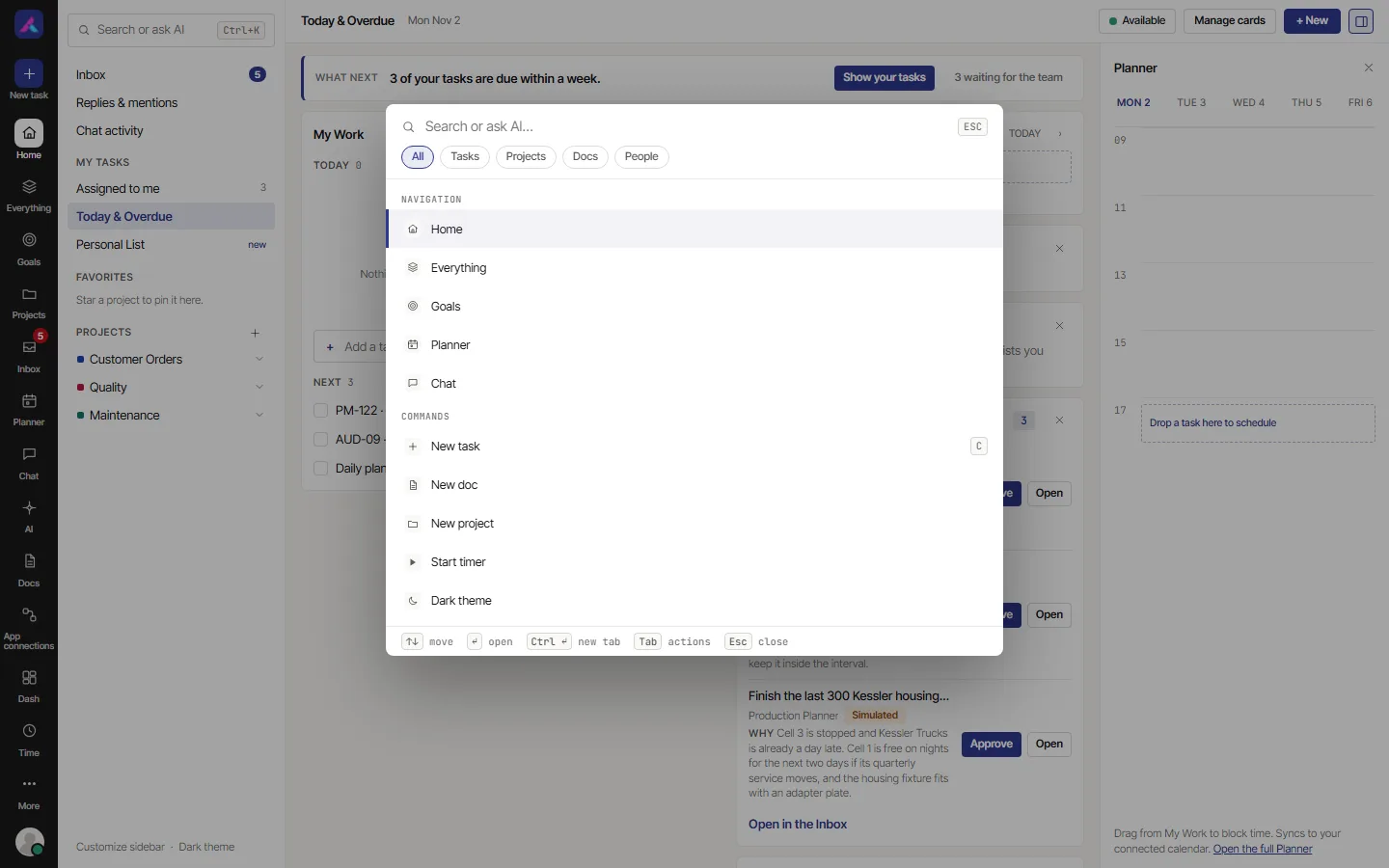
The search box, Search or ask AI, finds tasks, projects, docs and people, and runs commands. Press Ctrl and K (Cmd and K on a Mac) to open it from anywhere.
Home
Home is where you land after you log in. Today & Overdue lists the tasks due today and anything late, across every project. Tick one off here and it is done everywhere. Home also shows your favourite projects (star a project to pin it), and cards you can add, such as a milestone summary for owners and admins.
Projects
Projects lists every project you can open. Each row shows the project's health (On track, At risk or Blocked), its current list, how far along it is, and its owner.
- New project starts one, blank, from a template or from a description.
- Filter switches between Active projects and Archived projects, and can show Favourites only.
- The three dots on a row open, favourite, duplicate, save as a template, close, archive or delete the project.
See Projects.
Inside a project
A project page has three parts:
- The project tree on the left: the project's folders and lists. Select a list to see its tasks.
- The header: the project's name and key, a star, Automate (owners and admins), Files & Links, Watchers, and the More menu with the project's own settings.
- The view tabs: List, Board and any others the project has. Add View at the end adds more.
New at the top of the project adds a Task, a New list or a New folder.
The views
Each view shows the same tasks in a different way. Changing view never changes the tasks.
| View | What it is for |
|---|---|
| List | Read and edit many tasks fast, grouped by status or anything else |
| Board | Drag cards between columns to move work along |
| Table | Compare tasks side by side, like a spreadsheet |
| Calendar | See what is due this month |
| Gantt | Plan in time, with tasks that wait on each other |
| Workload | See who has too much on |
| Embed, Docs, Forms and more | Bring a sheet or a design into the project, write docs, collect requests |
See Views, filters and saved views.
The task panel
Select a task and it opens in a panel at the side, so you never lose your place in the list. From top to bottom:
- The task's key (select it to copy), a link button, and arrows to move to the previous or next task (K and J).
- The name, and Complete to mark it done.
- Details: Status, Assignee, Priority, Start Date, Due Date, estimates, the list it lives in, type, tags and your custom fields.
- Tabs for Description, Subtasks, Files and Relations.
- Activity: Comments to talk about the task, and History of every change.
- Time, when the project tracks time: a timer and the time logged.
Press Esc to close it. See Tasks.
Inbox
The Inbox gathers what needs you, so you do not have to check every project. Primary holds mentions, comments assigned to you, replies and reminders. Other holds updates on things you only watch. Needs your approval holds time-off requests and changes an AI has proposed. You can open, reply, mark done, snooze or clear each row.
See The Inbox and Chat and the Inbox.
Time
Time is where your hours live. Mine is your weekly timesheet: a row per task and a column per day. You can log time there, or start a timer on a task. At the end of the week, Submit week sends it for approval. If your role allows, other tabs show time by project, the team's workload, and the desktop tracker.
See Time and timesheets.
Docs
Docs lists every doc you can see: recent ones, ones you made, ones shared with you, wiki pages and one entry per project. New doc starts a page that saves itself as you type. A doc can be shared with the project, kept private, shared with named people, or published with a read-only link.
See Docs and whiteboards.
Settings
Open Settings from More. The left side has two groups:
- Personal: My settings, Notifications, Sign-in & security, and the workspaces you belong to.
- Workspace (depending on your role): General, Members, Teams, Projects, Custom Field Manager, Security & permissions, Integrations, Templates, Task templates, Time Off, Time Tracking, Audit Log, billing and more.
See Your settings.