
4. Views
A view is a way of looking at the same tasks. The tabs sit at the top of the project. Changing view changes nothing about your tasks.
A new blank project shows List and Board. To add others, select Add View at the end of the tabs.
| View | What it shows | Use it when |
|---|---|---|
| List | Tasks in rows, grouped by list. Group by Status, Assignee, Priority or Due date. | You want to see and edit many tasks fast. It opens first. |
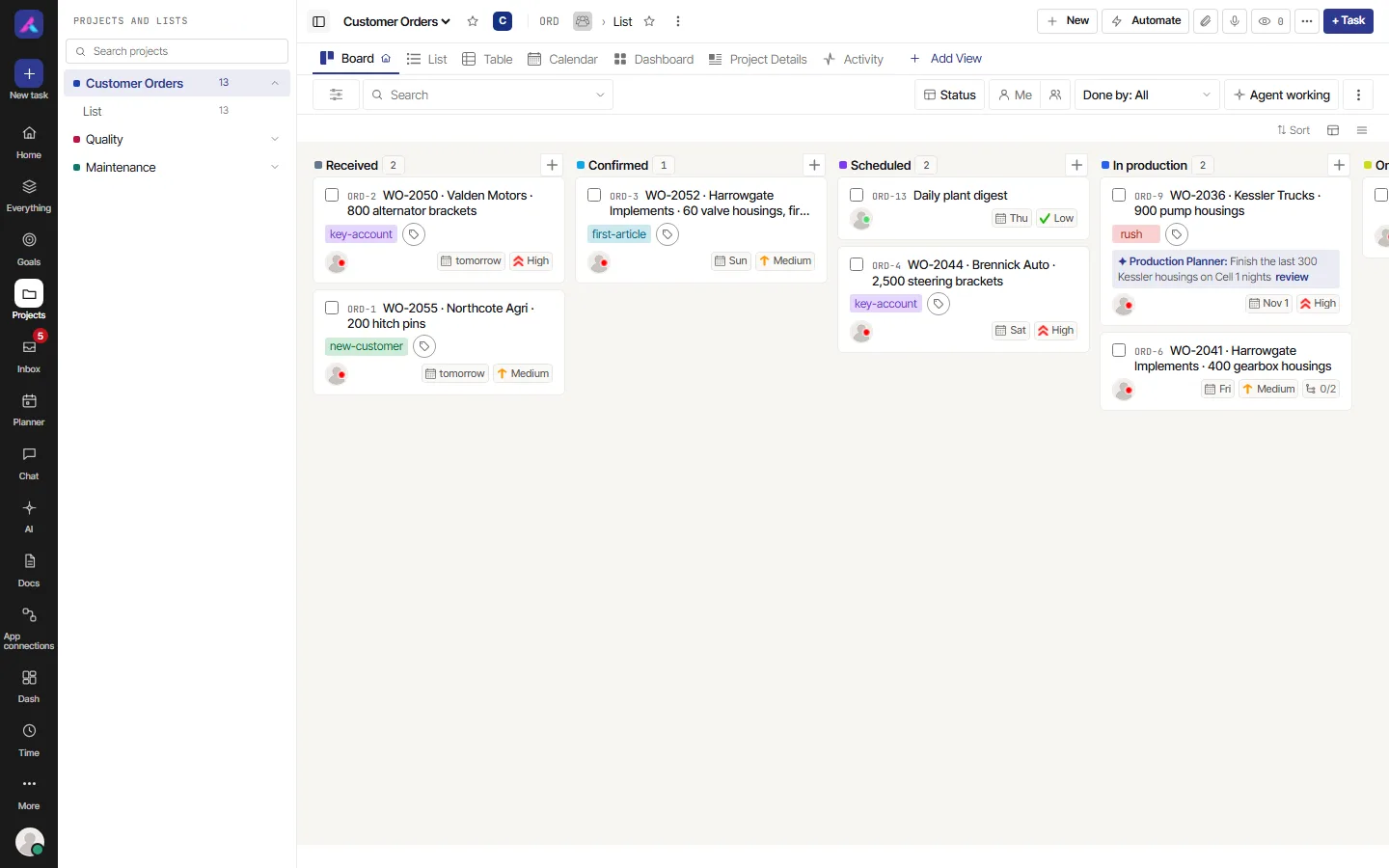
| Board | One column for each status. Drag a card to change its status. | You want to see how work moves from start to done. |
| Table | A grid with sortable columns, like a spreadsheet. | You want to compare tasks side by side. |
| Calendar | Tasks on their dates. Tasks with no date wait in an Unscheduled side tray. Drag one onto a day to give it a date. | You care about what is due this week or month. |
| Gantt | A bar for each task, from its start date to its due date. | You plan in time. Tasks need both a start date and a due date. |
Good to know:
- Gantt only draws tasks that have both dates. Others wait in its Unscheduled list, where Schedule gives them dates.
- In the Gantt view, arrows come from links made in a task's Relations tab.
- Gantt needs a wide screen. It does not open on a phone.
- On the Board, the columns follow the Group by choice. The default is Status.
Related
- Next: Bring people in
- Views, filters and saved views: every view, filter, group, sort and saved views in depth