
2. Your first project
A project is one piece of work with a goal, such as a launch or a client job. Everything else (lists, tasks, views, docs) lives inside a project.
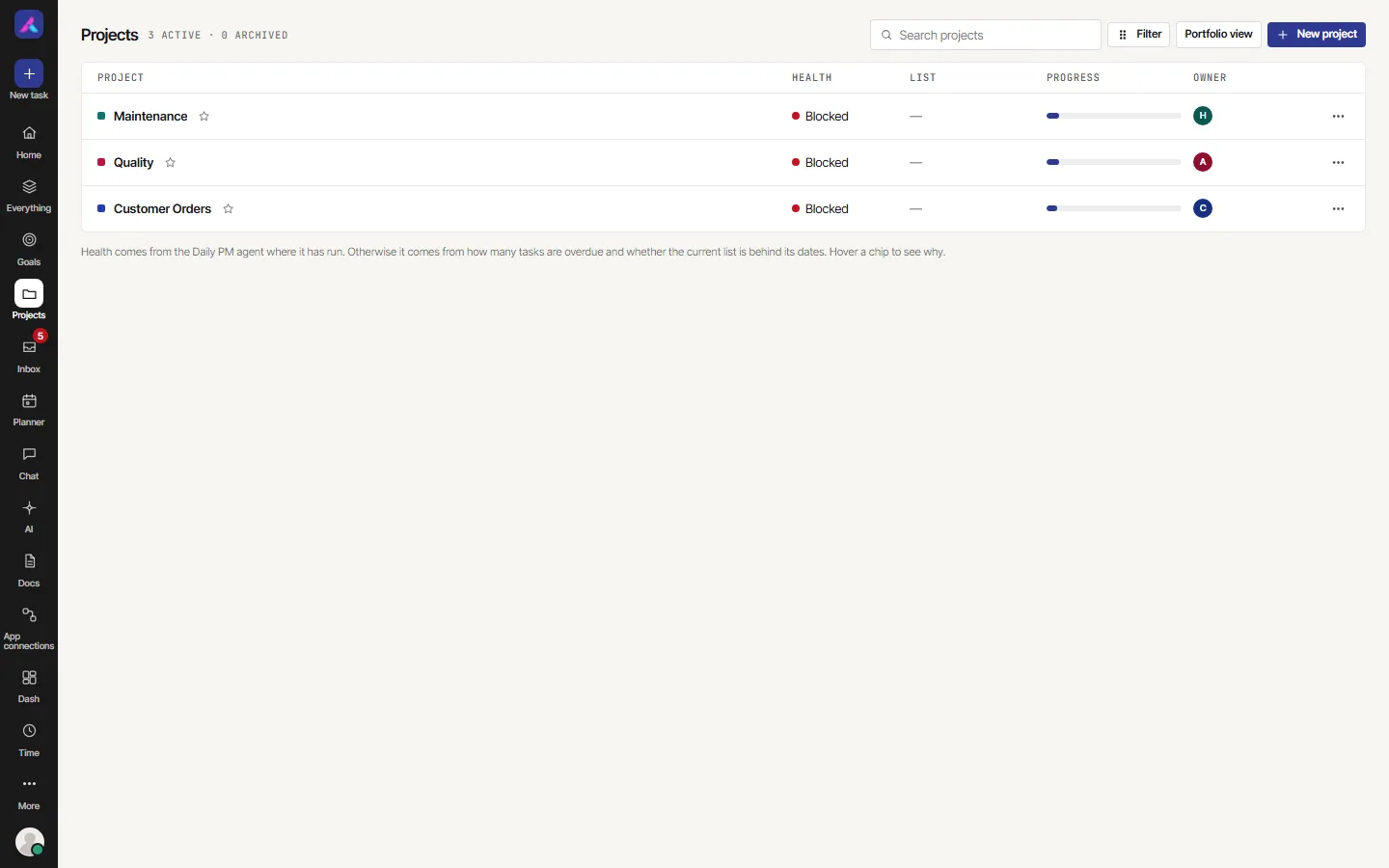
Start from Projects in the left bar, then select New project. On Home, Create a project does the same.
You have three ways to begin.
Start blank
- In the New project window, leave Blank chosen. It gives you three statuses, To Do, In Progress and Done, and nothing else.
- Type a Project name of at least 3 characters.
- A short Key fills in from the name. It must not match another project's key.
- Choose Visibility: everyone in your workspace, or Only people I add.
- Choose a Source. The screen needs one before it lets you go on.
- Select Create project.
Start from a template or the sample
- Pick a template in the left column of the same window. Each shows its statuses and how many sample tasks it brings.
- If you kept the sample project on in step 1, you already have Welcome to AlianHub. It has a SAMPLE badge. Read it, then remove it when you are done with Remove sample data.
- A template with sample tasks has a tick box to include them.
Tell your AI what you need
- In the New project window, Create from a description asks you to describe the project. AI drafts the lists and tasks for you to review. You see this option only when AI is switched on for you.
- If you connected an outside AI app (see Connect your AI app), say "Set up my project". It asks a few questions and shows a plan. Nothing is made until you say yes.
What you see after
A new blank project opens on the List view and says "This project has no tasks yet".
Related
- Next: Lists, folders and tasks
- Projects: every field of the New project window, closing, archiving and deleting
- Templates